Screen Mirror to Samsung TV: 3-Tap Method (No App Needed)

Last updated: May, 2026
Quick Answer: You can screen mirror to a Samsung TV in about three taps using your Android phone’s built-in Quick Settings panel — no third-party app required. Pull down the notification shade twice, tap the “Smart View” or “Screen Mirror” tile, then select your Samsung TV from the list. Both devices must be on the same Wi-Fi network.
Key Takeaways
- The 3-tap method works on most Android phones (Samsung, Google Pixel, OnePlus, and others) running Android 10 or later.
- No app download is needed — the feature is built into Android’s Quick Settings and Samsung’s SmartThings ecosystem.
- Your phone and TV must be on the same Wi-Fi network for the connection to work.
- Samsung TVs from 2016 onward support wireless screen mirroring natively.
- iPhone users need AirPlay or a third-party app — the 3-tap method is Android-only.
- Screen mirroring shows your entire phone screen, including notifications, unless you use Do Not Disturb first.
- Common connection failures are usually caused by different Wi-Fi networks or a disabled mirroring setting on the TV.
- The method works for gaming, presentations, photo sharing, and streaming content not available on Samsung’s app store.
What Is the 3-Tap Screen Mirror Method for Samsung TV?
The 3-tap method is the fastest way to wirelessly cast your Android phone’s display to a Samsung TV without installing any app. It uses Android’s native Quick Settings shortcut — the same panel where you toggle Wi-Fi or Bluetooth — to start a direct wireless connection to your TV.
Here’s the core process:
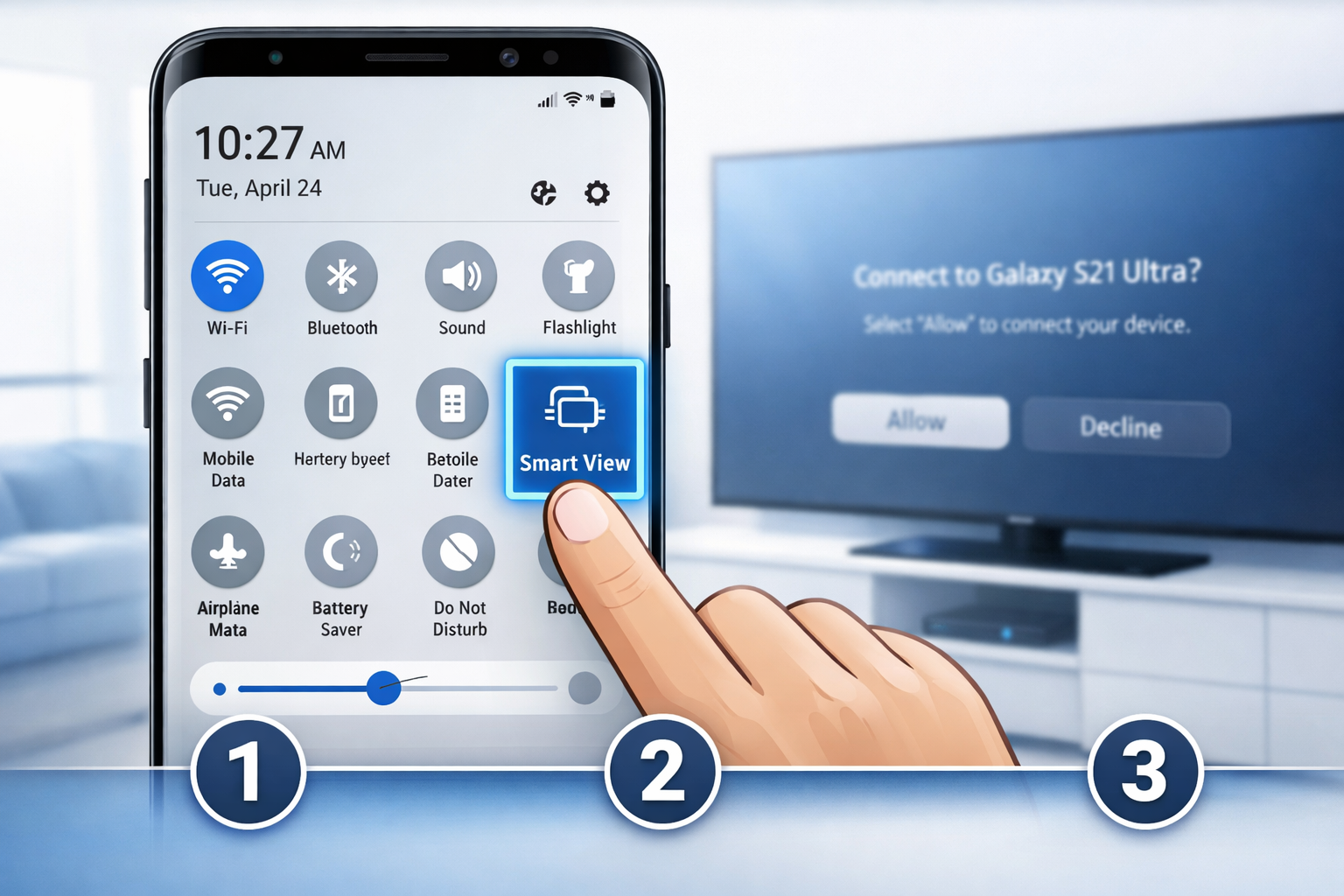
- Tap 1: Swipe down from the top of your phone screen twice to fully expand the Quick Settings panel.
- Tap 2: Tap the “Smart View,” “Screen Mirror,” or “Cast” tile (the icon looks like a screen with a Wi-Fi signal).
- Tap 3: Tap your Samsung TV’s name from the device list that appears.
That’s it. Your phone screen appears on the TV within a few seconds.
💡 Quick tip: If you don’t see the tile immediately, swipe left on the Quick Settings panel — it may be on the second or third page of shortcuts.
Which Devices Support the Screen Mirror to Samsung TV: 3-Tap Method (No App Needed)?
This method works on a wide range of devices, but not every combination is compatible. Here’s a clear breakdown:
Compatible Android Phones
| Brand | Tile Name | Android Version Required |
|---|---|---|
| Samsung Galaxy | Smart View | Android 10+ |
| Google Pixel | Cast | Android 10+ |
| OnePlus | Screen Mirror | Android 11+ |
| Motorola | Cast | Android 10+ |
| Xiaomi | Wireless Display | Android 10+ |
Compatible Samsung TVs
- Samsung Smart TVs from 2016 onward (Series 5 and above)
- QLED, Frame TV, Crystal UHD, and Neo QLED models
- Tizen OS-based TVs (most Samsung Smart TVs since 2015)
Not Compatible
- iPhones and iPads — Apple devices use AirPlay instead. See our guide on how to use AirPlay on Samsung TV for iPhone-specific steps.
- Older Samsung TVs (pre-2016 models without Tizen OS)
- Non-Smart TVs unless you add a streaming stick
Choose this method if: You have an Android phone and a Samsung Smart TV from 2016 or later, and you want the fastest possible connection without installing anything.
Step-by-Step: How to Screen Mirror to Samsung TV Using the 3-Tap Method
Follow these steps exactly for the smoothest experience.
Before You Start
- Confirm your phone and Samsung TV are on the same Wi-Fi network (not one on 2.4GHz and the other on 5GHz with different SSIDs).
- Turn on your Samsung TV and leave it on the home screen or any input.
- Optional: Enable Do Not Disturb on your phone so notifications don’t appear on the big screen.
The 3-Tap Process
Step 1 — Open Quick Settings fully:
Swipe down from the top of your phone screen. On most Android phones, one swipe shows a partial panel. Swipe down a second time (or use two fingers in a single swipe) to expand the full Quick Settings grid.
Step 2 — Tap the mirroring tile:
Look for one of these tiles depending on your phone brand:
- Samsung Galaxy: Smart View (blue TV icon)
- Google Pixel / Stock Android: Cast
- Other Android: Screen Mirror, Wireless Display, or Mirror Screen
Tap it once. A list of nearby compatible devices will appear automatically.
Step 3 — Select your Samsung TV:
Your TV’s name (usually something like “Samsung [55″ TV]” or a custom name you’ve set) will appear in the list. Tap it. Your phone screen will appear on the TV within 3–8 seconds.
On the TV Side
The first time you connect, your Samsung TV may show a permission prompt asking whether to allow the connection. Use your remote to select “Allow.” After that, future connections from the same phone are automatic.
For a deeper look at all available mirroring options, including wired methods, see our complete guide to screen mirroring on Samsung TV.
How to Enable Screen Mirroring on Your Samsung TV First
If the 3-tap method isn’t finding your TV, the mirroring feature may be turned off. Here’s how to enable it.
- Press the Home button on your Samsung remote.
- Go to Settings (gear icon).
- Select General (or Connection on newer models).
- Choose External Device Manager.
- Turn on Device Connection Manager or look for Screen Mirroring and make sure it’s enabled.
Alternatively, on some Samsung TVs you can access this faster:
- Press the Source button on your remote.
- Scroll to Screen Mirroring in the input list.
- Select it and wait for the TV to enter pairing mode.
If you’re having trouble finding settings on your TV, our guide on how to find Samsung TV settings covers the menu layout for every major model year.
Why Isn’t the Screen Mirror to Samsung TV: 3-Tap Method (No App Needed) Working?
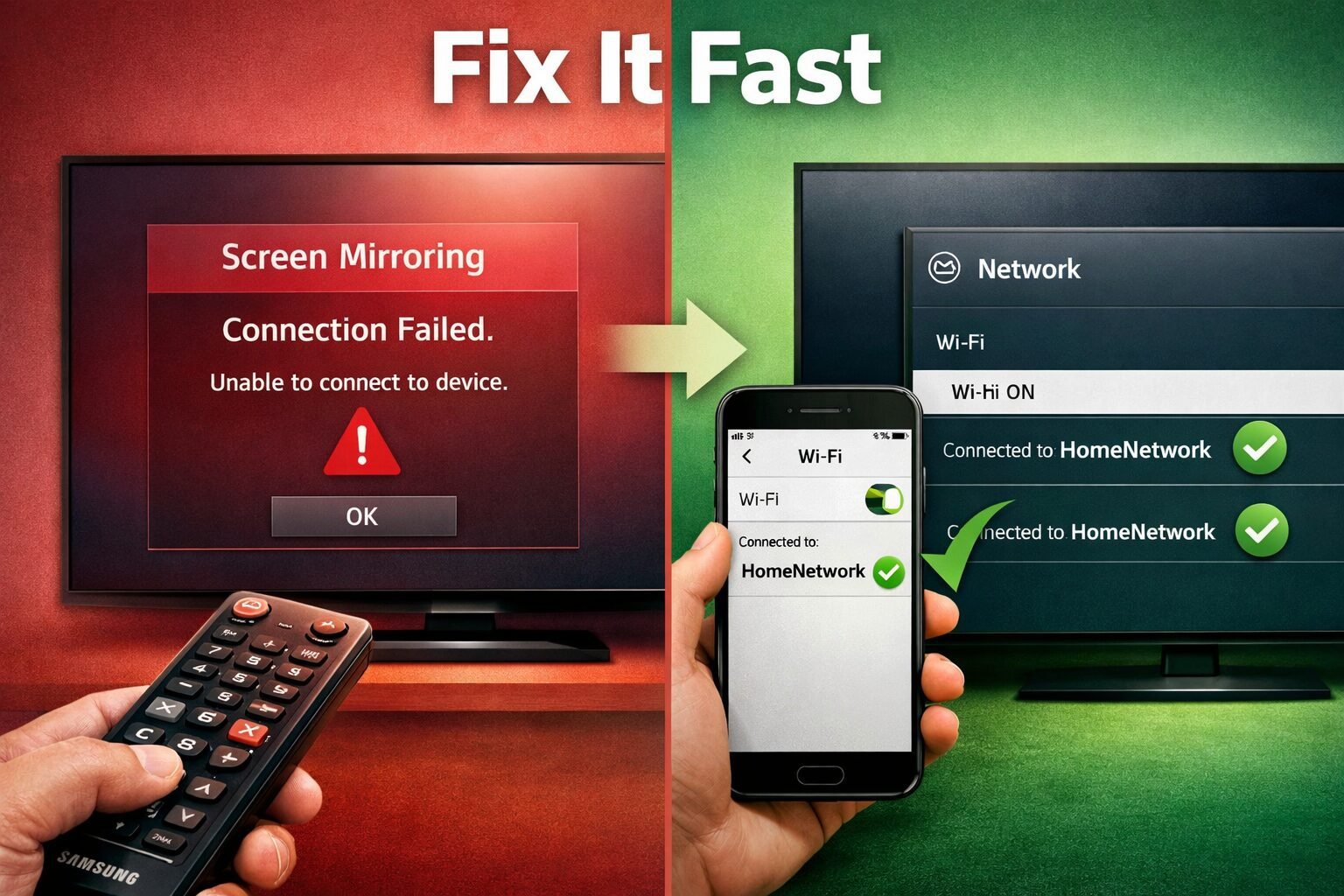
When the 3-tap method fails, the cause is almost always one of five things. Here’s how to diagnose and fix each one quickly.
Problem 1: TV Not Appearing in the Device List
Fix: Both devices must be on the exact same Wi-Fi network. Check your phone’s Wi-Fi settings and your TV’s network settings. If your router broadcasts separate 2.4GHz and 5GHz networks with different names, make sure both devices use the same one.
Also check that your TV’s screen mirroring is enabled (see the section above).
Problem 2: Connection Drops After a Few Seconds
Fix: This is usually a Wi-Fi signal strength issue. Move your router closer, or switch both devices to the 5GHz band for a more stable connection. You can also try clearing the cache on your Samsung TV to free up memory that may be causing instability.
Problem 3: Smart View / Cast Tile Is Missing
Fix: The tile may be hidden. In Quick Settings, tap the pencil/edit icon to customize your tiles and add the Smart View or Cast tile to your active shortcuts.
Problem 4: Lag or Poor Video Quality
Fix: Screen mirroring is sensitive to network congestion. Close background apps on your phone, reduce the number of devices on your Wi-Fi, and check that your TV’s processing mode isn’t adding extra latency. For gaming specifically, enabling Samsung TV Game Mode can reduce display lag noticeably.
Problem 5: TV Shows “Connection Failed” Error
Fix: Restart both your phone and TV. If the problem persists, go to your TV’s network settings and select Reset Network, then reconnect to Wi-Fi. Our full Samsung TV screen mirroring not working guide covers advanced fixes for persistent failures.
Screen Mirroring vs. Casting vs. AirPlay: What’s the Difference?
These three terms get used interchangeably, but they work differently. Knowing which one you’re using helps you troubleshoot faster.
| Feature | Screen Mirroring (3-Tap) | Casting (e.g., Chromecast) | AirPlay |
|---|---|---|---|
| Shows entire phone screen | ✅ Yes | ❌ No (app-specific) | ✅ Yes |
| Requires app on phone | ❌ No | ✅ Usually | ❌ No (built-in iOS) |
| Works on Samsung TV natively | ✅ Yes | Partial | ✅ Yes (2018+ TVs) |
| Best for | Presentations, gaming, photos | Streaming video | iPhone/iPad users |
| Battery drain on phone | Higher | Lower | Medium |
Key distinction: Casting sends a video stream directly to the TV, so your phone is free and uses less battery. Screen mirroring duplicates your entire display in real time, which uses more processing power but works for anything on your screen — including apps that don’t support casting.
If you’re an iPhone user, casting to a Samsung TV works differently. Our guide on how to cast iPhone to Samsung TV walks through the AirPlay setup process step by step.
Can You Screen Mirror Without Wi-Fi?
Yes, but it requires a workaround. The standard 3-tap method needs Wi-Fi. Without it, you have two options:
Option 1 — Wi-Fi Direct: Some Samsung TVs and Android phones support Wi-Fi Direct, which creates a peer-to-peer connection without a router. Go to your TV’s Network Settings and look for Wi-Fi Direct. On your phone, search for Wi-Fi Direct networks in the Wi-Fi settings menu.
Option 2 — HDMI Cable: A USB-C to HDMI adapter (for phones with USB-C video output) gives you a wired, zero-lag connection. This is the most reliable option for presentations or gaming where latency matters.
Option 3 — Mobile Hotspot: Create a hotspot on a third device, connect both your phone and TV to it, then use the standard 3-tap method. This works but uses mobile data.
Practical Uses for the 3-Tap Screen Mirror Method
The no-app screen mirror method is more versatile than most people realize. Here are the most common use cases in 2026:
- Sharing photos and videos from your camera roll on a big screen during family gatherings
- Presenting slideshows or documents from Google Slides or Microsoft Office mobile apps
- Playing mobile games on a larger display (pair a Bluetooth controller for the best experience)
- Watching content from apps not available on Samsung’s smart TV platform
- Video calls via Zoom or Google Meet on a bigger screen
- Demonstrating apps to someone else without passing your phone around
For Android users specifically, our guide on how to cast Android to Samsung TV covers additional casting methods beyond the Quick Settings shortcut.
FAQ: Screen Mirror to Samsung TV: 3-Tap Method (No App Needed)
Q: Does the 3-tap method work on all Samsung TVs?
A: It works on Samsung Smart TVs from 2016 onward running Tizen OS. Older or non-smart Samsung TVs don’t support wireless screen mirroring natively.
Q: Do I need a Samsung phone to use Smart View?
A: No. Any Android phone with a “Cast,” “Screen Mirror,” or “Wireless Display” tile in Quick Settings can connect to a Samsung TV. The tile name varies by manufacturer.
Q: Why does my phone screen look blurry on the TV?
A: Screen mirroring compresses the signal over Wi-Fi. Move closer to your router or switch to a 5GHz band. If the TV’s sharpness settings are too high, that can also create an artificial edge effect — check our best picture settings guide for calibration tips.
Q: Will screen mirroring drain my phone battery fast?
A: Yes, more than normal use. Screen mirroring runs your display, Wi-Fi radio, and processor simultaneously. Plug your phone in during extended mirroring sessions.
Q: Can I use my phone while screen mirroring?
A: Yes, but everything you do on your phone will be visible on the TV in real time. Enable Do Not Disturb before starting if you want privacy.
Q: Does screen mirroring work with Netflix or Disney+?
A: Some streaming apps block screen mirroring due to DRM (digital rights management) restrictions. If an app shows a black screen while mirroring, that app has blocked the feature. Use the TV’s built-in app instead.
Q: How do I stop screen mirroring?
A: Pull down Quick Settings on your phone, tap the Smart View or Cast tile again, and select “Disconnect.” You can also turn off the TV or switch inputs.
Q: Is there a delay when screen mirroring?
A: Expect 1–3 seconds of latency over Wi-Fi. For most uses this is fine, but it makes fast-paced gaming difficult. A wired HDMI connection eliminates this lag entirely.
Q: My Samsung TV shows the mirroring prompt but then says “Connection Failed.” What do I do?
A: Restart both devices, confirm they’re on the same Wi-Fi network, and try again. If it keeps failing, reset your TV’s network settings and reconnect to Wi-Fi. See our Samsung TV screen mirroring not working guide for advanced fixes.
Q: Does this method work on Samsung tablets?
A: Yes. Samsung Galaxy tablets running Android 10 or later have the same Smart View tile in Quick Settings and connect to Samsung TVs the same way.
Conclusion
The Screen Mirror to Samsung TV: 3-Tap Method (No App Needed) is genuinely one of the most underused features on Android phones. Most people don’t realize it’s already built in and takes under 10 seconds to activate.
Your action steps:
- Right now: Swipe down twice on your Android phone and check whether the Smart View, Cast, or Screen Mirror tile is already visible.
- If it’s missing: Edit your Quick Settings tiles and add it to the first page for easy access.
- Before your next session: Make sure your phone and TV are on the same Wi-Fi network and that screen mirroring is enabled in your TV’s settings.
- If something goes wrong: Start with the five common fixes in the troubleshooting section above, or visit our Samsung TV help center for model-specific support.
Once you’ve used this method a few times, it becomes second nature — and you’ll wonder why you ever downloaded a separate casting app.
References
- Samsung Electronics. Smart View and Screen Mirroring Support Documentation. Samsung Support. https://www.samsung.com/us/support/ (2023)
- Android Open Source Project. Wi-Fi Direct Overview. Android Developers Documentation. https://developer.android.com/guide/topics/connectivity/wifip2p (2022)
- Wi-Fi Alliance. Miracast Specification Overview. Wi-Fi Alliance. https://www.wi-fi.org/discover-wi-fi/miracast (2021)
Meta Title: Screen Mirror to Samsung TV: 3-Tap Method (No App)
Meta Description: Learn the 3-tap method to screen mirror to your Samsung TV with no app needed. Works on Android phones in seconds — step-by-step guide + troubleshooting tips.
Tags: screen mirroring Samsung TV, Smart View Android, cast to Samsung TV, no app screen mirror, Samsung TV wireless display, Android Quick Settings cast, screen mirror troubleshooting, Samsung TV connectivity, mirror phone to TV, Miracast Samsung, Android screen cast, Samsung Smart TV tips

I am Trevor Eason an entrepreneur, a designer, web developer, and software engineer currently living in Dallas, TX. My interests range from technology to photography. I am also interested in entrepreneurship, gaming, and basketball. I run my own Tech Win Reviews blog. Hope you will join me for all your Samsung and Tech Reviews and recommendations.