Clear Cache on Samsung TV: Speed It Up 2X in 60 Seconds

Last updated: May, 2026
Quick Answer: To clear cache on a Samsung TV, go to Settings > Support > Device Care > Manage Storage, select an app, and tap Clear Cache. For a faster full-device refresh, run Device Care and let it clean all apps at once. The entire process takes under 60 seconds and can noticeably speed up a sluggish TV.
Key Takeaways
- Clearing the cache on a Samsung TV removes temporary data that slows down apps and the home screen.
- The fastest method uses Device Care (Settings > Support > Device Care) to clean all apps in one step.
- You can also clear cache per app under Settings > Apps for targeted fixes.
- Cache clearing does not delete your accounts, passwords, or saved settings.
- Samsung TVs running Tizen OS (2016 and newer) support both methods above.
- If apps are still slow after clearing cache, the next step is clearing app data or reinstalling the app.
- Regular cache clearing (every 1–3 months) keeps performance consistent.
- A full factory reset is a last resort — try cache clearing first.
Why Does a Samsung TV Get Slow in the First Place?
Samsung smart TVs run on Tizen OS, which stores temporary files (cache) every time you open an app like Netflix, YouTube, or Hulu. Over weeks and months, that cached data piles up. The TV’s limited RAM — typically 1.5 GB to 3 GB depending on the model — gets crowded, and apps start taking longer to load, buffering more, or crashing.
Common signs your cache needs clearing:
- Apps take 5–15 seconds longer to open than they used to
- The home screen feels laggy or unresponsive
- Streaming apps buffer even on a fast internet connection
- An app freezes or crashes repeatedly
- The TV feels “stuck” after switching inputs
If your TV is showing any of these symptoms, clearing the cache is the right first step before anything more drastic. For persistent app crashes, also check our guide on Samsung TV apps not working.
How to Clear Cache on Samsung TV: Speed It Up 2X in 60 Seconds (Step-by-Step)
The fastest method is Device Care, which clears cached data across all apps in a single pass. Here’s exactly how to do it:
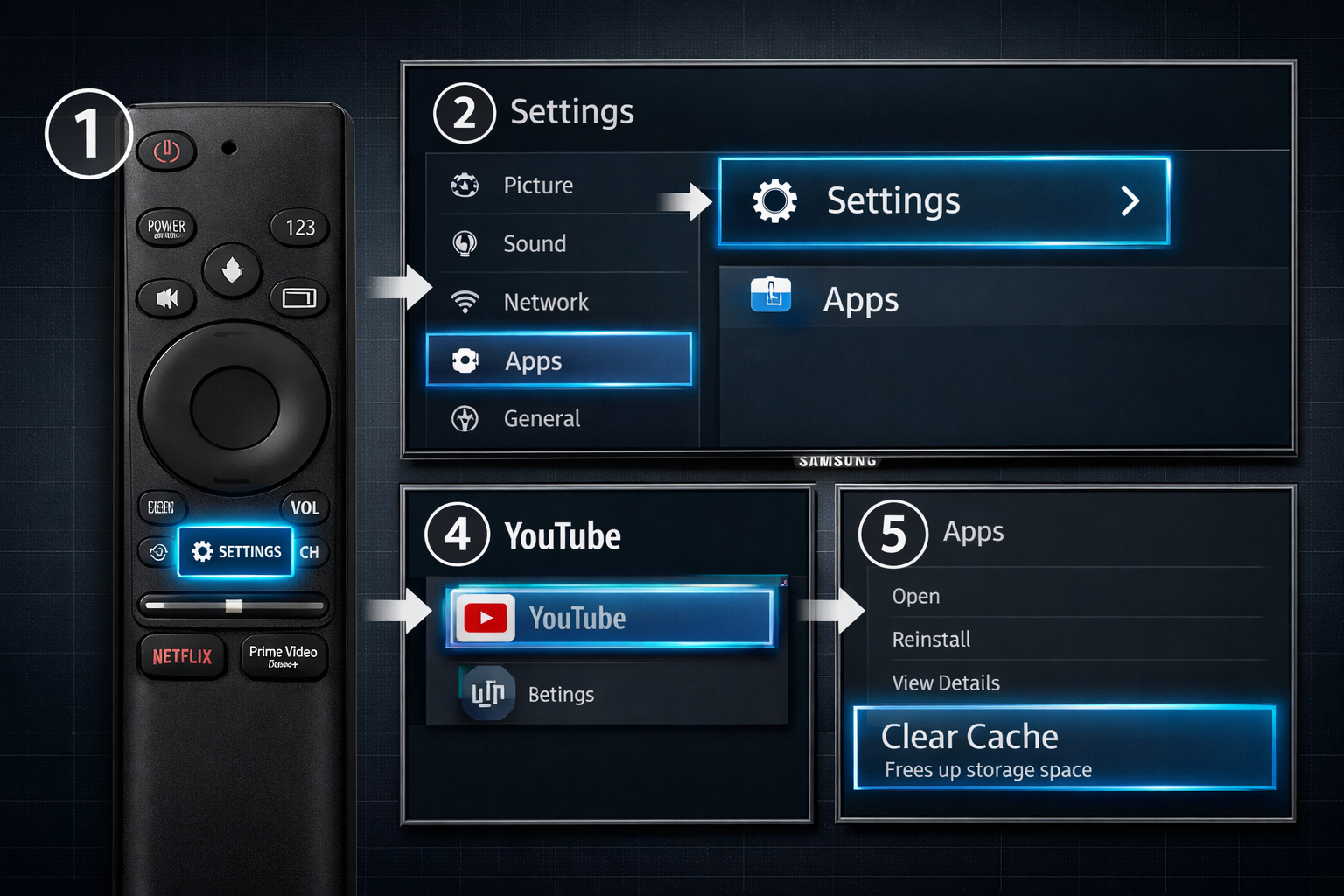
Method 1: Device Care (Recommended — Clears All Apps at Once)
- Press the Home button on your Samsung remote.
- Navigate to Settings (the gear icon).
- Scroll down to Support.
- Select Device Care.
- Press Start Device Care — the TV scans and clears cached data automatically.
- Wait 20–40 seconds for the process to finish.
- The TV may restart. If it does, that’s normal.
Choose this method if your whole TV feels slow, not just one app. Device Care handles everything in one pass.
Method 2: Clear Cache Per App (Targeted Fix)
Use this when a single app (like Netflix or Prime Video) is the problem:
- Press Home, then go to Settings.
- Select Apps (on some models, go to Support > Device Care > Manage Storage).
- Choose the app you want to fix.
- Select Clear Cache.
- Confirm if prompted.
Note: On newer Samsung TVs (2022 and later), the per-app cache option may be inside Device Care > Manage Storage rather than a standalone Apps menu. The path varies slightly by firmware version.
Method 3: Soft Reset (Power Cycle)
If you can’t find the cache menu or want a quick fix:
- Hold the Power button on the remote for 5 seconds.
- The TV will turn off and restart.
- Alternatively, unplug the TV from the wall for 60 seconds, then plug it back in.
This clears the RAM without touching stored cache files. It’s less thorough than Device Care but works in a pinch.
For a deeper look at all available methods, see the complete guide to clearing cache on Samsung TV.
Does Clearing Cache Actually Speed Up a Samsung TV?
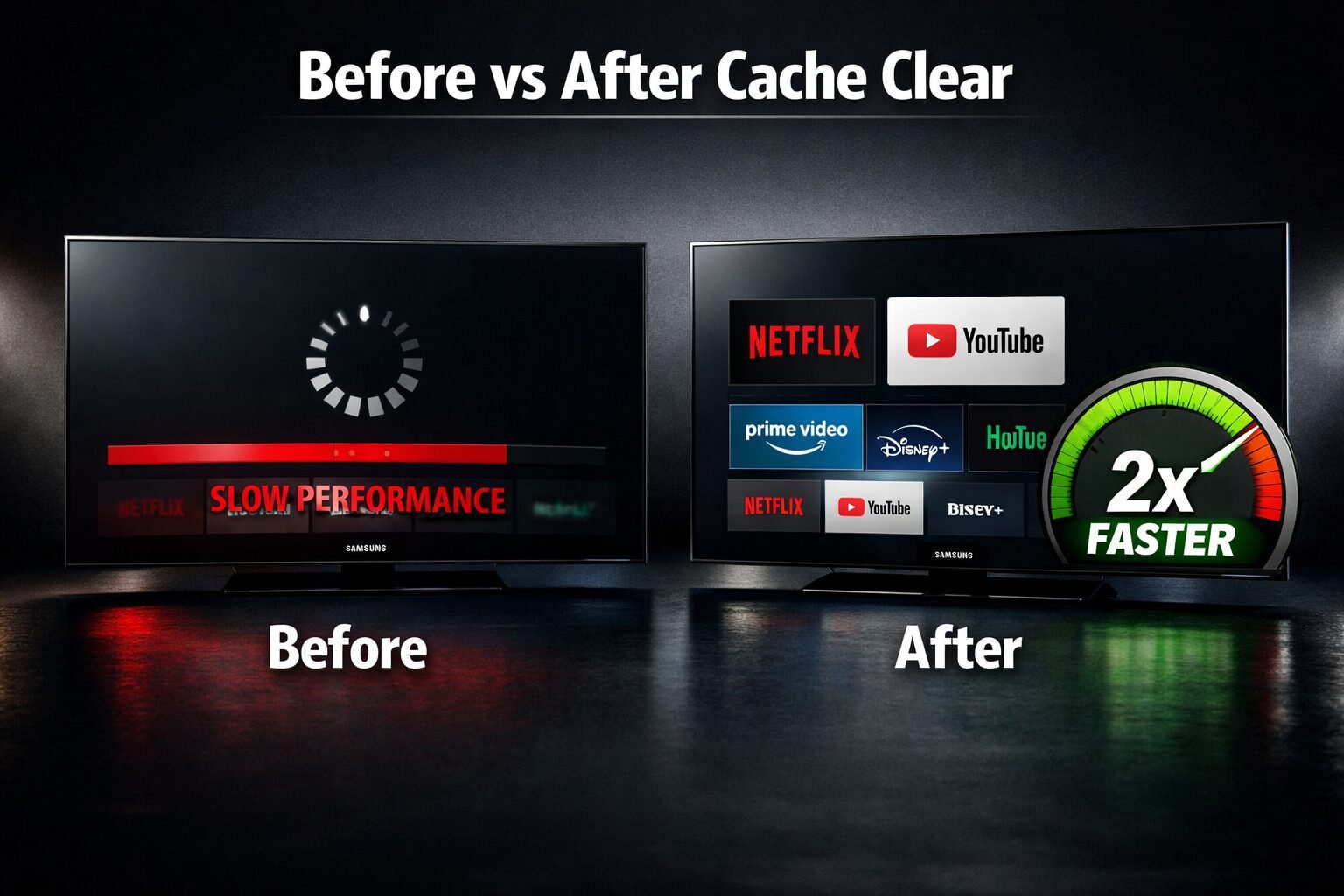
Yes — for most users, clearing cached data produces a noticeable improvement in app load times and home screen responsiveness. The effect is strongest when the TV hasn’t been cleaned in several months or when storage is nearly full.
What changes after clearing cache:
| Symptom Before | Typical Result After Cache Clear |
|---|---|
| App takes 10+ seconds to open | Opens in 2–4 seconds |
| Home screen stutters | Scrolls smoothly |
| Streaming app buffers constantly | Buffering reduces significantly |
| App crashes on launch | App launches normally |
| TV feels “heavy” to navigate | Navigation snappier |
Important caveat: If your TV is very old (pre-2016) or has a hardware issue, cache clearing alone won’t fix it. Also, if your internet connection is slow, clearing cache won’t improve streaming speed — that’s a network issue. Check our guide on Samsung TV won’t connect to Wi-Fi if buffering persists after clearing cache.
What’s the Difference Between Clearing Cache and Clearing Data?
Clearing cache removes temporary files the app created to load faster. It does not touch your login info or preferences.
Clearing data (also called “Clear App Data”) wipes everything — your account login, saved settings, and watch history inside that app. You’ll need to sign back in.
Rule of thumb: Always try Clear Cache first. Only use Clear Data if the app is still broken after cache clearing.
| Action | Removes Temp Files | Removes Login/Settings | Requires Re-login |
|---|---|---|---|
| Clear Cache | ✅ Yes | ❌ No | ❌ No |
| Clear Data | ✅ Yes | ✅ Yes | ✅ Yes |
| Factory Reset | ✅ Yes | ✅ Yes (all apps) | ✅ Yes (everything) |
If you’re dealing with a specific streaming app issue, these guides may help: Samsung TV Netflix not working, Samsung TV Hulu not working, or Samsung TV Prime Video not working.
How Often Should You Clear Cache on a Samsung TV?
For most households, clearing cache every 1–3 months is enough to keep the TV running well. Heavy streamers who use 4–6 apps daily may benefit from monthly cleaning.
Signs it’s time to clear cache sooner:
- An app starts crashing that worked fine before
- The TV takes noticeably longer to load the home screen
- You see a “low storage” or “storage full” warning (see Samsung TV storage full for more)
You don’t need to clear cache on a schedule if the TV is running fine. There’s no harm in doing it more often, but it won’t speed things up further once the cache is already clean.
Clear Cache on Samsung TV: Speed It Up 2X in 60 Seconds — Troubleshooting When It Doesn’t Work
Clearing cache fixes most slowness issues, but not all. Here’s what to try if the TV is still sluggish after clearing cache:
Step 1: Update the TV’s Firmware
Outdated firmware can cause performance issues that cache clearing won’t fix. Go to Settings > Support > Software Update > Update Now. For a full walkthrough, see how to update your Samsung TV.
Step 2: Uninstall Apps You Don’t Use
Too many installed apps eat into the TV’s limited storage. Go to Settings > Apps, select an unused app, and choose Delete.
Step 3: Check for Overheating
Samsung TVs can throttle performance if they’re too hot. Make sure there’s at least 4 inches of clearance around the TV and that vents aren’t blocked.
Step 4: Fix Slow Performance Directly
Our dedicated guide on how to fix Samsung TV slow performance covers additional steps including adjusting motion settings and disabling background services.
Step 5: Factory Reset (Last Resort)
If nothing else works, a factory reset restores the TV to its original state. Go to Settings > General > Reset. You’ll need to set up the TV from scratch. See our Samsung TV reset guide before doing this.
Common mistake: Many users jump straight to a factory reset when clearing cache would have solved the problem in 60 seconds. Always try cache clearing first.
Does Clearing Cache Delete Apps, Accounts, or Watch History?
No. Clearing cache on a Samsung TV only removes temporary files. Your installed apps, account logins, passwords, and streaming watch history are all stored separately and are not affected.
What clearing cache removes:
- Temporary image and video thumbnails
- Buffered data from previous sessions
- Temporary login tokens (you may need to re-enter a PIN in some apps)
- App error logs
What it does NOT remove:
- Installed apps
- Samsung account login
- Netflix, Disney+, or other streaming account logins
- Wi-Fi network settings
- Picture/sound settings
This makes cache clearing a completely safe first step — there’s no downside to trying it.
FAQ
Q: How do I clear the cache on a Samsung TV without a remote?
A: Use the SmartThings app on your phone to navigate to Settings > Support > Device Care. You can also use a USB keyboard connected to the TV.
Q: Does clearing cache on a Samsung TV fix buffering?
A: It can, if the buffering is caused by corrupted or bloated app cache. If your internet speed is the issue, cache clearing won’t help — run a speed test first.
Q: Will clearing cache log me out of Netflix or other apps?
A: Usually not. Clearing cache removes temporary files, not login credentials. Clearing data (a different option) will log you out.
Q: How long does Device Care take to clear cache?
A: Typically 20–45 seconds. The TV may restart automatically after the process finishes.
Q: My Samsung TV doesn’t have a “Device Care” option. What do I do?
A: Older Samsung TVs (pre-2018) may show Self Diagnosis instead. Go to Settings > Support > Self Diagnosis. You can also try clearing cache per app under Settings > Apps.
Q: Can I set Samsung TV to clear cache automatically?
A: Samsung TVs don’t have a built-in auto-clear schedule, but running Device Care monthly takes under a minute and keeps things running well.
Q: Does clearing cache fix a Samsung TV that keeps restarting?
A: Sometimes. If an app’s corrupted cache is causing crashes, clearing it can stop the restart loop. If the problem continues, see Samsung TV keeps restarting.
Q: Is clearing cache the same as a factory reset?
A: No. A factory reset wipes everything — apps, settings, accounts. Cache clearing only removes temporary files and is completely reversible.
Q: How do I know if my Samsung TV cache is full?
A: The TV may show a “storage full” warning, or apps will start crashing and loading slowly. Running Device Care will show you storage usage before cleaning.
Q: Does clearing cache improve gaming performance on Samsung TV?
A: It can reduce home screen lag, but for gaming-specific improvements, also check best Samsung TV settings for gaming.
Conclusion
Clearing cache on a Samsung TV is the fastest, safest fix for a slow or laggy smart TV. The whole process — using Device Care or the per-app method — takes under 60 seconds and carries zero risk of losing your settings or accounts.
Your action plan:
- Right now: Press Home > Settings > Support > Device Care > Start Device Care.
- If one app is the problem: Go to Settings > Apps > [App Name] > Clear Cache.
- If the TV is still slow: Update firmware, remove unused apps, and check for overheating.
- Last resort only: Factory reset via Settings > General > Reset.
For more help with your Samsung TV, including fixes for specific apps and hardware issues, visit our Samsung TV help center — it covers everything from remote problems to picture settings in one place.
References
- Samsung Electronics. Device Care on Samsung Smart TV. Samsung Support. https://www.samsung.com/us/support/
- Samsung Newsroom. Tizen OS Platform Overview. 2021. https://news.samsung.com/
- Android Authority. How to clear cache on Samsung TV. 2023. https://www.androidauthority.com/
Tags: clear cache Samsung TV, Samsung TV slow fix, Samsung TV Device Care, Tizen OS cache, Samsung TV speed up, Samsung smart TV tips, clear app cache TV, Samsung TV troubleshooting, Samsung TV performance, fix buffering Samsung TV, Samsung TV apps slow, smart TV maintenance