Reset Samsung TV Network Settings: Fix Wi-Fi in 30 Seconds

Last updated: May 2026
Quick Answer
To reset Samsung TV network settings and fix Wi-Fi in 30 seconds, go to Settings > General > Network > Reset Network. Confirm the reset, then reconnect to your Wi-Fi. This clears all stored network data and resolves most connection issues instantly.
Key Takeaways
- The fastest fix for Samsung TV Wi-Fi problems is a network settings reset via Settings > General > Network > Reset Network.
- A network reset only erases Wi-Fi credentials and network data — it does NOT affect your apps, picture settings, or account logins.
- Most Samsung TVs from 2016 onward follow the same menu path for resetting network settings.
- If a network reset doesn’t work, the next step is a full power cycle or a complete Samsung TV factory reset.
- Common causes of Samsung TV Wi-Fi failure include corrupted network cache, IP conflicts, outdated firmware, and router channel congestion.
- Streaming apps like Netflix, Hulu, and YouTube failing to load are often fixed by resetting network settings — not reinstalling the apps.
- If your TV keeps dropping Wi-Fi after the reset, the problem is likely your router, not the TV.
- Always re-enter your Wi-Fi password manually after a network reset — saved credentials are erased.
Why Does My Samsung TV Keep Losing Wi-Fi?
Samsung TVs lose Wi-Fi for a handful of predictable reasons. The most common culprits are a corrupted network cache, a stale IP address assignment, or a firmware bug that affects the wireless adapter’s handshake with your router.
Here’s what typically causes the problem:
- Corrupted network cache: The TV stores connection data that can become outdated or broken after a router change or ISP update.
- IP address conflict: Two devices on the same network get assigned the same IP, causing one (often the TV) to drop off.
- Router firmware updates: Your router updates overnight and the TV’s saved connection profile no longer matches.
- 2.4 GHz vs. 5 GHz band switching: Samsung TVs sometimes try to reconnect to the wrong band after a signal drop.
- DNS errors: The TV’s stored DNS server becomes unreachable, blocking all internet traffic even when the Wi-Fi signal looks fine.
If your TV shows a Wi-Fi connection but streaming apps still fail, that’s almost always a DNS or IP issue — and a network reset fixes it immediately. For persistent disconnection problems, our guide on Samsung TV keeps disconnecting from Wi-Fi covers deeper solutions.
How to Reset Samsung TV Network Settings: Fix Wi-Fi in 30 Seconds (Step-by-Step)
This is the core fix. Follow these steps exactly and you’ll have the network reset done in under 30 seconds on most Samsung TVs made after 2016.
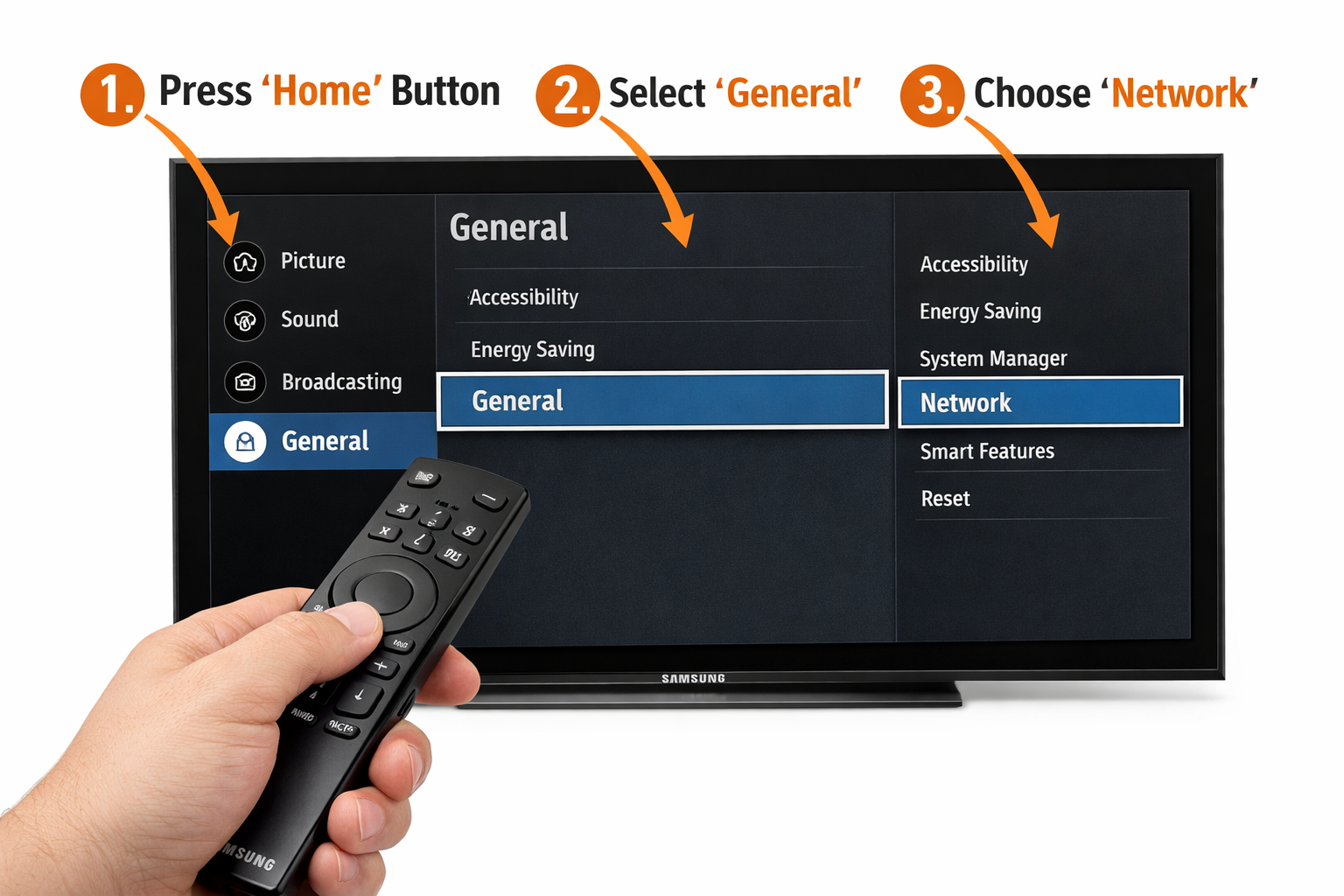
For Samsung TVs (2016–2026 Tizen OS)
- Press the Home button on your Samsung remote.
- Navigate to Settings (the gear icon).
- Select General (on newer models, this may be labeled General & Privacy).
- Scroll down and select Network.
- Choose Reset Network.
- Confirm by selecting Yes when prompted.
- Wait 10–15 seconds for the TV to complete the reset.
- Go back to Network > Open Network Settings and reconnect to your Wi-Fi.
💡 Pro tip: Have your Wi-Fi password ready before you start. The reset erases all saved credentials, so you’ll need to type it in again.
For Older Samsung TVs (2013–2015 Smart Hub)
- Press Menu on your remote.
- Go to Network > Network Status.
- Select IP Settings.
- Change DNS to 8.8.8.8 (Google DNS) manually if a full reset option isn’t available.
- Alternatively, go to Support > Self Diagnosis > Reset for a broader reset.
Quick Comparison: Network Reset vs. Factory Reset
| Feature | Network Reset | Factory Reset |
|---|---|---|
| Clears Wi-Fi credentials | ✅ Yes | ✅ Yes |
| Clears app data/logins | ❌ No | ✅ Yes |
| Clears picture/sound settings | ❌ No | ✅ Yes |
| Time to complete | ~30 seconds | 3–5 minutes |
| Best for | Wi-Fi/connection issues | Major software problems |
Choose a network reset if your only problem is Wi-Fi connectivity. Choose a factory reset only if the TV has broader performance issues or the network reset fails repeatedly. For help finding your settings menu quickly, see our Samsung TV settings guide.
What Happens When You Reset Samsung TV Network Settings?
A network reset on a Samsung TV is a targeted action. It clears only the data related to network connectivity — nothing else on the TV is affected.
What gets erased:
- Saved Wi-Fi network names (SSIDs) and passwords
- Stored IP address and DNS settings
- Bluetooth pairing data (on some models)
- Any static IP or proxy configurations
What stays intact:
- All installed apps and their login sessions
- Picture, sound, and display settings
- Samsung account login
- Channel lists and favorites
This makes a network reset the safest first troubleshooting step. You’re not losing anything valuable — just clearing the connection data that’s causing problems.
Does Resetting Network Settings Fix Samsung TV Wi-Fi Problems?
Yes, in most cases. A network reset resolves Wi-Fi issues caused by software-level problems, which account for the majority of Samsung TV connectivity failures.
It works well for:
- TV connected to Wi-Fi but no internet access
- Apps buffering or refusing to load (Netflix, YouTube, Hulu)
- TV not detecting the Wi-Fi network after a router change
- “Unable to connect to network” error messages
- Slow or intermittent streaming performance
It won’t fix:
- A faulty Wi-Fi antenna or hardware damage inside the TV
- Router outages or ISP downtime
- Wi-Fi dead zones where signal doesn’t reach the TV
- Firmware bugs that require a software update
If you’re dealing with specific app failures after the reset, check our dedicated guides: Samsung TV Netflix not working, Samsung TV YouTube not working, or Samsung TV Hulu not working.
What to Do If the Network Reset Doesn’t Fix Wi-Fi
If you’ve completed the reset Samsung TV network settings process and Wi-Fi still won’t connect or drops again quickly, work through these steps in order.
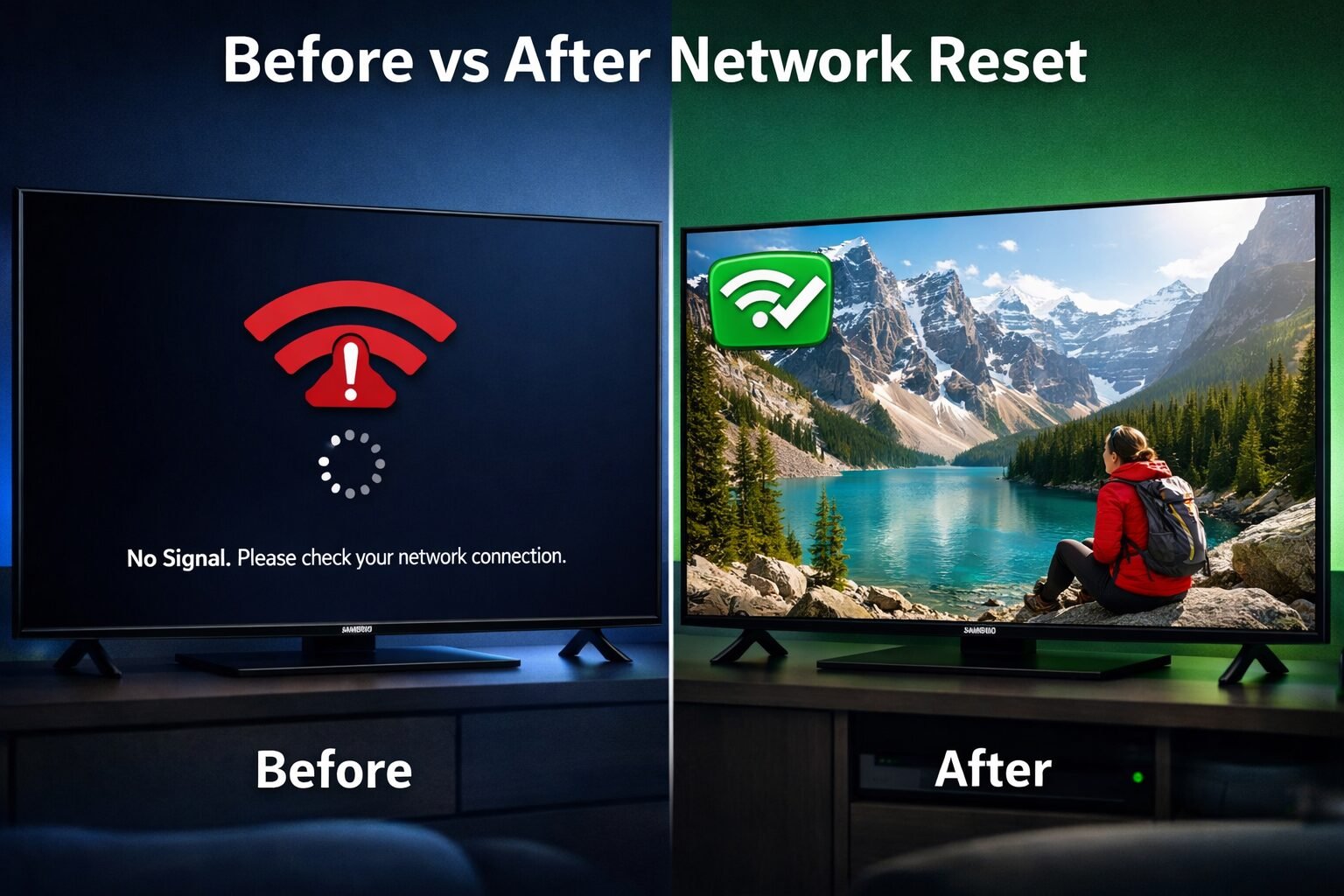
Step 1: Power Cycle Everything
Turn off the TV, unplug it from the wall for 60 seconds, then plug it back in. Do the same for your router and modem. This clears RAM-level network state that a menu reset can’t touch.
Step 2: Check Your Router’s Band Settings
- Connect the TV to the 2.4 GHz band if you’re having range issues (better range, slower speed).
- Connect to the 5 GHz band if the TV is close to the router (faster, but shorter range).
- Avoid using the same SSID for both bands — give them different names so the TV doesn’t switch unexpectedly.
Step 3: Update Samsung TV Firmware
Outdated firmware is a known cause of Wi-Fi instability on Samsung TVs. Go to Settings > Support > Software Update > Update Now. If the TV can’t connect to download the update, use a USB drive with the firmware file downloaded from Samsung’s support site.
Step 4: Change DNS Settings Manually
After reconnecting to Wi-Fi, go to Settings > General > Network > Network Status > IP Settings. Change DNS setting to Manual and enter 8.8.8.8 (Google) or 1.1.1.1 (Cloudflare). This often resolves cases where the TV connects to Wi-Fi but can’t reach the internet.
Step 5: Consider a Full Factory Reset
If nothing else works, a full Samsung TV reset will restore the TV to factory defaults. This is a last resort but reliably fixes software-level issues that survive a network-only reset.
For broader troubleshooting support across all Samsung TV issues, our Samsung TV help center is a good starting point.
Common Mistakes People Make When Resetting Samsung TV Network Settings
These are the errors I see most often when people try to fix their Samsung TV Wi-Fi and still end up frustrated.
Mistake 1: Restarting the TV instead of resetting network settings. A standard restart doesn’t clear network data. You need to go through the Settings menu to do an actual reset.
Mistake 2: Forgetting the Wi-Fi password. The reset erases saved credentials. If you don’t know your password, check the label on your router or log into your router’s admin panel before starting.
Mistake 3: Resetting the network but not the router. If your router has a stuck DHCP lease or a firmware bug, the TV will just pick up the same broken connection again. Always restart your router as part of the process.
Mistake 4: Jumping straight to a factory reset. A factory reset takes much longer and wipes all your settings. Always try the network-only reset first.
Mistake 5: Connecting to the wrong Wi-Fi band. After a reset, the TV will show all available networks. Make sure you’re selecting your home network and not a neighbor’s open network with a similar name.
How to Prevent Samsung TV Wi-Fi Problems from Coming Back
Once you’ve fixed the connection, a few simple habits will keep it stable long-term.
- Assign a static IP to your TV via your router’s DHCP reservation settings. This prevents IP conflicts permanently.
- Keep firmware updated. Samsung regularly releases patches that fix Wi-Fi stability bugs. Enable auto-updates under Settings > Support > Software Update.
- Place your router closer to the TV or use a Wi-Fi extender if signal strength is below 50%.
- Avoid network-heavy devices competing on the same band during streaming (game consoles, smart home hubs).
- Restart your router monthly. Routers accumulate connection state data over time and benefit from a periodic reboot.
If you use AirPlay or screen mirroring frequently, also check our guides on AirPlay on Samsung TV and screen mirroring to Samsung TV — both features have their own network requirements that can conflict with standard Wi-Fi settings.
FAQ: Reset Samsung TV Network Settings
Q: Will resetting network settings delete my Samsung account? No. A network reset only clears Wi-Fi credentials and IP settings. Your Samsung account, apps, and login sessions remain untouched.
Q: How long does a Samsung TV network reset take? The reset itself takes about 10–15 seconds. Reconnecting to Wi-Fi adds another 30–60 seconds. Total time is under 2 minutes.
Q: Can I reset Samsung TV network settings without a remote? Yes, if your TV supports the SmartThings app. Open SmartThings on your phone, select your TV, and access settings from there. Alternatively, the physical buttons on the TV can navigate basic menus on most models.
Q: Why does my Samsung TV say “Connected” but still won’t stream? This usually means the TV has a Wi-Fi signal but can’t reach the internet — often a DNS or IP issue. After the network reset, manually set DNS to 8.8.8.8 under IP Settings.
Q: Does a network reset fix Samsung TV apps not working? Often yes, if the app failure is caused by a network issue. If apps still fail after the reset, try clearing the cache on your Samsung TV or check our Samsung TV apps not working guide.
Q: How often should I reset my Samsung TV network settings? Only when you have a connection problem. It’s not something you need to do on a schedule. If you’re resetting frequently, the root cause is likely your router or ISP, not the TV.
Q: Will the network reset fix Samsung TV not connecting to Wi-Fi at all? Yes, in most software-related cases. If the TV still won’t find or connect to any Wi-Fi network after the reset and a full power cycle, the Wi-Fi hardware inside the TV may be faulty.
Q: Does this work on Samsung Frame TV, QLED, and OLED models? Yes. The network reset process is the same across Samsung’s Tizen-based smart TVs, including Frame, QLED, and Neo QLED models from 2016 onward.
Conclusion
A Samsung TV Wi-Fi problem sounds frustrating, but in most cases it’s a 30-second fix. The reset Samsung TV network settings process — via Settings > General > Network > Reset Network — clears corrupted connection data and gives your TV a clean slate to reconnect properly.
Your action plan:
- Go to Settings > General > Network > Reset Network and confirm.
- Restart your router at the same time.
- Reconnect to Wi-Fi and manually enter your password.
- If the problem persists, set DNS to 8.8.8.8 manually.
- If still unresolved, update firmware or perform a full factory reset.
For any other Samsung TV issues beyond Wi-Fi, our Samsung TV help center covers everything from picture problems to app failures in one place.
References
- Samsung Electronics. Samsung Smart TV Support — Network Settings. samsung.com/support. (2023)
- Samsung Developer Documentation. Tizen TV Web Application Development. developer.samsung.com. (2022)
Tags: reset Samsung TV network settings, Samsung TV Wi-Fi fix, Samsung TV not connecting to Wi-Fi, Samsung TV network reset, Samsung TV internet problems, fix Samsung TV Wi-Fi, Samsung smart TV troubleshooting, Samsung TV settings, Wi-Fi reset guide, Samsung Tizen TV, Samsung TV streaming issues, Samsung TV connectivity fix

I am Trevor Eason an entrepreneur, a designer, web developer, and software engineer currently living in Dallas, TX. My interests range from technology to photography. I am also interested in entrepreneurship, gaming, and basketball. I run my own Tech Win Reviews blog. Hope you will join me for all your Samsung and Tech Reviews and recommendations.