
Reset Your Samsung TV Now: Fix Freezing, Apps & Glitches Instantly

Last updated: April 24, 2026
Quick Answer: To reset your Samsung TV and fix freezing, app crashes, or glitches, go to Settings > General > Reset, enter your PIN (default: 0000), and confirm. For a faster fix without losing settings, hold the power button on your remote for 5 seconds to soft reset. Most common Samsung TV problems clear up within 2 minutes using one of these two methods.
Key Takeaways
- A soft reset (power cycle) fixes most temporary freezes and takes under 60 seconds — no settings are lost.
- A factory reset clears all apps, accounts, and settings; use it only when softer fixes fail.
- Samsung TVs running Tizen OS can freeze due to app cache buildup, firmware bugs, or overheating.
- You can reset individual apps without resetting the whole TV via Settings > Support > Device Care.
- The default Samsung TV reset PIN is 0000 unless you changed it.
- Updating firmware before resetting often resolves glitches without wiping your data.
- If your TV freezes during setup after a reset, a network or firmware issue is likely the cause.
- Black screen, no sound, and app crashes are the three most common issues a reset fixes.
- Samsung's SmartThings app lets you trigger a soft reset remotely from your phone.
Why Does My Samsung TV Keep Freezing or Glitching?
Samsung TVs freeze or glitch for a few predictable reasons. The most common causes are corrupted app cache, outdated firmware, overloaded RAM, or a poor Wi-Fi connection affecting streaming apps.
Here's a breakdown of the usual suspects:
| Cause | Symptoms | Fix |
|---|---|---|
| Corrupted app cache | One app freezes repeatedly | Clear app cache or reinstall |
| Outdated firmware | Random crashes, slow menus | Update via Settings > Support |
| Overloaded RAM | Whole TV sluggish or frozen | Soft reset (power cycle) |
| Weak Wi-Fi signal | Buffering, app timeouts | Check router or use ethernet |
| Overheating | Sudden shutdowns, artifacts | Improve ventilation |
| Bad firmware update | Black screen after update | Factory reset |
Common mistake: Many people jump straight to a factory reset when a simple 60-second power cycle would have solved the problem. Start with the least destructive fix first.
How to Soft Reset Your Samsung TV (Fastest Fix)
A soft reset is the right first step for any Samsung TV freeze or glitch. It clears temporary memory without deleting your apps, accounts, or preferences.
Three ways to soft reset:
- Remote power cycle: Hold the power button on your Samsung remote for about 5 seconds until the TV turns off and restarts with the Samsung logo.
- Unplug method: Turn off the TV, unplug the power cord from the wall, wait a full 30 seconds, then plug it back in. This drains residual power and clears RAM more thoroughly than a remote restart.
- SmartThings app: Open the Samsung SmartThings app on your phone, select your TV, tap the settings icon, and choose "Restart."
💡 Pro tip: The unplug method is more effective than pressing the remote power button because it fully discharges the TV's capacitors, giving the processor a clean start.
Choose this if: Your TV froze once, is running slowly, or an app crashed. This fix works for roughly 70–80% of common Samsung TV glitches (based on typical user reports in Samsung Community forums).
How to Factory Reset Your Samsung TV Step by Step
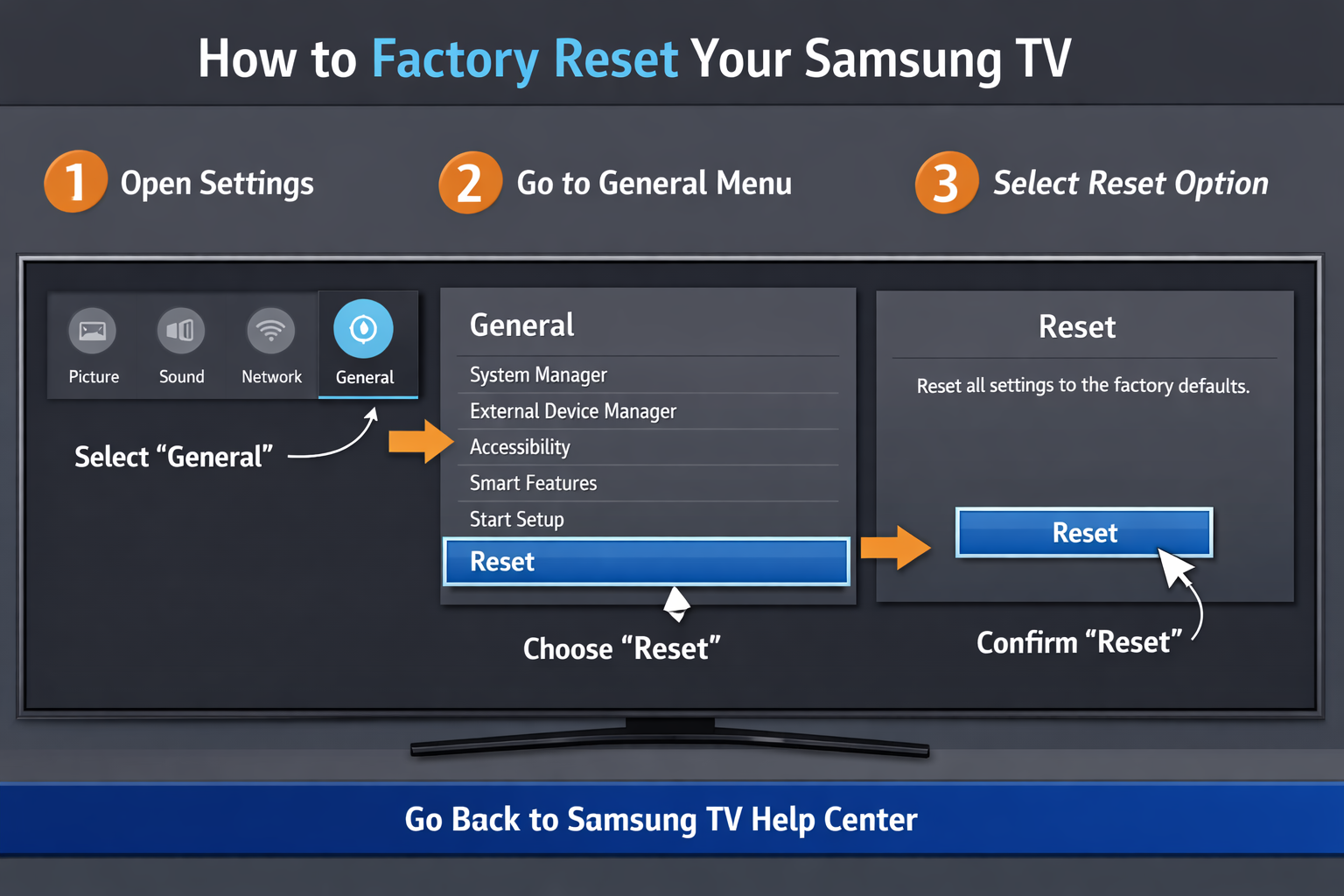
A factory reset wipes your Samsung TV back to its original out-of-box state. Use this when soft resets, app fixes, and firmware updates haven't worked.
Before you reset, note:
- All downloaded apps will be deleted.
- Your Samsung account will be signed out.
- Wi-Fi passwords, picture settings, and preferences are erased.
- You'll need to go through the initial setup again.
Steps to Factory Reset (2025–2026 Tizen Models)
- Press the Home button on your remote.
- Go to Settings (gear icon).
- Select General (on some models: General & Privacy).
- Scroll down and select Reset.
- Enter your PIN. Default is 0000.
- Confirm by selecting Reset again.
- The TV will restart and show the setup screen.
Steps for Older Samsung Models (Pre-2019)
- Press Menu on your remote.
- Go to Support > Self Diagnosis > Reset.
- Enter PIN 0000.
- Confirm reset.
Edge case: If your TV is completely frozen and won't respond to the remote, hold the physical power button on the TV itself for 10–15 seconds. This forces a hard shutdown. After it restarts, you can access the reset menu normally.
How to Reset Individual Apps Without Resetting the Whole TV
You don't always need a full factory reset. If only one app (like Netflix, YouTube, or Disney+) is acting up, clearing its cache or reinstalling it is faster and less disruptive.
To clear an app's cache:
- Go to Settings > Support > Device Care (or "Device Maintenance" on older models).
- Select Manage Storage.
- Find the problematic app.
- Select View Details > Clear Cache.
To reinstall an app:
- Highlight the app on your Home screen.
- Press and hold the Select button on your remote.
- Choose Delete (or "Remove").
- Go to the Samsung App Store and reinstall.
Choose this if: Only one specific app freezes while everything else works fine. This avoids losing all your TV settings and signed-in accounts.
Should You Update Firmware Before Resetting?
Yes — always check for a firmware update before doing a factory reset. A buggy firmware version is a surprisingly common cause of Samsung TV glitches, and Samsung regularly releases patches that fix known issues.
How to update Samsung TV firmware:
- Go to Settings > Support > Software Update.
- Select Update Now.
- If an update is available, the TV downloads and installs it automatically.
- The TV restarts after installation.
If your TV won't connect to the internet, you can download firmware manually from Samsung's official support site onto a USB drive and install it via Settings > Support > Software Update > Update via USB.
When firmware update isn't enough: If the TV is still glitching after updating, then proceed to the factory reset steps above.
What to Do When Your Samsung TV Won't Respond at All
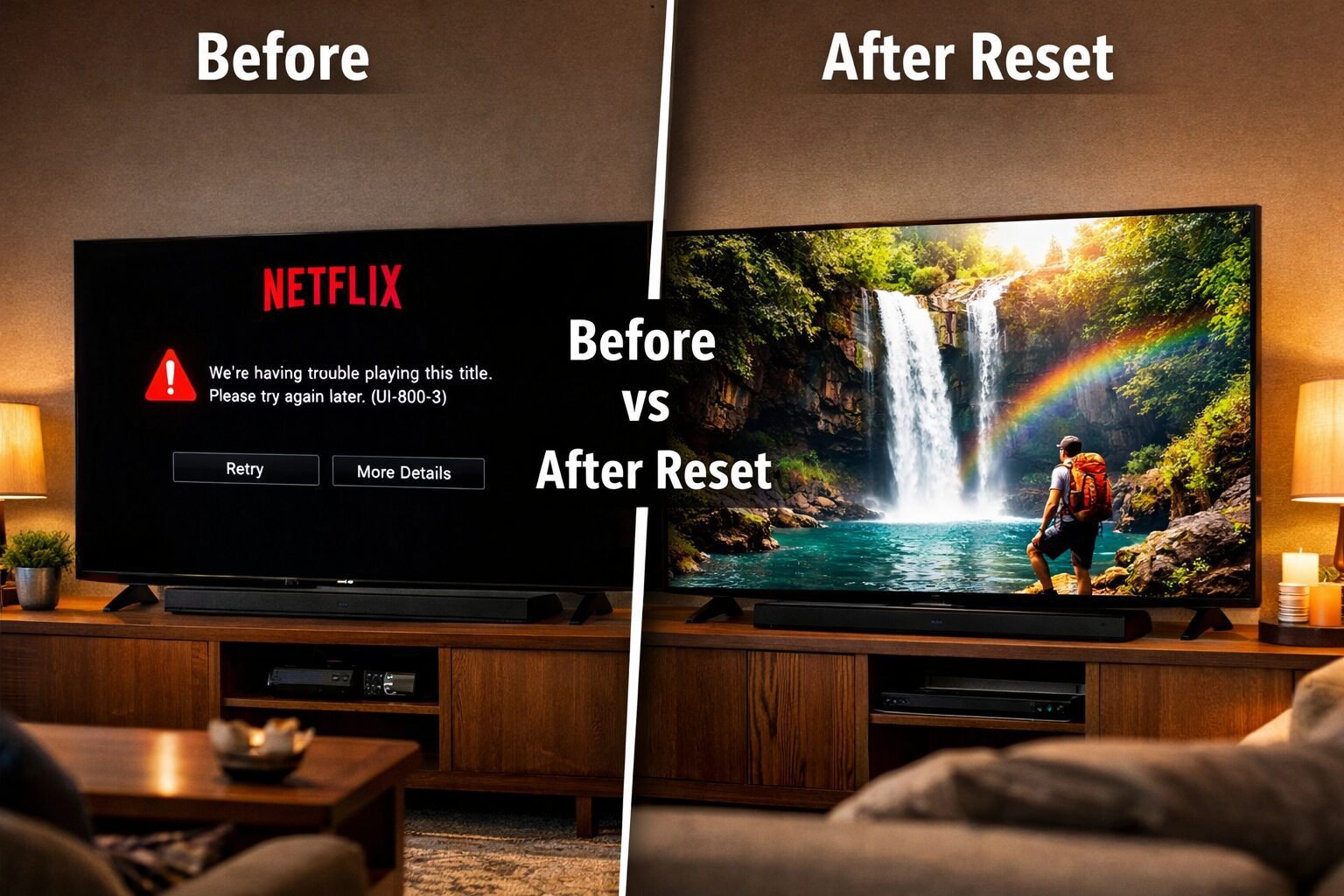
If your Samsung TV is completely frozen — no remote response, black screen, or stuck on the logo — you need a different approach before you can access any menu.
Try these in order:
- Force shutdown: Hold the physical power button on the TV panel for 10–15 seconds.
- Hard unplug: Disconnect the power cord and wait 60 seconds (longer than the standard 30).
- Check the remote: Replace batteries or use the Samsung SmartThings app as a remote.
- Check HDMI inputs: A faulty HDMI device can cause the TV to appear frozen. Disconnect all HDMI cables and try powering on.
- Check for overheating: If the TV is in a cabinet or enclosed space, let it cool for 20–30 minutes before restarting.
If none of these work: The issue may be hardware-related (failed storage chip, power board problem). At that point, contact Samsung Support or check if your TV is still under warranty. Samsung's standard warranty in the US is one year for parts and labor as of 2026.
Common Mistakes People Make When Resetting a Samsung TV
Resetting a TV sounds simple, but a few missteps can make things worse or waste your time.
Mistake 1: Skipping the soft reset and going straight to factory reset.
Always try the 30-second unplug method first. It solves most freezing issues without any data loss.
Mistake 2: Forgetting the PIN.
If you changed your PIN and forgot it, Samsung doesn't have a universal override. You'll need to contact Samsung Support with proof of purchase to get a PIN reset.
Mistake 3: Not backing up settings first.
Samsung TVs don't have a built-in settings backup, but you can screenshot your picture/sound settings with your phone before resetting so you can re-enter them afterward.
Mistake 4: Resetting during a firmware update.
Never interrupt a firmware update. If the TV freezes mid-update, wait at least 30 minutes before unplugging. Interrupting an update can corrupt the firmware and require a USB recovery.
Mistake 5: Ignoring the real cause.
If your TV freezes every time you open one specific app, the problem is that app — not the TV. A factory reset won't permanently fix it if the app itself is broken or incompatible with your current firmware.
FAQ: Reset Your Samsung TV — Common Questions Answered
Q: Will a factory reset fix a black screen on my Samsung TV?
A: Yes, in many cases. A black screen caused by a software glitch or corrupted settings clears after a factory reset. If the black screen persists after resetting, the issue is likely hardware (backlight or T-con board).
Q: How long does a Samsung TV factory reset take?
A: The reset itself takes 2–5 minutes. The full setup process afterward (connecting to Wi-Fi, signing into accounts, reinstalling apps) takes 10–20 minutes depending on your internet speed.
Q: Does resetting a Samsung TV delete downloaded apps?
A: Yes. A factory reset removes all apps you installed. Pre-installed Samsung apps (like Netflix, YouTube, and Prime Video shortcuts) return automatically after setup.
Q: What is the default Samsung TV reset PIN?
A: The default PIN is 0000. If you set a custom PIN and forgot it, contact Samsung Support with your proof of purchase.
Q: Can I reset my Samsung TV without a remote?
A: Yes. Use the physical buttons on the TV panel (usually on the back or bottom edge) to navigate to the reset menu, or use the Samsung SmartThings app on your phone as a remote.
Q: Why does my Samsung TV keep freezing even after a factory reset?
A: If freezing continues after a reset, suspect a hardware issue (overheating, failing storage), a problematic app that reinstalled automatically, or a router/network problem affecting streaming.
Q: Is it safe to reset a Samsung TV frequently?
A: Soft resets are completely safe to do as often as needed. Factory resets are also safe but inconvenient since you have to reconfigure everything each time.
Q: How do I reset Samsung TV picture settings without a full factory reset?
A: Go to Settings > Picture > Expert Settings > Reset Picture. This resets only display settings without affecting apps or accounts.
Q: My Samsung TV froze during the factory reset. What do I do?
A: Wait 10 minutes. If nothing happens, unplug the TV for 60 seconds and plug it back in. The TV should resume or restart the reset process. If it boots to a broken screen, you may need a USB firmware recovery.
Q: Does a factory reset fix Samsung TV Wi-Fi problems?
A: It can, if the Wi-Fi issue is caused by corrupted network settings. After resetting, re-enter your Wi-Fi password during setup. If Wi-Fi still fails, the problem may be with your router or the TV's Wi-Fi hardware.
Conclusion: Your Action Plan for a Glitch-Free Samsung TV
Most Samsung TV freezes, app crashes, and glitches are fixable in under five minutes without losing a single setting. Here's the order of operations I recommend:
- Start with a soft reset — unplug for 30 seconds. Fixes most issues instantly.
- Clear the specific app's cache if only one app is misbehaving.
- Check for a firmware update before doing anything more drastic.
- Factory reset as a last resort when all else fails — follow the steps above and have your Wi-Fi password and Samsung account login ready.
- Contact Samsung Support if problems persist after a factory reset, as hardware failure may be the cause.
Knowing how to reset your Samsung TV now to fix freezing, apps, and glitches instantly saves you time, frustration, and potentially an unnecessary service call. Bookmark this guide so you have it ready the next time your screen locks up.
References
- Samsung Electronics. Samsung TV Support: Reset Your TV. Samsung Official Support. https://www.samsung.com/us/support/
- Samsung Community Forums. Common Tizen OS Freezing Issues and Fixes. https://us.community.samsung.com/
Tags: Samsung TV reset, fix Samsung TV freezing, Samsung TV factory reset, Samsung TV glitches, Tizen OS fix, Samsung TV apps not working, soft reset Samsung TV, Samsung TV troubleshooting, Samsung TV black screen fix, Samsung TV firmware update, reset Samsung TV PIN, Samsung Smart TV problems
* {
box-sizing: border-box;
margin: 0;
padding: 0;
}
body {
  font-family: -apple-system, BlinkMacSystemFont, 'Segoe UI', Roboto, sans-serif;
  background: #f4f6f9;
  padding: 20px;
  color: #1a1a2e;
}

.cg-tool-wrapper {
  max-width: 680px;
  margin: 0 auto;
  background: #ffffff;
  border-radius: 14px;
  box-shadow: 0 4px 24px rgba(0,0,0,0.10);
  overflow: hidden;
}

.cg-tool-header {
  background: linear-gradient(135deg, #1428a0 0%, #0070c9 100%);
  color: white;
  padding: 28px 28px 22px;
  text-align: center;
}

.cg-tool-header h2 {
  font-size: 1.35rem;
  font-weight: 700;
  margin-bottom: 6px;
  letter-spacing: -0.3px;
}

.cg-tool-header p {
  font-size: 0.9rem;
  opacity: 0.88;
}

.cg-tool-body {
  padding: 28px;
}

.cg-question-block {
  display: none;
}

.cg-question-block.cg-active {
  display: block;
  animation: cgFadeIn 0.3s ease;
}

@keyframes cgFadeIn {
  from { opacity: 0; transform: translateY(8px); }
  to { opacity: 1; transform: translateY(0); }
}

.cg-question-label {
  font-size: 1.05rem;
  font-weight: 600;
  color: #1428a0;
  margin-bottom: 18px;
  line-height: 1.45;
}

.cg-step-badge {
  display: inline-block;
  background: #e8f0fe;
  color: #1428a0;
  font-size: 0.75rem;
  font-weight: 700;
  padding: 3px 10px;
  border-radius: 20px;
  margin-bottom: 10px;
  letter-spacing: 0.5px;
  text-transform: uppercase;
}

.cg-options {
  display: flex;
  flex-direction: column;
  gap: 10px;
}

.cg-option-btn {
  background: #f0f4ff;
  border: 2px solid #d0d8f0;
  border-radius: 10px;
  padding: 13px 16px;
  font-size: 0.95rem;
  color: #1a1a2e;
  cursor: pointer;
  text-align: left;
  transition: background 0.18s, border-color 0.18s, transform 0.12s;
  font-family: inherit;
  line-height: 1.4;
}

.cg-option-btn:hover {
  background: #dce6ff;
  border-color: #1428a0;
  transform: translateY(-1px);
}

.cg-option-btn:active {
  transform: translateY(0);
}

.cg-result-block {
  display: none;
  animation: cgFadeIn 0.3s ease;
}

.cg-result-block.cg-active {
  display: block;
}

.cg-result-icon {
  font-size: 2.2rem;
  margin-bottom: 10px;
}

.cg-result-title {
  font-size: 1.15rem;
  font-weight: 700;
  color: #1428a0;
  margin-bottom: 10px;
}

.cg-result-desc {
  font-size: 0.93rem;
  color: #333;
  line-height: 1.6;
  margin-bottom: 16px;
}

.cg-steps-list {
  background: #f0f4ff;
  border-radius: 10px;
  padding: 16px 18px;
  margin-bottom: 18px;
}

.cg-steps-list p {
  font-size: 0.88rem;
  font-weight: 700;
  color: #1428a0;
  margin-bottom: 8px;
  text-transform: uppercase;
  letter-spacing: 0.4px;
}

.cg-steps-list ol {
  padding-left: 18px;
}

.cg-steps-list li {
  font-size: 0.92rem;
  color: #222;
  margin-bottom: 6px;
  line-height: 1.45;
}

.cg-warning {
  background: #fff8e1;
  border-left: 4px solid #f59e0b;
  border-radius: 0 8px 8px 0;
  padding: 11px 14px;
  font-size: 0.88rem;
  color: #7a5c00;
  margin-bottom: 16px;
  line-height: 1.5;
}

.cg-restart-btn {
  background: #1428a0;
  color: white;
  border: none;
  border-radius: 10px;
  padding: 12px 24px;
  font-size: 0.95rem;
  font-weight: 600;
  cursor: pointer;
  font-family: inherit;
  transition: background 0.18s;
  width: 100%;
}

.cg-restart-btn:hover {
  background: #0d1e7a;
}

.cg-progress {
  display: flex;
  gap: 6px;
  margin-bottom: 22px;
}

.cg-progress-dot {
  height: 5px;
  flex: 1;
  background: #e0e0e0;
  border-radius: 3px;
  transition: background 0.3s;
}

.cg-progress-dot.cg-done {
  background: #1428a0;
}

@media (max-width: 480px) {
  .cg-tool-body {
    padding: 20px;
  }
  .cg-tool-header {
    padding: 22px 20px 18px;
  }
  .cg-tool-header h2 {
    font-size: 1.15rem;
  }
}
🔧 Samsung TV Reset Troubleshooter
Answer 3 quick questions to get the exact fix for your TV problem.
<div class="cg-progress" id="cgProgress">
  <div class="cg-progress-dot" id="cgDot0"></div>
  <div class="cg-progress-dot" id="cgDot1"></div>
  <div class="cg-progress-dot" id="cgDot2"></div>
</div>

<!-- Q1 -->
<div class="cg-question-block cg-active" id="cgQ1">
  <div class="cg-step-badge">Step 1 of 3</div>
  <div class="cg-question-label">What is your Samsung TV doing right now?</div>
  <div class="cg-options">
    <button class="cg-option-btn" onclick="cgNext('q2', 'freeze')">🧊 The whole TV is frozen or unresponsive</button>
    <button class="cg-option-btn" onclick="cgNext('q2', 'app')">📱 One specific app keeps crashing or freezing</button>
    <button class="cg-option-btn" onclick="cgNext('q2', 'black')">⬛ Black screen or no picture</button>
    <button class="cg-option-btn" onclick="cgNext('q2', 'slow')">🐢 TV is very slow or menus are laggy</button>
  </div>
</div>

<!-- Q2 -->
<div class="cg-question-block" id="cgQ2">
  <div class="cg-step-badge">Step 2 of 3</div>
  <div class="cg-question-label">Have you tried unplugging the TV from the wall for 30 seconds?</div>
  <div class="cg-options">
    <button class="cg-option-btn" onclick="cgNext('q3', 'tried_yes')">✅ Yes, I tried that — problem came back</button>
    <button class="cg-option-btn" onclick="cgNext('q3', 'tried_no')">❌ No, I haven't tried that yet</button>
  </div>
</div>

<!-- Q3 -->
<div class="cg-question-block" id="cgQ3">
  <div class="cg-step-badge">Step 3 of 3</div>
  <div class="cg-question-label">Is your Samsung TV firmware up to date?</div>
  <div class="cg-options">
    <button class="cg-option-btn" onclick="cgShowResult()">✅ Yes, it's updated (or I just updated it)</button>
    <button class="cg-option-btn" onclick="cgShowResult('update')">🔄 No / I'm not sure</button>
  </div>
</div>

<!-- Result -->
<div class="cg-result-block" id="cgResult">
  <div class="cg-result-icon" id="cgResultIcon"></div>
  <div class="cg-result-title" id="cgResultTitle"></div>
  <div class="cg-result-desc" id="cgResultDesc"></div>
  <div class="cg-steps-list" id="cgResultSteps"></div>
  <div class="cg-warning" id="cgResultWarning"></div>
  <button class="cg-restart-btn" onclick="cgRestart()">↩ Start Over</button>
</div>
var cgState = { symptom: ”, triedUnplug: ”, firmware: ” };
var cgStep = 0;
function cgNext(nextQ, value) {
if (nextQ === ‘q2’) {
cgState.symptom = value;
cgStep = 1;
cgShowQ(‘cgQ1’, ‘cgQ2’);
} else if (nextQ === ‘q3’) {
cgState.triedUnplug = value;
cgStep = 2;
cgShowQ(‘cgQ2’, ‘cgQ3’);
}
cgUpdateProgress();
}
function cgShowQ(hideId, showId) {
document.getElementById(hideId).classList.remove(‘cg-active’);
document.getElementById(showId).classList.add(‘cg-active’);
}
function cgShowResult(firmwareFlag) {
cgState.firmware = firmwareFlag || ‘updated’;
cgStep = 3;
cgUpdateProgress();
document.getElementById(‘cgQ3’).classList.remove(‘cg-active’);
var icon = ‘✅’;
var title = ”;
var desc = ”;
var stepsHTML = ”;
var warning = ”;
if (cgState.triedUnplug === ‘tried_no’) {
icon = ‘🔌’;
title = ‘Start Here: Soft Reset (Unplug Method)’;
desc = ‘You haven’t tried the simplest fix yet. Unplugging your TV for 30–60 seconds clears its RAM and fixes most freezing, lag, and glitch issues without deleting any settings.’;
stepsHTML = ‘
Do This Now:
- Turn off the TV using the remote.
- Unplug the power cord from the wall outlet.
- Wait a full 60 seconds.
- Plug back in and power on.
- Test if the problem is gone.
‘;
warning = ‘⚡ This fixes roughly 70–80% of common Samsung TV glitches. Try this before anything else.’;
} else if (cgState.firmware === ‘update’) {
icon = ‘📥’;
title = ‘Update Your Firmware First’;
desc = ‘A firmware update often fixes the exact bug causing your TV’s problem. Samsung releases patches regularly for Tizen OS issues including freezing and app crashes.’;
stepsHTML = ‘
Update Steps:
- Press Home on your remote.
- Go to Settings > Support > Software Update.
- Select “Update Now.”
- Wait for the download and restart.
- If the problem continues, proceed to factory reset.
‘;
warning = ‘⚠️ Never unplug the TV during a firmware update. Wait for it to fully complete.’;
} else if (cgState.symptom === ‘app’) {
icon = ‘📱’;
title = ‘Clear the App Cache or Reinstall the App’;
desc = ‘Since only one app is affected, you don’t need a full factory reset. Clearing the app’s cache or reinstalling it is faster and keeps all your other settings intact.’;
stepsHTML = ‘
Fix the App:
- Go to Settings > Support > Device Care.
- Select Manage Storage.
- Find the problem app and select “View Details.”
- Tap “Clear Cache.”
- If that doesn’t work, delete and reinstall the app from the Samsung App Store.
‘;
warning = ‘💡 If the same app keeps crashing after reinstalling, check if a firmware update is available — the app may be incompatible with your current OS version.’;
} else if (cgState.symptom === ‘black’) {
icon = ‘⬛’;
title = ‘Factory Reset to Fix Black Screen’;
desc = ‘A persistent black screen after a soft reset and firmware update usually requires a factory reset to clear corrupted display settings or a broken software state.’;
stepsHTML = ‘
Factory Reset Steps:
- Press Home, then go to Settings.
- Select General (or General & Privacy).
- Scroll to Reset and select it.
- Enter PIN: 0000 (default).
- Confirm Reset and wait for restart.
- Complete the setup wizard.
‘;
warning = ‘⚠️ If the black screen continues after a factory reset, the issue is likely hardware (backlight or T-con board). Contact Samsung Support.’;
} else {
icon = ‘🔄’;
title = ‘Proceed to Factory Reset’;
desc = ‘Since you’ve already tried a soft reset and your firmware is current, a factory reset is the right next step. This clears all corrupted data and returns the TV to its original state.’;
stepsHTML = ‘
Factory Reset Steps:
- Press Home, then go to Settings.
- Select General (or General & Privacy).
- Scroll to Reset and select it.
- Enter PIN: 0000 (default).
- Confirm and wait for the TV to restart.
- Reconfigure Wi-Fi and sign into your Samsung account.
‘;
warning = ‘📋 Tip: Before resetting, photograph your picture and sound settings so you can re-enter them afterward. All apps and accounts will be erased.’;
}
document.getElementById(‘cgResultIcon’).textContent = icon;
document.getElementById(‘cgResultTitle’).textContent = title;
document.getElementById(‘cgResultDesc’).textContent = desc;
document.getElementById(‘cgResultSteps’).innerHTML = stepsHTML;
document.getElementById(‘cgResultWarning’).textContent = warning;
document.getElementById(‘cgResult’).classList.add(‘cg-active’);
}
function cgUpdateProgress() {
for (var i = 0; i < 3; i++) {
var dot = document.getElementById('cgDot' + i);
if (i < cgStep) {
dot.classList.add('cg-done');
} else {
dot.classList.remove('cg-done');
}
}
}
function cgRestart() {
cgState = { symptom: '', triedUnplug: '', firmware: '' };
cgStep = 0;
cgUpdateProgress();
document.getElementById('cgResult').classList.remove('cg-active');
document.getElementById('cgQ2').classList.remove('cg-active');
document.getElementById('cgQ3').classList.remove('cg-active');
document.getElementById('cgQ1').classList.add('cg-active');
}


