
Where Are Samsung TV Settings? Find Any Menu in 5 Seconds

Last updated: April 24, 2026
Quick Answer
Press the Home button on your Samsung TV remote (the house icon), then select the gear icon (⚙️) in the bottom-left corner of the Smart Hub screen. That opens the main Settings menu. On most Samsung TVs made after 2016, this takes under five seconds from any screen.
Key Takeaways
- The fastest path to Samsung TV Settings is: Home button → gear icon (⚙️).
- You can also press and hold the Back button on some remotes to jump directly to Settings.
- Samsung's Smart Remote (the slim one) uses a dedicated Settings button that looks like a gear or three horizontal lines.
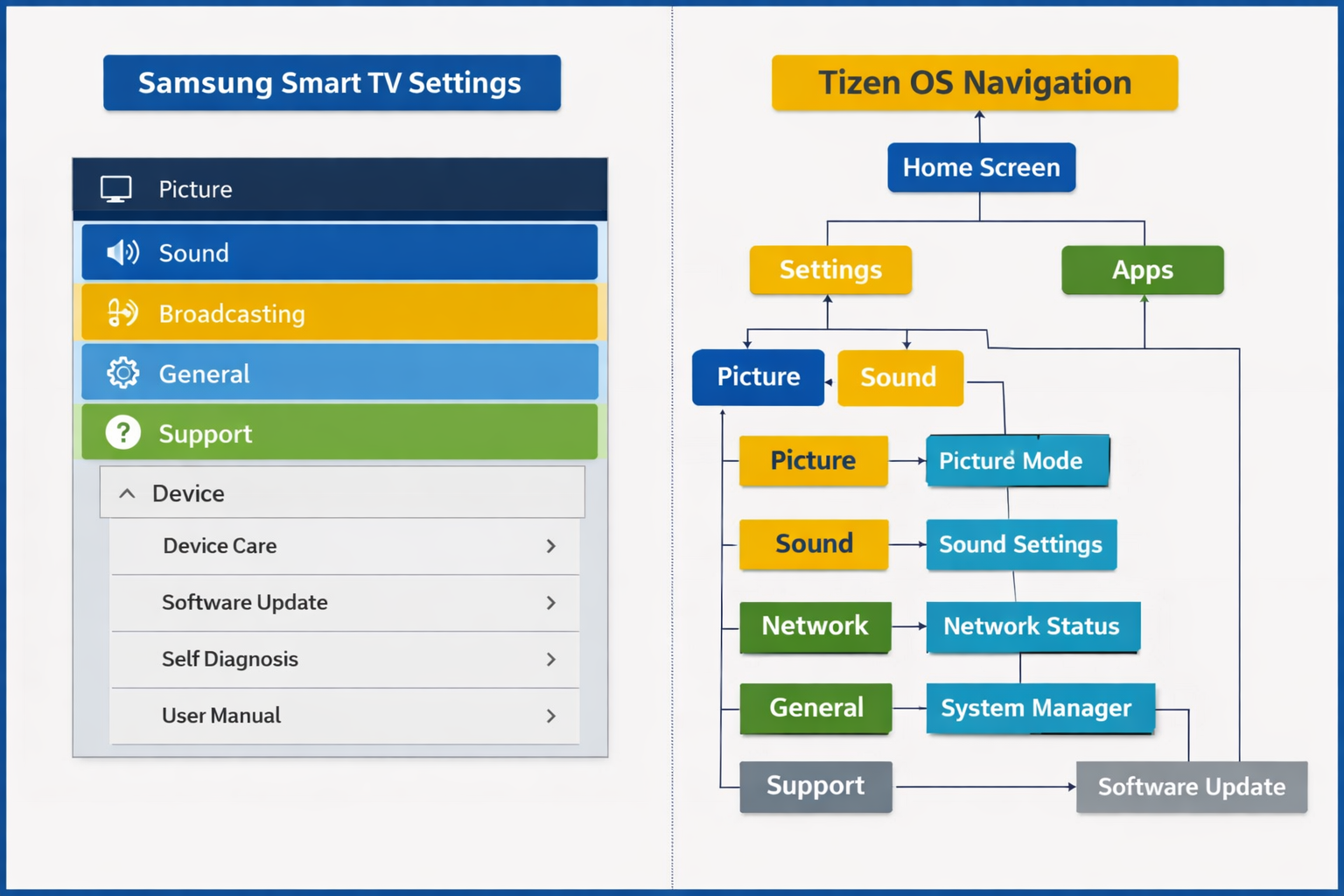
- The Settings menu is organized into sections: General, Picture, Sound, Support, Privacy, and Connection.
- If you can't find a specific option, use the Search (🔍) icon inside the Settings menu.
- Older Samsung TVs (pre-2016) use a Menu button on the remote instead of a Home button.
- Resetting your TV to factory defaults is buried under Settings → General → Reset.
- The All Settings option gives you the full expanded menu if you only see a quick panel.
Where Are Samsung TV Settings? The Fastest Route on Any Model
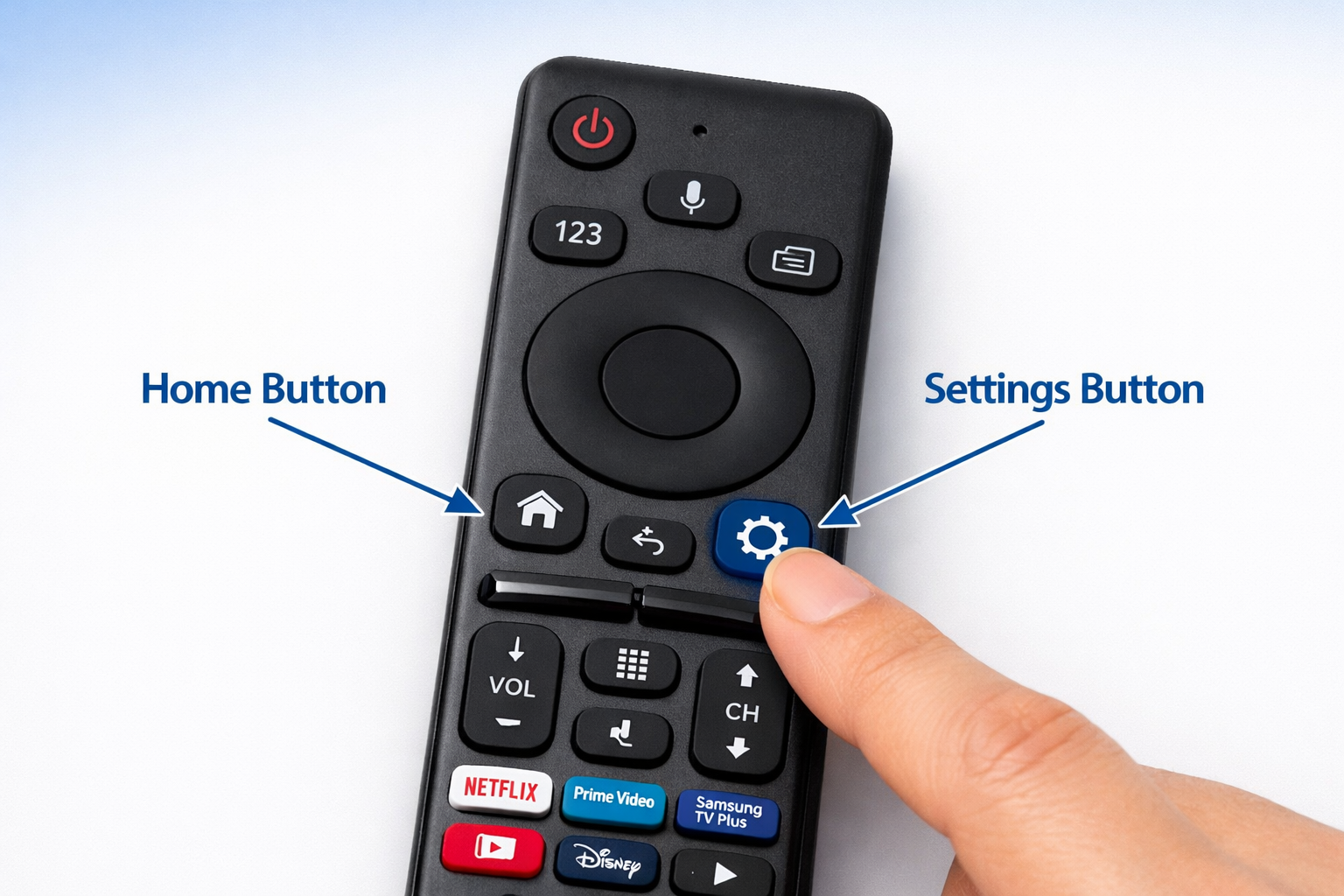
The main Settings menu on a Samsung TV lives behind the Home button on your remote. Press Home, look for the gear icon on the bottom row of the Smart Hub, and select it. You're in Settings in under five seconds.
Here's the step-by-step breakdown:
- Pick up your Samsung remote (Smart Remote or standard).
- Press the Home button — it looks like a small house (🏠).
- Wait for the Smart Hub bar to appear at the bottom of the screen.
- Navigate left or right to find the gear icon (⚙️).
- Press OK/Select — you're now in the Settings menu.
💡 Pro tip: If you only see a small quick-settings panel (brightness, sound mode, etc.), scroll down and select "All Settings" to get the full menu.
Common mistake: Many people press the Menu button (if their remote has one) expecting the same result. On newer Samsung TVs, the Menu button may open a different panel or do nothing. The Home → gear path is the most reliable route across all models.
Which Remote Do You Have? (This Changes Everything)
The button layout on your Samsung remote determines the fastest path to Settings. Samsung has shipped several remote styles over the years, and each one works a little differently.
| Remote Type | How to Access Settings |
|---|---|
| Smart Remote (2016–2026) | Home → gear icon (⚙️) on Smart Hub |
| Smart Remote with Settings button | Press the gear/settings button directly |
| Standard Remote (pre-2016) | Press the Menu button on the remote |
| Samsung One Remote (2019+) | Home → All Settings |
| Samsung Remote App (phone) | Tap Home → gear icon in app |
How to tell which remote you have: The Smart Remote is slim and minimal, usually with fewer than 15 buttons. The standard remote is larger with a full number pad and labeled buttons like Menu, Tools, and Info.
Edge case: If you're using a third-party universal remote, look for a button labeled Menu or Home and map it to the Samsung Home function. If neither works, the Samsung SmartThings app on your phone can substitute as a remote.
How to Find Any Specific Setting in 5 Seconds
The fastest way to find a specific Samsung TV setting is to use the built-in search function inside the Settings menu. Once you're in Settings, press the magnifying glass icon or navigate to the search bar at the top.
Here's how to locate any setting quickly:
- Open Settings using the Home → gear icon method above.
- Look for the 🔍 search icon at the top of the Settings screen.
- Type a keyword — for example, "HDR," "Bluetooth," or "sleep timer."
- Samsung will show you direct links to the relevant setting.
The six main Settings categories and what's inside each:
- General — Language, time, system reset, accessibility, external device manager
- Picture — Brightness, contrast, color, HDR, picture mode (Standard, Movie, Game)
- Sound — Sound mode, equalizer, Dolby Atmos, audio output, Bluetooth speaker
- Connection — Wi-Fi, Bluetooth, HDMI settings, network status
- Support — Software update, self-diagnosis, remote management, warranty info
- Privacy — Terms of service, data tracking, advertising preferences
📌 Decision rule: If you're troubleshooting a display problem, go to Picture. If your TV won't connect to Wi-Fi, go to Connection → Network. If the TV is slow or glitching, go to Support → Self Diagnosis.
Where Are Samsung TV Settings on Older Models?
On Samsung TVs made before 2016, the Settings menu is accessed by pressing the physical Menu button on the remote, not the Home button. The interface looks different but contains the same core categories.
Steps for older Samsung TVs:
- Press the Menu button (usually labeled "MENU" in red or white).
- Use the arrow keys to navigate the on-screen menu.
- Press Enter/OK to select a category.
- Press Return or Back to go up a level.
What's different on older models:
- No Smart Hub bar at the bottom of the screen
- No gear icon — the menu appears as a full overlay
- Fewer categories (no Privacy or SmartThings settings)
- No search function inside the menu
Common mistake on older TVs: Pressing the Home button (if it exists) may just open a basic app launcher, not the Settings menu. Always use the Menu button on pre-2016 models.
How to Access Hidden or Advanced Samsung TV Settings
Samsung TVs have a secondary service menu and advanced picture settings that aren't visible in the standard Settings menu. These are meant for calibration and diagnostics, not casual use.
Advanced Picture Settings (safe to use):
- Go to Settings → Picture → Expert Settings
- Here you'll find: White Balance, Gamma, Color Space, Local Dimming, and more
- These settings are safe to adjust but can affect picture quality significantly
Service Menu (use with caution):
- The service menu is accessed through a specific remote button sequence (varies by model)
- It contains factory-level controls — changing settings here can damage your TV or void your warranty
- Only use this if you have a specific technical reason and know what you're doing
⚠️ Warning: The service menu is not officially supported by Samsung for end users. I'd recommend leaving it alone unless you're a trained technician.
Accessibility Settings (often overlooked):
- Go to Settings → General → Accessibility
- Options include: Voice Guide, Zoom, High Contrast, Color Inversion, and Audio Description
- These settings are especially useful for users with visual or hearing impairments
Troubleshooting: What to Do When You Can't Find Samsung TV Settings
If the Settings menu isn't appearing or the gear icon is missing, the most common cause is a frozen Smart Hub or a remote that needs re-pairing. Here's how to fix the most frequent problems.
Problem 1: Home button does nothing
- Check that the remote has batteries and is pointed at the TV
- Try re-pairing: Hold the Back and Play/Pause buttons together for 3 seconds
- If using a Smart Remote, it pairs via Bluetooth — make sure you're within range
Problem 2: Gear icon is missing from Smart Hub
- The Smart Hub may need a refresh: Go to Settings → Support → Self Diagnosis → Reset Smart Hub
- This resets the app launcher but does not delete your TV settings
Problem 3: Settings menu is grayed out or locked
- A parental lock or hotel mode may be active
- Default PIN to unlock: 0000 or 1234
- To disable hotel mode: Go to Settings → General → System Manager → TV Mode → Home Use
Problem 4: Settings reset after every restart
- This usually means the TV is in Demo Mode (retail display mode)
- Fix: Settings → General → System Manager → Usage Mode → Home Use
Where Are Samsung TV Settings for Picture and Sound Quality?
Picture settings are under Settings → Picture, and sound settings are under Settings → Sound. Both sections have a quick-access mode and an expert/advanced mode for deeper adjustments.
Best picture settings for common use cases:
| Use Case | Recommended Picture Mode | Key Adjustments |
|---|---|---|
| Movies at night | Movie / Filmmaker Mode | Brightness down, Sharpness low |
| Sports | Standard or Dynamic | Motion Smoothing on |
| Gaming | Game Mode | Input lag reduction on, VRR on (if supported) |
| Bright room | Dynamic | Brightness up, Local Dimming high |
| General daytime | Standard | Default settings work well |
To enable Game Mode specifically:
- Go to Settings → General → External Device Manager → Game Mode Settings
- Toggle Game Mode to On
- This reduces input lag significantly — important for competitive gaming
Sound quick tips:
- For home theater setups: Settings → Sound → Sound Output → ARC or eARC (if you have a soundbar)
- For late-night watching: Settings → Sound → Sound Mode Settings → Adaptive Sound+
FAQ: Samsung TV Settings Questions Answered
Q: Where is the Settings button on a Samsung TV remote?
On newer Samsung Smart Remotes, there's no dedicated "Settings" button. Press the Home button (🏠), then select the gear icon (⚙️) from the Smart Hub bar. Some remotes have a gear button that goes directly to Settings.
Q: How do I reset my Samsung TV to factory settings?
Go to Settings → General → Reset. You'll need to enter your PIN (default: 0000). This erases all custom settings and returns the TV to its original state.
Q: Where is the network settings menu on a Samsung TV?
Go to Settings → Connection → Network → Network Settings. From there you can connect to Wi-Fi, check your IP address, or run a network test.
Q: How do I find the software version on my Samsung TV?
Go to Settings → Support → About This TV. You'll see the model number, software version, and serial number.
Q: Where is Bluetooth in Samsung TV settings?
Go to Settings → Connection → Bluetooth Device List. From here you can pair headphones, speakers, or keyboards.
Q: How do I turn off voice guide on my Samsung TV?
Go to Settings → General → Accessibility → Voice Guide Settings → Voice Guide → Off.
Q: Where is the sleep timer on a Samsung TV?
Go to Settings → General → System Manager → Time → Sleep Timer. You can set it from 30 to 180 minutes.
Q: Why does my Samsung TV settings menu look different from what I see online?
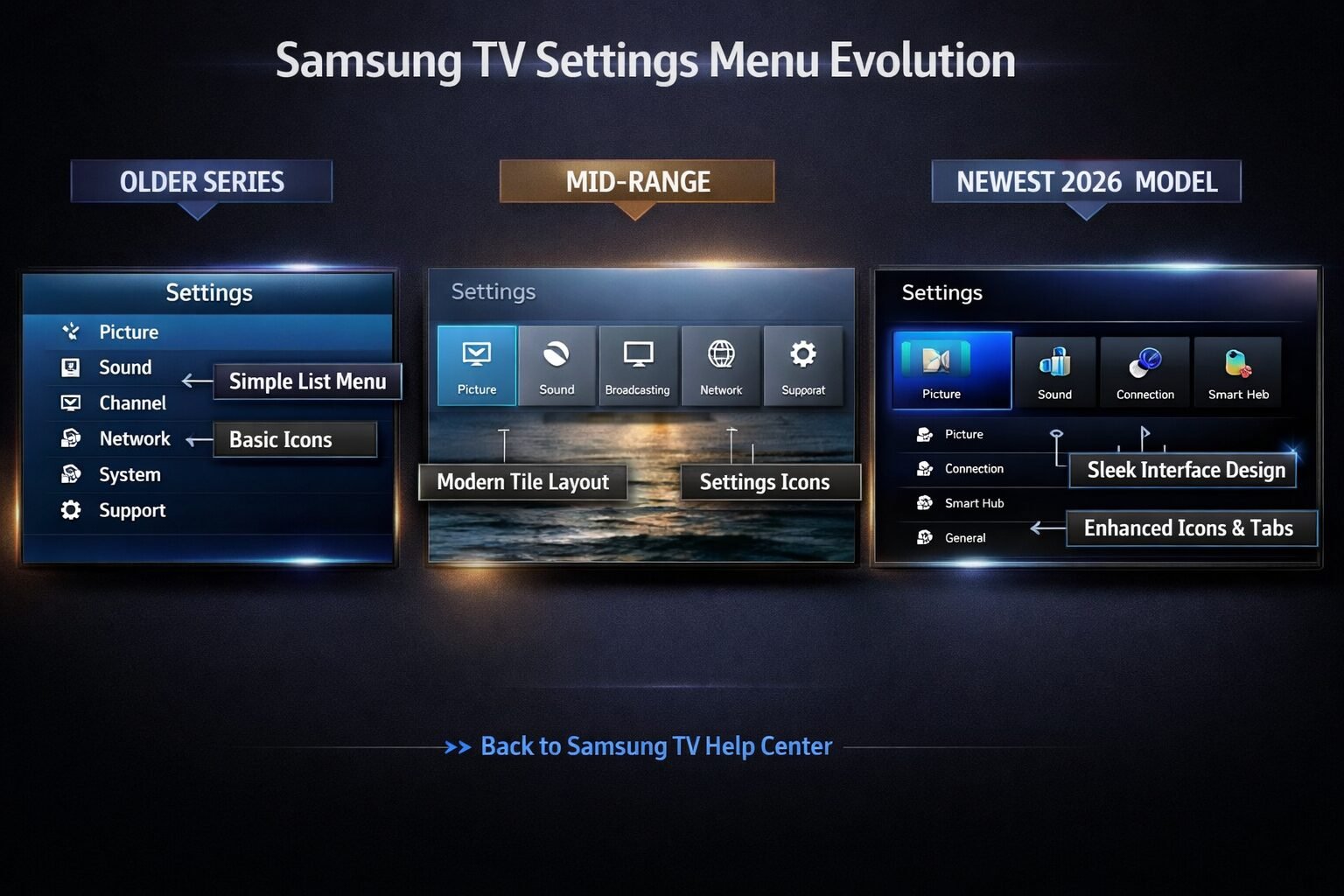
Samsung updates its Tizen OS interface regularly. The menu layout in 2026 models may differ slightly from 2020 or 2022 models, but the core categories (Picture, Sound, General, Connection) remain consistent.
Q: Can I access Samsung TV settings without a remote?
Yes. Use the Samsung SmartThings app on your phone, or press the physical joystick button on the back or side of the TV to open a basic menu.
Q: Where is parental controls in Samsung TV settings?
Go to Settings → General → System Manager → Change PIN or Settings → Broadcasting → Program Rating Lock for content restrictions.
Q: How do I find HDMI settings on my Samsung TV?
Go to Settings → Connection → External Device Manager → HDMI-CEC Settings or HDMI UHD Color to adjust HDMI port behavior.
Q: Where is the energy-saving mode on a Samsung TV?
Go to Settings → General → Eco Solution. Options include Auto Power Off, Ambient Light Detection, and Energy Saving Mode.
Conclusion
Finding Samsung TV settings doesn't need to be a guessing game. The answer to "Where Are Samsung TV Settings? Find Any Menu in 5 Seconds" is almost always the same: press Home, select the gear icon, and you're there. For older TVs, press Menu on the remote instead.
Your next steps:
- Bookmark the Home → gear path as your default starting point for any setting.
- Use the search function inside Settings when you can't find a specific option.
- Check your remote type if the Home button isn't working as expected.
- Explore Expert Settings under Picture if you want to improve your display quality.
- Download the Samsung SmartThings app as a backup remote and settings controller.
Once you know where to look, every setting on a Samsung TV is within a few button presses. The menu structure is logical once you've navigated it a couple of times, and the search function inside Settings is genuinely useful for tracking down buried options.
References
- Samsung Electronics. (2023). Samsung Smart TV User Manual — Tizen OS. Samsung Support. https://www.samsung.com/us/support/
- Samsung Electronics. (2022). How to use the Settings menu on your Samsung TV. Samsung Newsroom. https://news.samsung.com/
- Rtings.com. (2024). Samsung TV Settings Guide: Recommended Setup. https://www.rtings.com/tv/learn/samsung-tv-settings
Tags: Samsung TV settings, Samsung Smart TV, Samsung remote, Tizen OS, TV settings menu, Samsung TV tips, Smart Hub, Samsung TV troubleshooting, picture settings, sound settings, Samsung TV guide, TV setup
*, *::before, *::after { box-sizing: border-box; margin: 0; padding: 0; }
.cg-finder-wrapper {
  font-family: -apple-system, BlinkMacSystemFont, 'Segoe UI', Roboto, sans-serif;
  background: #f0f4f8;
  padding: 24px 16px;
  border-radius: 12px;
  max-width: 680px;
  margin: 32px auto;
}

.cg-finder-title {
  font-size: 1.25rem;
  font-weight: 700;
  color: #1a202c;
  text-align: center;
  margin-bottom: 6px;
}

.cg-finder-subtitle {
  font-size: 0.875rem;
  color: #4a5568;
  text-align: center;
  margin-bottom: 20px;
}

.cg-step-row {
  display: flex;
  flex-direction: column;
  gap: 12px;
  margin-bottom: 20px;
}

.cg-label {
  font-size: 0.8rem;
  font-weight: 600;
  color: #2d3748;
  margin-bottom: 6px;
  text-transform: uppercase;
  letter-spacing: 0.04em;
}

.cg-select {
  width: 100%;
  padding: 10px 14px;
  border: 2px solid #cbd5e0;
  border-radius: 8px;
  font-size: 0.95rem;
  color: #2d3748;
  background: #fff;
  appearance: none;
  background-image: url("data:image/svg+xml,%3Csvg xmlns='http://www.w3.org/2000/svg' width='12' height='12' viewBox='0 0 12 12'%3E%3Cpath fill='%234a5568' d='M6 8L1 3h10z'/%3E%3C/svg%3E");
  background-repeat: no-repeat;
  background-position: right 14px center;
  cursor: pointer;
  transition: border-color 0.2s;
}

.cg-select:focus {
  outline: none;
  border-color: #1428a0;
}

.cg-btn {
  display: block;
  width: 100%;
  padding: 12px;
  background: #1428a0;
  color: #fff;
  font-size: 1rem;
  font-weight: 600;
  border: none;
  border-radius: 8px;
  cursor: pointer;
  transition: background 0.2s;
}

.cg-btn:hover { background: #0f1f7a; }

.cg-result {
  display: none;
  background: #fff;
  border: 2px solid #1428a0;
  border-radius: 10px;
  padding: 18px 20px;
  margin-top: 16px;
}

.cg-result.cg-visible { display: block; }

.cg-result-heading {
  font-size: 1rem;
  font-weight: 700;
  color: #1428a0;
  margin-bottom: 10px;
}

.cg-steps-list {
  list-style: none;
  padding: 0;
}

.cg-steps-list li {
  display: flex;
  align-items: flex-start;
  gap: 10px;
  padding: 7px 0;
  border-bottom: 1px solid #e2e8f0;
  font-size: 0.9rem;
  color: #2d3748;
  line-height: 1.5;
}

.cg-steps-list li:last-child { border-bottom: none; }

.cg-step-num {
  background: #1428a0;
  color: #fff;
  border-radius: 50%;
  min-width: 22px;
  height: 22px;
  display: flex;
  align-items: center;
  justify-content: center;
  font-size: 0.75rem;
  font-weight: 700;
  flex-shrink: 0;
  margin-top: 1px;
}

.cg-tip {
  margin-top: 12px;
  background: #ebf4ff;
  border-left: 4px solid #1428a0;
  padding: 10px 14px;
  border-radius: 0 6px 6px 0;
  font-size: 0.85rem;
  color: #2c5282;
}

@media (max-width: 480px) {
  .cg-finder-title { font-size: 1.1rem; }
}
— Choose your remote —
Smart Remote (slim, fewer buttons, 2016–2026)
Standard Remote (full keypad, pre-2016)
SmartThings App (phone)
— Choose a setting —
Main Settings Menu
Picture / Display Settings
Sound / Audio Settings
Wi-Fi / Network Settings
Bluetooth Settings
Factory Reset
Game Mode
Accessibility Settings
Sleep Timer
Software Update
const cgData = {
smart: {
main: { steps: [“Press the Home button (🏠) on your remote”,”Wait for the Smart Hub bar to appear”,”Navigate to the gear icon (⚙️) on the bottom row”,”Press OK/Select to open Settings”,”If you see a small panel, scroll down and select ‘All Settings'”], tip: “The Home button is the small house icon near the center of your Smart Remote.” },
picture: { steps: [“Press Home (🏠) → select gear icon (⚙️)”,”Select ‘Picture’ from the Settings menu”,”Choose ‘Expert Settings’ for advanced options like White Balance and Gamma”,”Select your Picture Mode (Standard, Movie, Game, Dynamic)”], tip: “For movies, try ‘Filmmaker Mode’ if available — it disables all processing for accurate color.” },
sound: { steps: [“Press Home (🏠) → select gear icon (⚙️)”,”Select ‘Sound’ from Settings”,”Choose ‘Sound Mode’ to pick Standard, Optimized, or Amplify”,”Go to ‘Sound Output’ to switch between TV speakers, ARC, or Bluetooth”], tip: “If you have a soundbar connected via HDMI, set Sound Output to ‘Receiver (HDMI)’ for best results.” },
wifi: { steps: [“Press Home (🏠) → select gear icon (⚙️)”,”Select ‘Connection'”,”Select ‘Network’ → ‘Network Settings'”,”Choose ‘Wireless’ and select your Wi-Fi network”,”Enter your password and press Connect”], tip: “If the network list is empty, select ‘Refresh’ or move the TV closer to your router.” },
bluetooth: { steps: [“Press Home (🏠) → select gear icon (⚙️)”,”Select ‘Connection'”,”Select ‘Bluetooth Device List'”,”Put your device in pairing mode”,”Select it from the list and press Pair”], tip: “Samsung TVs support Bluetooth headphones and speakers but not all Bluetooth keyboards.” },
reset: { steps: [“Press Home (🏠) → select gear icon (⚙️)”,”Select ‘General'”,”Scroll down and select ‘Reset'”,”Enter your PIN (default: 0000)”,”Confirm the reset — the TV will restart”], tip: “A factory reset erases all settings and signed-in accounts. Back up your preferences first.” },
game: { steps: [“Press Home (🏠) → select gear icon (⚙️)”,”Select ‘General'”,”Select ‘External Device Manager'”,”Select ‘Game Mode Settings'”,”Toggle ‘Game Mode’ to On”], tip: “Game Mode reduces input lag significantly. Turn it off when watching movies to restore picture processing.” },
accessibility: { steps: [“Press Home (🏠) → select gear icon (⚙️)”,”Select ‘General'”,”Select ‘Accessibility'”,”Choose from Voice Guide, Zoom, High Contrast, or Audio Description”], tip: “Voice Guide reads menu items aloud. Press and hold the Volume button to toggle it quickly.” },
sleep: { steps: [“Press Home (🏠) → select gear icon (⚙️)”,”Select ‘General'”,”Select ‘System Manager’ → ‘Time'”,”Select ‘Sleep Timer'”,”Choose a duration: 30, 60, 90, 120, or 180 minutes”], tip: “The sleep timer resets each time the TV is turned off, so you’ll need to set it again each session.” },
update: { steps: [“Press Home (🏠) → select gear icon (⚙️)”,”Select ‘Support'”,”Select ‘Software Update'”,”Choose ‘Update Now’ to check for and install updates”,”The TV will restart if an update is found”], tip: “Enable ‘Auto Update’ in the same menu so your TV always runs the latest firmware.” }
},
standard: {
main: { steps: [“Press the MENU button on your remote”,”Use the arrow keys to navigate the on-screen menu”,”Press Enter/OK to select a category”,”Press Return or Back to go up a level”], tip: “On pre-2016 Samsung TVs, the Menu button is the primary way to access all settings.” },
picture: { steps: [“Press MENU on your remote”,”Select ‘Picture’ using arrow keys and press OK”,”Adjust Backlight, Contrast, Brightness, Sharpness, Color”,”Select ‘Advanced Settings’ for White Balance and Gamma”], tip: “The ‘Movie’ picture mode is usually the most accurate for home viewing on older Samsung TVs.” },
sound: { steps: [“Press MENU on your remote”,”Select ‘Sound’ and press OK”,”Choose ‘Sound Mode’: Standard, Music, Movie, Clear Voice, or Amplify”,”Go to ‘Speaker Settings’ to change audio output”], tip: “If sound is delayed vs. the picture, look for ‘Audio Delay’ or ‘AV Sync’ in Sound settings.” },
wifi: { steps: [“Press MENU on your remote”,”Select ‘Network’ and press OK”,”Select ‘Network Settings'”,”Choose ‘Wireless’ and select your network”,”Enter your Wi-Fi password”], tip: “If ‘Network’ doesn’t appear in the menu, your TV may not have built-in Wi-Fi — check for a USB Wi-Fi adapter.” },
bluetooth: { steps: [“Press MENU on your remote”,”Select ‘Sound'”,”Select ‘Speaker Settings'”,”Look for ‘Bluetooth Audio’ — not all older models support this”], tip: “Bluetooth audio is not available on all pre-2016 Samsung TVs. Check your model’s spec sheet.” },
reset: { steps: [“Press MENU on your remote”,”Select ‘Support’ and press OK”,”Select ‘Self Diagnosis'”,”Select ‘Reset'”,”Enter your PIN (default: 0000) and confirm”], tip: “If you’ve forgotten your PIN, try 0000 or 1234. If those don’t work, contact Samsung Support.” },
game: { steps: [“Press MENU on your remote”,”Select ‘System’ or ‘General'”,”Look for ‘Game Mode’ and toggle it On”,”Alternatively, go to Picture → Picture Mode → Game”], tip: “On older Samsung TVs, Game Mode may be listed under Picture settings rather than General.” },
accessibility: { steps: [“Press MENU on your remote”,”Select ‘System'”,”Select ‘Accessibility'”,”Choose Caption, Menu Transparency, or High Contrast options”], tip: “Closed captions can also be toggled with a dedicated CC button on older Samsung remotes.” },
sleep: { steps: [“Press MENU on your remote”,”Select ‘System'”,”Select ‘Time'”,”Select ‘Sleep Timer’ and choose a duration”], tip: “Some older remotes have a dedicated Sleep button — press it repeatedly to cycle through timer options.” },
update: { steps: [“Press MENU on your remote”,”Select ‘Support'”,”Select ‘Software Update'”,”Choose ‘Update Now’ or ‘By Internet'”,”The TV will restart after updating”], tip: “If internet update fails, you can download the firmware to a USB drive from Samsung’s website and update manually.” }
},
app: {
main: { steps: [“Open the Samsung SmartThings app on your phone”,”Select your Samsung TV from the device list”,”Tap the remote icon to open the virtual remote”,”Tap the Home icon (🏠) in the virtual remote”,”Tap the gear icon (⚙️) that appears on your TV screen”], tip: “Make sure your phone and TV are on the same Wi-Fi network for SmartThings to connect.” },
picture: { steps: [“Open SmartThings app and connect to your TV”,”Tap the remote icon → Home → gear icon”,”Navigate to ‘Picture’ in the Settings menu on your TV”,”Adjust settings using the virtual remote in the app”], tip: “The SmartThings app remote works identically to the physical Smart Remote once connected.” },
sound: { steps: [“Open SmartThings app and connect to your TV”,”Tap remote icon → Home → gear icon on TV”,”Navigate to ‘Sound’ in Settings”,”Adjust Sound Mode or Sound Output as needed”], tip: “You can also control volume directly from the SmartThings app home screen without opening Settings.” },
wifi: { steps: [“Open SmartThings app and connect to your TV”,”Use virtual remote: Home → gear icon → Connection → Network”,”Select ‘Network Settings’ on your TV”,”Choose your Wi-Fi network and enter the password”], tip: “If the TV isn’t showing in SmartThings, connect via the TV’s physical buttons first, then add it to the app.” },
bluetooth: { steps: [“Open SmartThings app and connect to your TV”,”Use virtual remote: Home → gear icon → Connection”,”Select ‘Bluetooth Device List’ on your TV”,”Put your Bluetooth device in pairing mode and select it”], tip: “Pairing via the app works the same as using the physical remote.” },
reset: { steps: [“Open SmartThings app and connect to your TV”,”Use virtual remote: Home → gear icon → General → Reset”,”Enter your PIN (default: 0000) on the TV”,”Confirm the reset”], tip: “After a factory reset, you’ll need to re-add the TV to your SmartThings account.” },
game: { steps: [“Open SmartThings app and connect to your TV”,”Use virtual remote: Home → gear icon → General”,”Select ‘External Device Manager’ → ‘Game Mode Settings'”,”Toggle Game Mode On”], tip: “Game Mode can also be enabled quickly from the SmartThings app’s device card in some firmware versions.” },
accessibility: { steps: [“Open SmartThings app and connect to your TV”,”Use virtual remote: Home → gear icon → General → Accessibility”,”Select the accessibility feature you need”], tip: “Voice Guide can make navigating menus via the app easier if you have visual impairments.” },
sleep: { steps: [“Open SmartThings app and connect to your TV”,”Use virtual remote: Home → gear icon → General → System Manager → Time”,”Select ‘Sleep Timer’ and choose a duration”], tip: “SmartThings also lets you schedule TV on/off times from the app’s automation section.” },
update: { steps: [“Open SmartThings app and connect to your TV”,”Use virtual remote: Home → gear icon → Support → Software Update”,”Select ‘Update Now'”,”Monitor progress on the TV screen”], tip: “You can check for updates directly from the SmartThings app device card without opening the TV menu.” }
}
};
function cgFindSetting() {
const remote = document.getElementById(‘cg-remote-select’).value;
const setting = document.getElementById(‘cg-setting-select’).value;
const resultBox = document.getElementById(‘cg-result-box’);
const titleEl = document.getElementById(‘cg-result-title’);
const listEl = document.getElementById(‘cg-steps-list’);
const tipEl = document.getElementById(‘cg-tip-box’);
if (!remote || !setting) {
alert(‘Please select both your remote type and the setting you need.’);
return;
}
const data = cgData[remote][setting];
const settingLabels = {
main: ‘Main Settings Menu’, picture: ‘Picture / Display Settings’,
sound: ‘Sound / Audio Settings’, wifi: ‘Wi-Fi / Network Settings’,
bluetooth: ‘Bluetooth Settings’, reset: ‘Factory Reset’,
game: ‘Game Mode’, accessibility: ‘Accessibility Settings’,
sleep: ‘Sleep Timer’, update: ‘Software Update’
};
titleEl.textContent = ‘📍 How to find: ‘ + settingLabels[setting];
listEl.innerHTML = data.steps.map((s, i) =>
`
`
).join(”);
tipEl.innerHTML = ‘💡 Tip: ‘ + data.tip;
resultBox.classList.add(‘cg-visible’);
resultBox.scrollIntoView({ behavior: ‘smooth’, block: ‘nearest’ });
}


![How to Turn on SMS on Samsung Tablet? [Easy Setup Guide]](https://samsungtechwin.com/wp-content/uploads/2021/09/tablet-1024x704-1.png)