
Fix Samsung TV HDMI Not Working: No Signal in 2 Minutes

Last updated: April 24, 2026
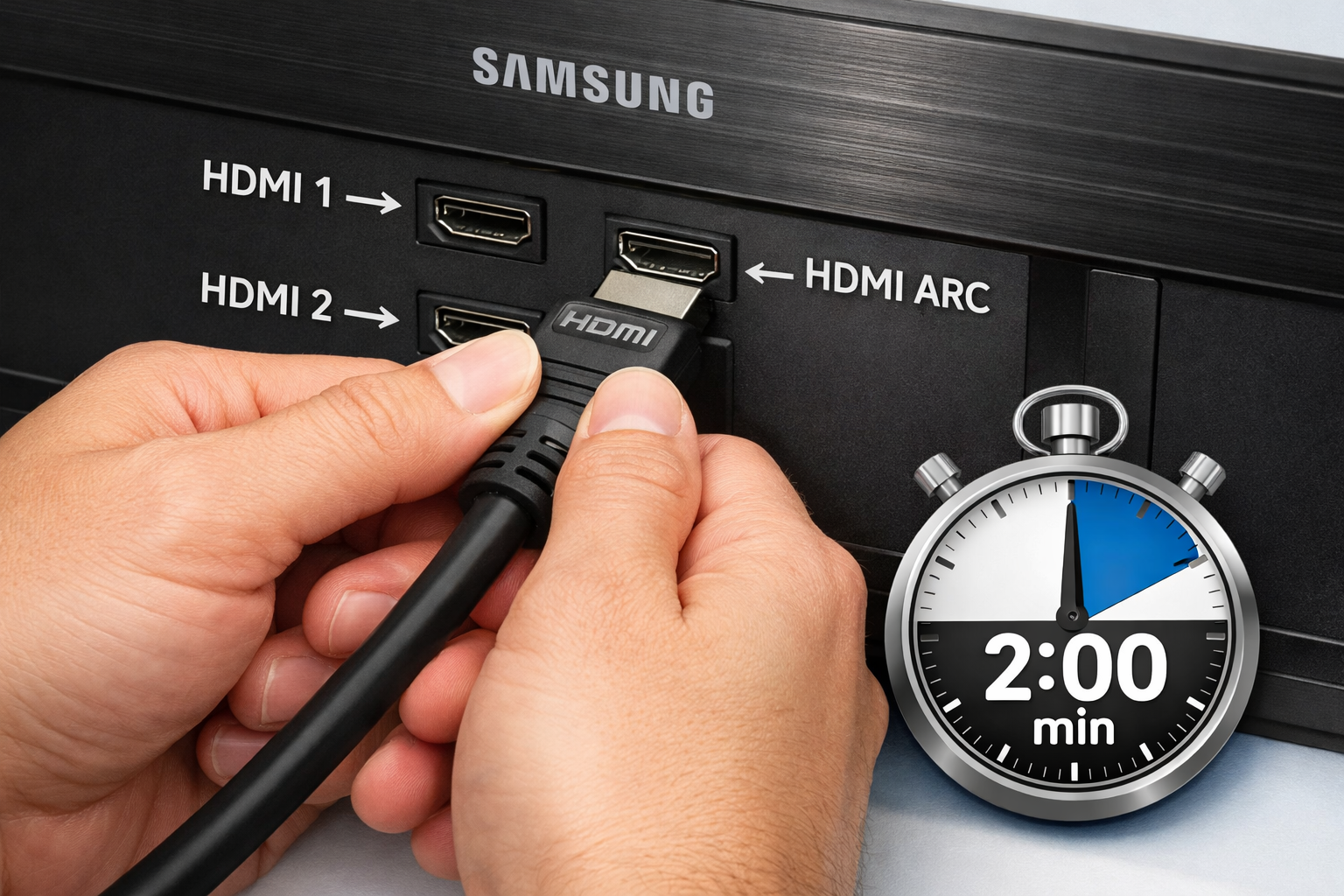
Quick Answer: To fix a Samsung TV HDMI not working with no signal, start by unplugging the HDMI cable from both ends, waiting 10 seconds, and firmly reinserting it. Then power-cycle your TV and the connected device. In most cases, this alone resolves the issue in under 2 minutes. If it doesn’t, the problem is usually a wrong input source, a faulty cable, or a software glitch — all fixable without a technician.
Key Takeaways
- Power-cycling the TV and source device fixes the majority of HDMI no-signal errors.
- Always reseat the HDMI cable firmly — a loose connection is the single most common cause.
- Make sure you’ve selected the correct HDMI input source on your Samsung TV (e.g., HDMI 1 vs. HDMI 2).
- A damaged or low-quality HDMI cable can cause intermittent or total signal loss — swap it out to test.
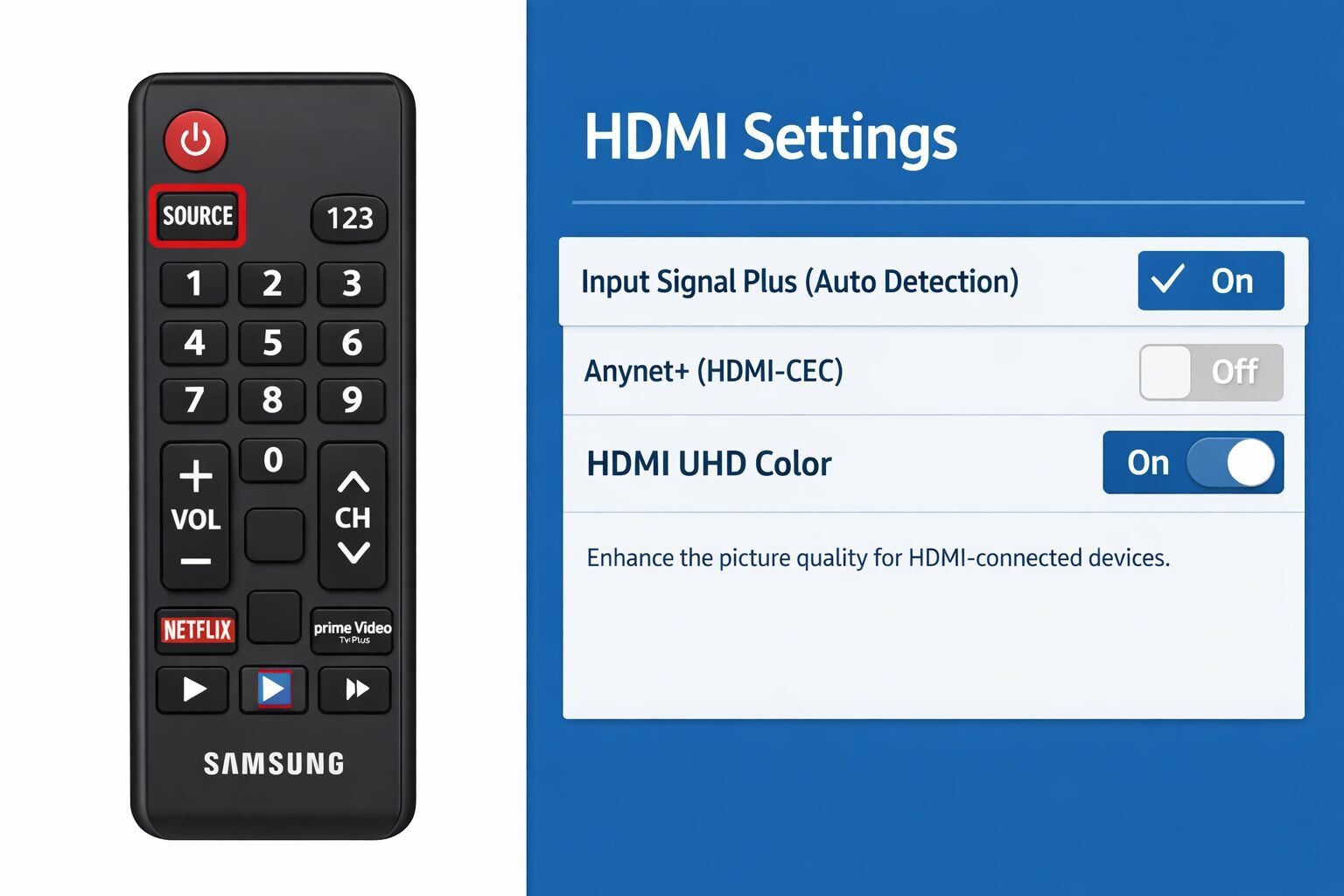
- Samsung TVs have an HDMI UHD Color setting that can block 4K signals if disabled; enable it for 4K devices.
- Soft resetting (holding the power button for 15 seconds) clears temporary firmware glitches.
- If only one HDMI port fails, the port itself may be damaged — try a different port.
- Factory reset is a last resort and should only be used after all other steps fail.
- For persistent issues, check for a Samsung TV firmware update — outdated software can cause HDMI detection failures.
Why Is My Samsung TV Showing No Signal on HDMI?
A Samsung TV shows “No Signal” on HDMI because it isn’t receiving a valid video signal from the connected device. This can happen for several reasons: the wrong input is selected, the cable is loose or faulty, the source device isn’t outputting a signal, or a firmware bug is preventing detection.
Here are the most common causes, ranked by frequency:
| Cause | How Common | Fix Time |
|---|---|---|
| Wrong input source selected | Very common | 10 seconds |
| Loose or unplugged HDMI cable | Very common | 30 seconds |
| Source device not powered on | Common | 10 seconds |
| Faulty or low-quality HDMI cable | Common | 2 minutes |
| TV firmware glitch | Moderate | 2–5 minutes |
| HDMI UHD Color setting disabled | Moderate (4K users) | 1 minute |
| Damaged HDMI port | Less common | Requires repair |
Common mistake: Many people assume the TV is broken when the fix is as simple as pressing the Source button on the remote and selecting the right HDMI port.
How to Fix Samsung TV HDMI Not Working: No Signal in 2 Minutes (Step-by-Step)
These steps are ordered from fastest to most involved. Work through them in sequence and stop when the signal returns.
Step 1: Check the Input Source (10 seconds)
Press the Source button on your Samsung TV remote (or the Home button, then navigate to “Source”). Confirm you’ve selected the correct HDMI port — HDMI 1, HDMI 2, or HDMI 3 — that matches where your cable is physically plugged in.
💡 Quick tip: Samsung TVs don’t auto-switch inputs by default on all models. You must manually select the right source.
Step 2: Reseat the HDMI Cable (30 seconds)
- Unplug the HDMI cable from both the TV and the source device.
- Inspect both ends for bent pins or debris.
- Plug the cable back in firmly — you should feel a slight click or resistance when it’s fully seated.
- Check the TV screen for a signal.
Step 3: Power-Cycle Both Devices (60 seconds)
- Turn off your Samsung TV and the connected device (game console, streaming stick, Blu-ray player, etc.).
- Unplug both from the wall outlet.
- Wait 30 full seconds (not just a few seconds — this drains residual power).
- Plug both back in, power them on, and check for signal.
This clears temporary handshake errors between the TV and the HDMI device.
Step 4: Try a Different HDMI Cable
Swap in a known-good HDMI cable. Cables degrade over time, and cheap cables often can’t handle 4K/HDR signals reliably. If the new cable works, the original was the problem.
Choose a new cable if: your current cable is more than 3 years old, visibly kinked, or came bundled with a budget device.
Step 5: Try a Different HDMI Port on the TV
Plug the cable into a different HDMI port on your Samsung TV. If the signal appears on the new port, the original port is likely damaged or has a hardware fault.
What Samsung TV Settings Can Block an HDMI Signal?
Certain Samsung TV settings actively interfere with HDMI signal detection, especially for 4K and HDR content. The most important one is HDMI UHD Color.
Enable HDMI UHD Color for 4K Devices
If you’re connecting a 4K device (PS5, Xbox Series X, 4K Blu-ray player) and getting no signal or a degraded picture:
- Go to Settings > General > External Device Manager > HDMI UHD Color.
- Toggle it On for the specific HDMI port your device is connected to.
- The TV will briefly restart the HDMI connection.
Edge case: Some older 4K devices don’t support HDMI UHD Color and will actually lose signal when it’s enabled. If enabling it causes the problem, turn it back off.
Check HDMI-CEC (Anynet+) Settings
If your device uses HDMI-CEC to auto-switch inputs and it’s not working, go to Settings > General > External Device Manager > Anynet+ (HDMI-CEC) and toggle it off, then back on.
For issues specifically with your audio return channel, see our guide on Samsung TV HDMI ARC not working or Samsung TV eARC not working for port-specific fixes.
How Do I Soft Reset a Samsung TV to Fix HDMI Issues?
A soft reset clears the TV’s temporary memory without erasing your settings. It’s one of the fastest ways to fix Samsung TV HDMI not working when a simple power-cycle hasn’t helped.
Method 1 — Remote reset:
- Press and hold the Power button on the TV remote for 15 seconds.
- The TV will turn off and restart automatically.
- Once it’s back on, check your HDMI connection.
Method 2 — Physical reset:
- Unplug the TV from the wall.
- Press and hold the physical Power button on the TV (not the remote) for 15 seconds.
- Plug the TV back in and power it on.
This method is particularly effective for firmware-related HDMI detection failures.
Fix Samsung TV HDMI Not Working: No Signal in 2 Minutes — Advanced Fixes
If the quick steps above haven’t resolved the no-signal error, these deeper fixes address less common but real causes.
Update Samsung TV Firmware
Outdated firmware is a known cause of HDMI compatibility issues, especially after connecting newer devices. Samsung regularly releases patches that fix HDMI handshake bugs.
To update:
- Go to Settings > Support > Software Update > Update Now.
- If your TV is connected to Wi-Fi, it will check for and install available updates.
- After the update, test your HDMI connection.
If your TV isn’t online, you can also update Samsung TV firmware via USB.
Run Samsung TV Self-Diagnosis
Samsung TVs have a built-in diagnostic tool:
- Go to Settings > Support > Self Diagnosis > Signal Information (or “HDMI Cable Test” on newer models).
- Follow the on-screen prompts.
- The TV will report whether it detects a valid HDMI signal.
Factory Reset as a Last Resort
A factory reset wipes all settings and returns the TV to its out-of-box state. Only use this if every other step has failed.
- Go to Settings > General > Reset.
- Enter your PIN (default: 0000).
- Confirm the reset.
For a full walkthrough, see our guide on how to reset a Samsung TV.
Important: A factory reset won’t fix a physically damaged HDMI port. If one specific port fails after a reset, the port needs hardware repair.
When Is the HDMI Port Itself the Problem?
A damaged HDMI port is less common but does happen, especially if cables have been plugged and unplugged frequently or if the TV has been moved. Signs the port is physically damaged:
- Signal works on HDMI 2 and HDMI 3 but never on HDMI 1.
- You can visibly see bent or missing pins inside the port.
- The cable feels loose even when fully inserted.
- The TV detects the device intermittently, only when the cable is held at a specific angle.
What to do: Use a different HDMI port as a workaround. For a permanent fix, contact Samsung Support or a certified repair shop. Port replacement is a soldering job and not a DIY task for most users.
If your TV is also showing other display issues alongside HDMI problems, check our guides on Samsung TV flickering screen or Samsung TV no picture but sound to rule out panel-level issues.
Does the Connected Device Cause HDMI No Signal on Samsung TVs?
Yes — the source device is responsible for generating the HDMI signal, so a problem on that end will always show as “No Signal” on the TV.
Quick checks for the source device:
- Is it powered on? Some devices (like streaming sticks) take 30–60 seconds to boot and output a signal.
- Is it set to the correct output resolution? A PS5 or PC set to output 4K to a 1080p TV can cause a handshake failure. Try lowering the output resolution on the device.
- Has the device been updated recently? A bad firmware update on a game console or streaming device can break HDMI output. Check the device manufacturer’s support page.
- Try the device on a different TV or monitor. If it works there, the issue is with the Samsung TV. If it doesn’t work anywhere, the device is the problem.
If you’re also having trouble with wireless content from your phone, our guides on how to cast Android to Samsung TV and how to cast iPhone to Samsung TV offer alternatives while you troubleshoot HDMI.
FAQ: Samsung TV HDMI Not Working
Q: Why does my Samsung TV say “No Signal” even though the HDMI cable is plugged in?
A: The most likely cause is the wrong input source is selected on the TV, or the cable isn’t fully seated. Press the Source button on your remote and select the correct HDMI port, then firmly reseat the cable.
Q: How do I know which HDMI port to select on my Samsung TV?
A: Look at the back or side of your TV where the cable is plugged in. The port is labeled HDMI 1, HDMI 2, or HDMI 3. Select that exact number in the TV’s Source menu.
Q: Can a bad HDMI cable cause no signal on a Samsung TV?
A: Yes. Damaged, low-quality, or very long HDMI cables (over 15 feet without a booster) can fail to carry a stable signal. Swap the cable to test — this takes 2 minutes and costs nothing if you have a spare.
Q: Why does my Samsung TV HDMI work sometimes but not always?
A: Intermittent HDMI signal usually points to a loose cable connection, a failing cable, or a damaged port. Try a new cable first. If the problem persists with a new cable in the same port, the port may be failing.
Q: Does HDMI ARC work differently from regular HDMI on Samsung TVs?
A: Yes. HDMI ARC is a specific port (usually HDMI 2) designed for audio return from a soundbar or receiver. If your ARC setup isn’t working, see our dedicated guide on Samsung TV HDMI ARC not working.
Q: Will a factory reset fix HDMI no signal on my Samsung TV?
A: It can fix software-related HDMI issues, but it won’t repair a physically damaged port. Try all other steps first before factory resetting, since it erases your settings.
Q: My Samsung TV detects the HDMI device but shows a black screen. Is that the same issue?
A: Not exactly. If the TV detects the device but shows a black screen, the signal handshake is partially working. Check our guide on fixing Samsung TV black screen for targeted steps.
Q: Can I use HDMI and screen mirroring at the same time on a Samsung TV?
A: No, you can only use one active input source at a time. If you want to mirror your phone while troubleshooting HDMI, see our screen mirroring guide.
Q: How do I fix HDMI no signal on a Samsung TV without a remote?
A: Use the physical buttons on the TV (usually on the back or bottom edge) to navigate to the Source menu and select the correct HDMI input. Alternatively, download the SmartThings app on your phone to control the TV.
Q: Is there a Samsung TV error code for HDMI failure?
A: Samsung doesn’t always display a specific HDMI error code, but if you see an error number on screen, check our Samsung TV error codes guide to decode it.
Conclusion
Fixing a Samsung TV HDMI no-signal error doesn’t require a technician in most cases. The fix is almost always one of four things: wrong input source, loose cable, a device that needs rebooting, or a quick settings change. Work through the steps in order — start with the source selection and cable reseat, then power-cycle, then move to settings and firmware.
Your action plan:
- Press Source on your remote and confirm the correct HDMI port is selected.
- Unplug and firmly reseat the HDMI cable at both ends.
- Power-cycle the TV and the connected device (unplug from wall for 30 seconds).
- Swap the HDMI cable if you have a spare.
- Enable HDMI UHD Color in settings if you’re using a 4K device.
- Soft reset the TV by holding the power button for 15 seconds.
- Update firmware and run Self Diagnosis if the issue persists.
- Factory reset only as a final step.
For more Samsung TV troubleshooting help across all common issues, visit our Samsung TV help center — it covers everything from remote problems to app failures and display issues in one place.
References
- Samsung Electronics. Samsung TV Support: HDMI Troubleshooting. Samsung Official Support. https://www.samsung.com/us/support/
- HDMI Licensing Administrator. HDMI Specification Overview. hdmi.org. 2023. https://www.hdmi.org/spec/overview
- Samsung Electronics. 2023–2024 Samsung TV Firmware Release Notes. Samsung Developer Portal. 2024. https://developer.samsung.com/
Tags: Samsung TV HDMI not working, no signal Samsung TV, HDMI troubleshooting, Samsung TV fix, HDMI no signal, Samsung TV settings, HDMI UHD Color, Samsung TV repair, HDMI cable fix, Samsung TV input source, TV no signal fix, Samsung TV 2026


