
Fix Samsung TV Remote Not Working in 30 Seconds (No Tools)

Last updated: April 24, 2026
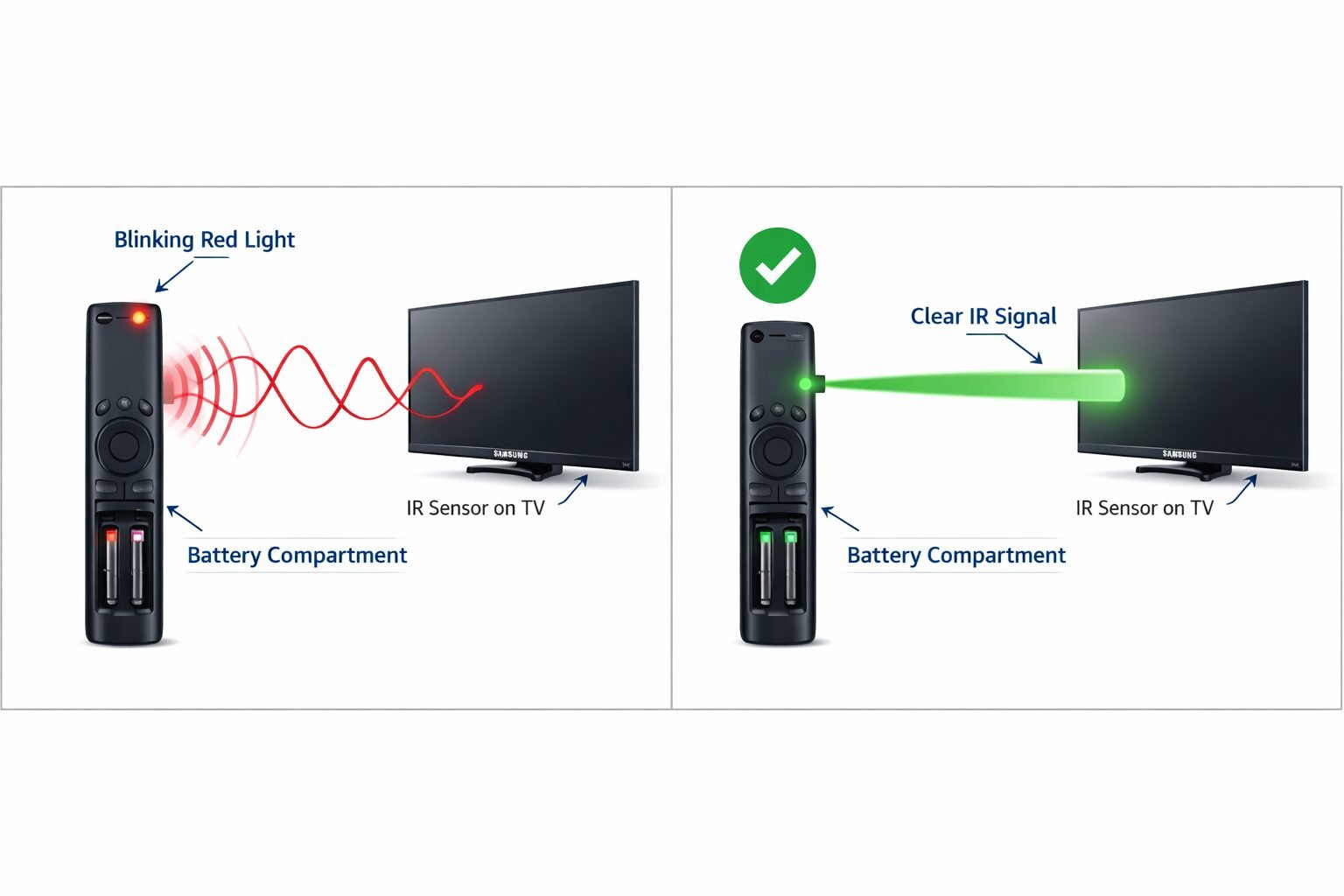
Quick Answer: Most Samsung TV remote failures are caused by drained batteries, a blocked IR sensor, or a minor firmware glitch — not hardware damage. You can fix Samsung TV remote not working in 30 seconds with no tools by removing the batteries, holding the power button for 20 seconds to discharge residual power, reinserting the batteries, and pointing the remote directly at the TV’s IR sensor from within 10 feet. This works on the vast majority of Samsung Smart TV remotes, including both the standard and Solar Cell models.
Key Takeaways
- The 30-second power drain reset is the fastest fix and resolves most Samsung remote issues without any tools or technical knowledge.
- Dead or weak batteries are the single most common cause of a Samsung remote stopping work — even batteries that seem fine can cause intermittent failures.
- IR signal interference from direct sunlight, fluorescent lights, or nearby electronics can block the remote’s signal even when the remote itself is fine.
- Samsung Smart Remotes (Bluetooth-based) need to be re-paired to the TV after certain resets — this takes under 60 seconds.
- The TV’s IR sensor is usually located on the front-center or bottom-right of the panel; obstructions in front of it will prevent any remote from working.
- A phone camera test lets you confirm whether your remote is sending an IR signal without needing any equipment.
- Soft resetting the TV (unplugging for 60 seconds) often fixes remote issues caused by TV-side software glitches, not the remote itself.
- If none of the quick fixes work, re-pairing the Smart Remote or checking for a Samsung TV firmware update is the next logical step.
- For persistent issues, our complete Samsung TV remote troubleshooting guide covers every scenario in depth.
Why Does a Samsung TV Remote Stop Working Suddenly?
Samsung TV remotes stop working suddenly for a handful of predictable reasons, most of which are fixable in under a minute. The remote isn’t broken — it’s usually a power, signal, or pairing issue.
Here are the most common culprits:
| Cause | How Common | Fix Time |
|---|---|---|
| Dead or weak batteries | Very common | 30 seconds |
| Residual electrical charge in remote | Common | 30 seconds |
| Blocked or dirty IR sensor on TV | Common | 30 seconds |
| IR signal interference (light, electronics) | Moderate | 30 seconds |
| Lost Bluetooth pairing (Smart Remote) | Moderate | 60 seconds |
| TV software glitch | Less common | 60–90 seconds |
| Physical damage to remote | Rare | Replacement needed |
Common mistake: Many people replace batteries first without trying the power drain reset. Fresh batteries won’t fix a remote that has a residual charge lock — the 30-second reset clears that instantly.
How to Fix Samsung TV Remote Not Working in 30 Seconds (No Tools)
This is the core fix. It works on Samsung standard remotes, Samsung Smart Remotes, and Samsung Solar Cell remotes. No screwdriver, no app, no phone call required.

Follow these steps exactly:
- Remove the batteries from the back of the remote (or for Solar Cell remotes, locate the reset button on the bottom).
- Hold the Power button on the remote for 20 full seconds. This drains any residual electrical charge stored in the remote’s capacitors.
- Wait 10 more seconds before doing anything else.
- Reinsert the batteries (or press and hold the reset button on Solar Cell remotes for 3 seconds).
- Point the remote directly at the TV from within 5–10 feet and press the Power button.
That’s it. In most cases, the remote responds immediately.
Why this works: Electronic components in the remote can hold a small charge even after batteries are removed. This residual charge can cause the remote’s processor to stay in a frozen or unresponsive state. Holding the power button forces that charge to discharge, effectively performing a soft reset of the remote’s internal logic.
💡 Pro tip: While you have the batteries out, check the battery contacts inside the compartment. If they look slightly green or corroded, wipe them gently with a dry cloth. Corrosion is a surprisingly common cause of intermittent remote failures.
How Do I Know If My Samsung Remote Is Actually Sending a Signal?
Before assuming the remote is broken, confirm it’s actually transmitting. You can do this in under 10 seconds using your smartphone camera — no special equipment needed.
The phone camera IR test:
- Open your phone’s camera app (standard camera, not a third-party app).
- Point the front of the Samsung remote at the camera lens.
- Press and hold any button on the remote while watching the camera screen.
- If the remote is working, you’ll see a purple or white light flashing from the remote’s tip on your camera screen. Human eyes can’t see IR light, but most phone cameras can.
What the results mean:
- Light flashing on camera screen → The remote is sending a signal. The problem is on the TV side (sensor blocked, TV software issue, pairing lost).
- No light at all → The remote is not transmitting. Batteries are dead, or the remote has a hardware fault.
Edge case: Some newer iPhone models (iPhone 15 and later) filter out IR light from the rear camera. If you get no result on the rear camera, try the front-facing camera instead, or use an older Android phone.
If you’re seeing a Samsung TV remote blinking red light during this test, that’s a separate pairing issue covered in detail in our dedicated guide.
What If the 30-Second Fix Doesn’t Work? (Next Steps)
If the power drain reset didn’t resolve the issue, work through these additional fixes in order. Each takes under two minutes.
Step 1: Replace the Batteries With Fresh Ones
Even batteries that test at 50% charge can fail to power a remote reliably. Samsung remotes are sensitive to voltage drops. Use AA alkaline batteries (not rechargeable NiMH batteries, which run at lower voltage) and make sure they’re inserted with correct polarity.
Step 2: Clear the Path to the TV’s IR Sensor
The IR sensor on most Samsung TVs is a small dark dot located on the front-center or bottom-right of the TV panel. Common obstructions include:
- Soundbars placed directly in front of the TV
- Decorative objects on the TV stand
- Direct sunlight hitting the sensor
- Other IR-emitting devices nearby (cable boxes, air conditioners with remotes)
Move any objects blocking the sensor and try again from directly in front of the TV.
If you’re also having trouble with Samsung TV volume not working or other button-specific issues, a blocked sensor is often the shared cause.
Step 3: Soft Reset the TV Itself
Sometimes the issue isn’t the remote — it’s the TV’s receiver. Unplug the TV from the wall outlet, wait 60 seconds (not just 10), then plug it back in. This clears the TV’s short-term memory and resets the IR receiver.
Step 4: Re-Pair a Samsung Smart Remote
Samsung Smart Remotes (the slim, minimalist remotes with fewer buttons) use Bluetooth, not just IR. If Bluetooth pairing is lost, the remote won’t control the TV even if it’s sending a signal.
To re-pair:
- Point the remote at the TV from within 3 feet.
- Press and hold the Return button and the Play/Pause button simultaneously for 3 seconds.
- Wait for the pairing confirmation message on screen.
For a full walkthrough, see our guide on how to pair a Samsung TV remote.
Can I Control My Samsung TV Without the Remote While I Fix It?
Yes. Samsung TVs have several built-in alternatives you can use while troubleshooting the remote.
Options that require no remote:
- SmartThings app (iOS/Android): Samsung’s official app can fully replace the remote over Wi-Fi. Download it, connect to the same Wi-Fi network as your TV, and it detects the TV automatically.
- TV control buttons: Most Samsung TVs have a physical joystick or button panel on the back or bottom edge of the TV. It’s usually a single multi-directional button that handles power, volume, and menu navigation.
- Bixby or voice control: If your TV supports it and is already set up, you can use voice commands through the SmartThings app.
Choose SmartThings if you need full menu access to run a factory reset or update firmware. Choose the physical TV button if you just need to power the TV on or off quickly.
For more on controlling your TV through your phone, see our guide on how to cast from iPhone to Samsung TV.
Does This Fix Work for All Samsung TV Remote Types?
The 30-second battery reset works across all Samsung remote types, but the re-pairing process differs slightly by model.
| Remote Type | Battery Reset Works? | Re-Pairing Needed? | Pairing Method |
|---|---|---|---|
| Standard IR Remote (older models) | ✅ Yes | ❌ No | IR only, no pairing |
| Samsung Smart Remote (2016–2026) | ✅ Yes | Sometimes | Hold Return + Play/Pause |
| Solar Cell Remote (2021–2026) | ✅ Yes (use reset button) | Sometimes | Hold Return + Play/Pause |
| One Remote (Frame TV, etc.) | ✅ Yes | Sometimes | Hold Return + Play/Pause |
Choose the standard battery reset if you have any Samsung remote — it’s always the right first step regardless of model.
If you’re unsure which remote type you have, check the back of the remote. Smart Remotes have a USB-C or micro-USB charging port or a small solar strip. Standard IR remotes have only a battery compartment.
For broader Samsung TV support issues, our Samsung TV help center covers every model and scenario.
What Causes a Samsung Remote to Keep Stopping Working Repeatedly?
If you fix Samsung TV remote not working issues only to have the problem return every few days or weeks, there’s usually an underlying cause worth addressing.
Recurring causes and solutions:
- Low-quality batteries: Cheap batteries drain faster and cause intermittent failures. Switch to name-brand alkaline batteries (Duracell or Energizer).
- Battery contact corrosion: Clean the contacts inside the battery compartment every few months with a dry cloth or pencil eraser.
- Persistent IR interference: Check if a new device (air conditioner, cable box, LED light strip) was added near the TV recently. IR interference is invisible but consistent.
- Outdated TV firmware: A TV running old firmware can have bugs affecting remote responsiveness. Check for updates via Settings > Support > Software Update. Our Samsung TV firmware update guide walks through this in detail.
- Damaged remote: If the remote has been dropped repeatedly, internal solder joints can crack. The camera test will show intermittent or weak IR output.
Edge case: If your TV is in Demo Mode, certain remote functions may appear to not work because the TV is locked into a retail display configuration. This is easy to fix through the settings menu.
FAQ: Fix Samsung TV Remote Not Working
Q: Why did my Samsung remote suddenly stop working with no warning?
A: The most common reason is battery voltage dropping below the threshold the remote needs to function. It can happen suddenly even if the batteries aren’t completely dead. Remove, hold the power button for 20 seconds, reinsert, and test.
Q: My Samsung remote works sometimes but not always. What’s wrong?
A: Intermittent failures usually point to weak batteries, corroded battery contacts, or IR interference from another device. Try fresh name-brand batteries first, then check for obstructions near the TV’s IR sensor.
Q: Can I fix a Samsung Smart Remote that won’t pair?
A: Yes. Hold the Return and Play/Pause buttons simultaneously for 3 seconds while pointing the remote at the TV from within 3 feet. The TV will display a pairing confirmation. See our full Samsung TV remote pairing guide for model-specific steps.
Q: Does the 30-second fix work on Samsung Solar Cell remotes?
A: Yes, but instead of removing batteries, press and hold the small reset button on the bottom of the remote for 3 seconds, then re-pair it to the TV.
Q: My remote passes the phone camera test but the TV still doesn’t respond. What now?
A: The problem is on the TV side. Unplug the TV for 60 seconds to reset the IR receiver, then check for obstructions in front of the TV’s sensor. If that doesn’t work, re-pair the remote using the Bluetooth method.
Q: Will a factory reset fix my Samsung remote issues?
A: A factory reset fixes TV-side software bugs, not remote hardware problems. It’s a last resort because it wipes all your settings. Try the 30-second reset, fresh batteries, and re-pairing first. For factory reset steps, see our Samsung TV reset guide.
Q: Can I use a universal remote with my Samsung TV?
A: Yes. Most universal remotes support Samsung TVs using Samsung’s standard IR codes. However, Smart Remote features like voice control and direct app buttons won’t work on a universal remote.
Q: My Samsung remote has a blinking red light. Is that different from not working?
A: Yes. A blinking red light usually indicates a pairing or low battery issue specifically. Our Samsung TV remote blinking red light guide covers that scenario in full.
Q: How do I control my Samsung TV if the remote is completely dead?
A: Use the SmartThings app on your phone (same Wi-Fi network required), or use the physical control button on the TV itself, usually located on the back or bottom edge of the panel.
Q: Could my TV’s apps stop working because of the remote issue?
A: Not directly. App issues are separate from remote issues. But if your remote is unresponsive and you’re also seeing Samsung TV apps not working, a TV-side software glitch may be causing both — a soft reset of the TV often fixes both at once.
Conclusion
The fastest way to fix Samsung TV remote not working issues requires no tools, no phone calls, and no technical background. Remove the batteries, hold the power button for 20 seconds, wait, reinsert, and test. That single 30-second sequence resolves the majority of Samsung remote failures by clearing residual electrical charge and resetting the remote’s internal logic.
Your actionable next steps:
- Do the 30-second reset now — batteries out, hold power for 20 seconds, reinsert.
- Run the phone camera IR test to confirm whether the remote is transmitting.
- Check for obstructions in front of the TV’s IR sensor.
- Re-pair the Smart Remote if you have a slim Samsung remote with fewer buttons.
- Soft reset the TV by unplugging for 60 seconds if the remote tests fine but the TV still doesn’t respond.
- Update your TV’s firmware if problems keep recurring.
If you’ve worked through all of these steps and the remote still isn’t responding, visit our complete Samsung TV remote not working guide for advanced diagnostics, or head to the Samsung TV help center for model-specific support.
References
- Samsung Electronics. Smart Remote Troubleshooting. Samsung Support. https://www.samsung.com/us/support/ (2023)
- Samsung Electronics. How to Reset Your Samsung Remote. Samsung Support Documentation. (2022)
Tags: Samsung TV remote not working, Samsung remote fix, Samsung Smart Remote troubleshooting, TV remote reset, Samsung TV remote pairing, IR sensor fix, Samsung remote battery reset, Samsung TV troubleshooting, remote not responding, Samsung TV help, fix TV remote, Samsung remote blinking red


