
Cast Android to Samsung TV: Mirror Your Phone in 5 Seconds

Last updated: April 24, 2026
Quick Answer
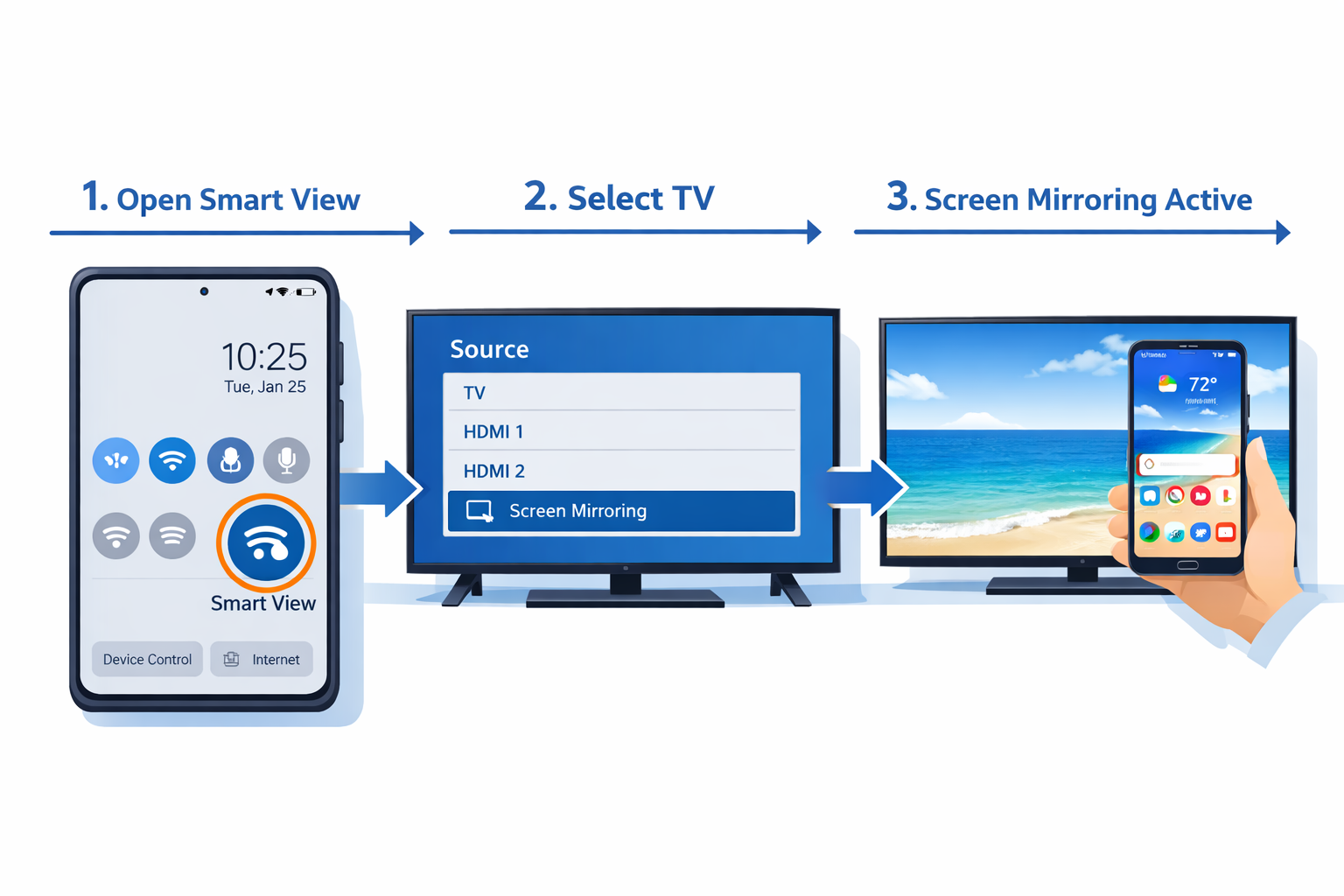
To cast Android to a Samsung TV, swipe down on your Android phone to open Quick Settings, tap Smart View (or Screen Mirror), and select your Samsung TV from the list. Both devices must be on the same Wi-Fi network. The connection typically completes in under 10 seconds.
Key Takeaways
- Smart View is the fastest built-in method to cast Android to Samsung TV — no extra apps needed on most Android phones.
- Both your Android phone and Samsung TV must be on the same Wi-Fi network for wireless casting to work.
- Samsung TVs from 2016 onward support screen mirroring via Smart View and Miracast.
- Google Cast (Chromecast built-in) works as an alternative if your Samsung TV supports it or if you have a Chromecast device plugged in.
- Screen mirroring shows your entire phone screen; casting via an app (like YouTube or Netflix) only sends that app’s content.
- Lag is normal during screen mirroring — expect 0.5 to 2 seconds of delay depending on your Wi-Fi strength.
- If the connection fails, the most common fix is confirming both devices share the same Wi-Fi band (2.4 GHz vs. 5 GHz can cause issues).
- A USB-C to HDMI cable is the most reliable fallback if wireless casting keeps dropping.
What Is Screen Mirroring and How Does Casting Work?
Screen mirroring sends a live copy of your Android phone’s display to your Samsung TV wirelessly. Casting, in the stricter sense, sends a media stream directly to the TV so your phone acts as a remote — not a mirror.
Here’s the practical difference:
| Method | What It Does | Phone Still Usable? |
|---|---|---|
| Screen Mirroring (Smart View) | Mirrors entire phone screen to TV | No — screen stays locked to mirror |
| App Casting (YouTube, Netflix) | Sends video stream to TV directly | Yes — phone acts as remote |
| Google Cast | Streams supported app content to TV | Yes |
| HDMI Cable | Wired display output | Depends on adapter |
Choose screen mirroring when you want to show photos, play mobile games on a big screen, or display anything from any app. Choose app casting when you’re watching video and want to keep using your phone.
How to Cast Android to Samsung TV: Mirror Your Phone in 5 Seconds
This is the fastest method and works on most Android phones (Samsung Galaxy, Google Pixel, OnePlus, and others) paired with Samsung Smart TVs from 2016 onward.
Step-by-step:
- Connect both devices to the same Wi-Fi network. This is the single most important step — skip it and nothing will work.
- On your Samsung TV, press the Home button on your remote, go to Settings > General > External Device Manager > Device Connection Manager, and make sure Screen Mirroring is enabled. (On newer Tizen TVs, this is on by default.)
- On your Android phone, swipe down twice from the top of the screen to fully expand Quick Settings.
- Tap Smart View (Samsung Galaxy phones) or Screen Cast / Cast (Pixel and other Android phones). If you don’t see it, tap the pencil/edit icon to add it to your Quick Settings panel.
- Select your Samsung TV from the list of available devices.
- Accept the connection on your TV if prompted.
That’s it. Your phone screen appears on the TV within a few seconds.
Pro tip: On Samsung Galaxy phones, Smart View is also accessible through the Samsung DeX menu and the notification shade. You don’t need to download anything extra.
Common mistake: Many people tap Smart View before checking the Wi-Fi connection. If your phone is on mobile data or a guest network, the TV won’t appear in the device list at all.
For a deeper walkthrough with screenshots, see our complete guide to casting Android to Samsung TV.
Which Samsung TVs Support Android Screen Mirroring?
Most Samsung Smart TVs support screen mirroring, but the exact method varies by model year.
Compatibility by year:
- 2016–2019 Samsung TVs (Tizen OS): Support Miracast-based screen mirroring. Smart View works reliably.
- 2020–2026 Samsung TVs: Full Smart View support, plus some models support Google Cast natively.
- Older pre-2016 Samsung TVs: Limited or no wireless mirroring support. Use an HDMI cable or a Chromecast dongle instead.
Not sure which model you have? Use the Samsung TV model number lookup to confirm your TV’s year and feature set before troubleshooting.
Edge case: Some Samsung TVs in hotel or apartment setups have screen mirroring disabled at the network level. If your TV simply never shows up in the device list, this could be why — and a wired HDMI connection is your only option in that scenario.
How to Use Google Cast to Mirror Android to Samsung TV
Google Cast is a solid alternative to Smart View, especially if you’re casting content from apps like YouTube, Spotify, or Google Photos rather than mirroring your full screen.
Two scenarios where Google Cast applies:
- Your Samsung TV has Chromecast built-in (select 2022+ models running Tizen with Google TV integration).
- You have a Chromecast device plugged into your Samsung TV’s HDMI port.
Steps to cast via Google Cast:
- Open a supported app (YouTube, Netflix, Spotify, Google Photos, etc.).
- Tap the Cast icon (a rectangle with Wi-Fi waves in the corner) inside the app.
- Select your Chromecast or Samsung TV from the list.
- The content streams directly to the TV. Your phone screen stays free.
Choose Google Cast if: You mainly want to watch video or listen to music and don’t need to mirror your whole screen. The video quality is generally better than screen mirroring because it streams natively rather than compressing a live screen feed.
Why Won’t My Android Phone Find My Samsung TV?
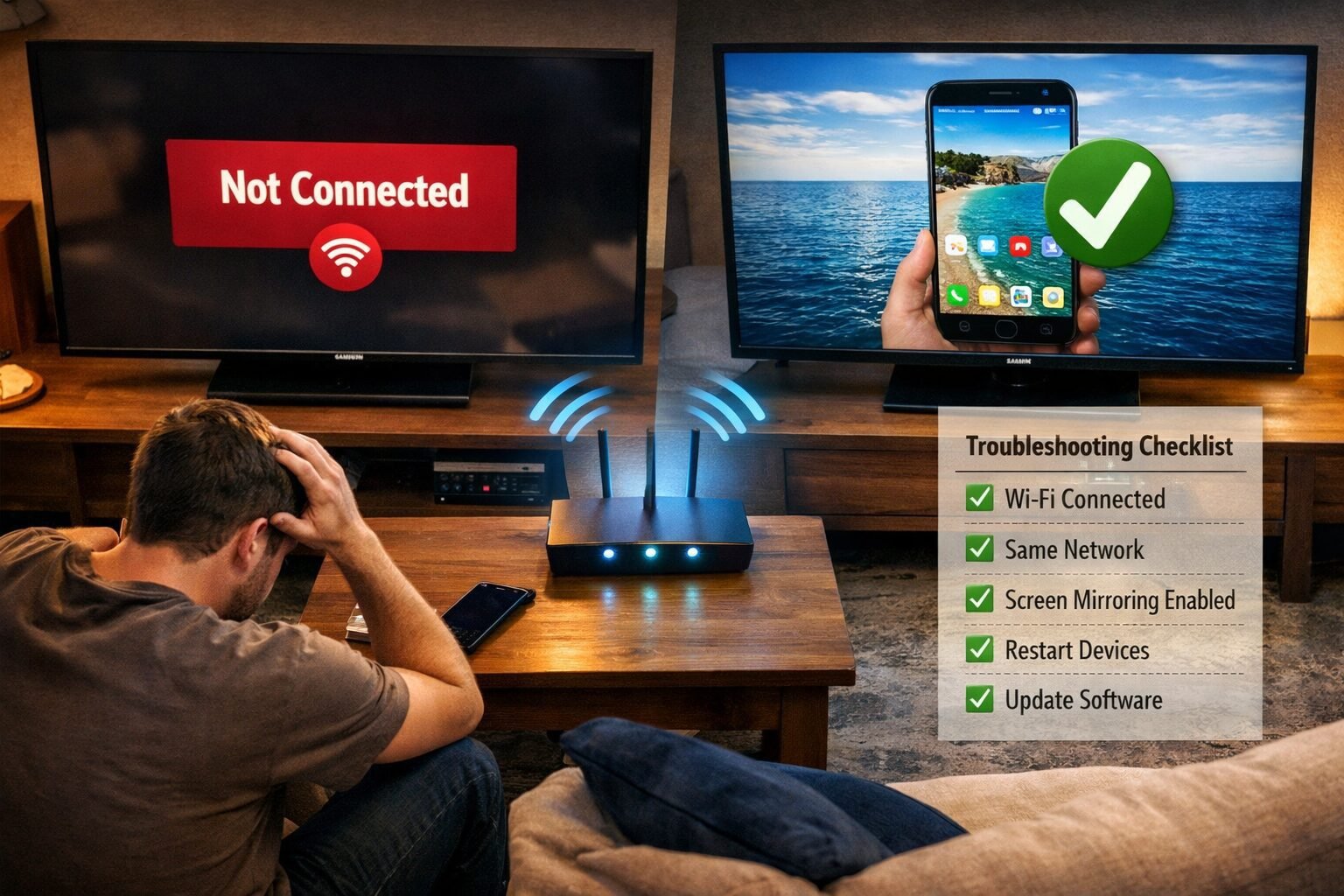
If your Android phone can’t find your Samsung TV when trying to cast, the problem is almost always one of four things.
Most common causes and fixes:
- Different Wi-Fi networks or bands: Your phone might be on 5 GHz and your TV on 2.4 GHz (or vice versa). Connect both to the same band. Some routers use the same SSID for both bands — check your router settings if needed.
- Screen mirroring is disabled on the TV: Go to Settings > General > External Device Manager on your Samsung TV and enable screen mirroring.
- TV firewall or network isolation: Some routers have “AP isolation” enabled, which blocks devices from seeing each other. Disable it in your router settings.
- Outdated TV firmware: An old firmware version can cause connection failures. Check our guide on how to update your Samsung TV to make sure you’re running the latest software.
If you’ve tried all of the above and it still won’t connect, our Samsung TV screen mirroring not working troubleshooting guide covers additional fixes including factory reset steps.
How to Cast Android to Samsung TV Without Wi-Fi
No Wi-Fi? You still have options. Casting Android to Samsung TV without a wireless network is straightforward with the right cable or adapter.
Option 1: USB-C to HDMI Cable or Adapter
- Connect a USB-C to HDMI cable from your Android phone to the TV’s HDMI port.
- Switch your TV input to the correct HDMI source.
- Your phone screen mirrors automatically on most Android phones (Samsung DeX users get a desktop-style layout).
- This is the most reliable method — zero lag, no network required.
If your HDMI port is giving you trouble, check our Samsung TV HDMI not working fix before assuming the cable is the problem.
Option 2: Wi-Fi Direct / Miracast (No Router Needed)
- Some Samsung TVs support direct peer-to-peer connections via Miracast without a router.
- On your TV: Settings > General > External Device Manager > Device Connection Manager > Screen Mirroring.
- On your Android phone: Use Smart View or Cast — it may detect the TV directly even without a shared network.
- This works inconsistently across devices, so test it before relying on it.
Option 3: Mobile Hotspot
- Turn your phone into a hotspot, connect your Samsung TV to that hotspot, then use Smart View normally.
- This uses mobile data, so keep an eye on data usage if you’re streaming video.
Does Screen Mirroring Affect Picture or Sound Quality?
Screen mirroring compresses your phone’s display in real time, so there is a quality trade-off compared to native streaming.
What to expect:
- Resolution: Most Android phones mirror at 1080p. True 4K mirroring via Smart View is not standard as of 2026.
- Frame rate: Typically 30–60 fps depending on phone hardware and Wi-Fi signal strength.
- Audio: Sound plays through your TV speakers by default when mirroring. If you want better audio, consider connecting a soundbar via HDMI ARC.
- Lag: Expect 0.5 to 2 seconds of delay. This makes screen mirroring unsuitable for fast-reaction mobile gaming but fine for video playback, presentations, and photos.
For the best visual experience during mirroring, you may also want to dial in your display settings — our best Samsung TV settings for movies guide has picture mode recommendations that also apply when casting content.
Smart View vs. Google Cast vs. HDMI: Which Method Should You Use?
Each casting method has a clear use case. Here’s a direct comparison to help you choose.
| Method | Best For | Requires | Quality |
|---|---|---|---|
| Smart View (Miracast) | Full screen mirroring, any app | Same Wi-Fi, Samsung TV 2016+ | Good (1080p, some lag) |
| Google Cast | Video/audio apps (YouTube, Spotify) | Chromecast or compatible TV | Excellent (native stream) |
| HDMI Cable | Gaming, presentations, no Wi-Fi | USB-C adapter, HDMI port | Best (zero lag, 4K capable) |
| Samsung DeX | Desktop-style productivity | USB-C cable or DeX dock | Excellent |
Decision rule:
- Use Smart View for quick, casual mirroring of anything on your phone.
- Use Google Cast when you’re watching supported streaming apps and want your phone free.
- Use HDMI when you need zero lag (gaming) or have no Wi-Fi available.
If you’re an iPhone user looking for a similar guide, we also cover how to cast iPhone to Samsung TV separately since the process differs significantly.
FAQ: Cast Android to Samsung TV
Q: Do I need to install an app to cast Android to Samsung TV? No. Samsung Galaxy phones have Smart View built into Quick Settings. Most other Android phones have a built-in Cast or Screen Cast option. No third-party app is required for basic screen mirroring.
Q: Why is my screen mirroring lagging so much? Lag during screen mirroring is usually caused by a weak Wi-Fi signal or network congestion. Move your router closer, switch to a 5 GHz band, or use a wired HDMI connection to eliminate lag entirely.
Q: Can I cast Android to an older Samsung TV that isn’t a Smart TV? Yes, but you’ll need a Chromecast or similar streaming stick plugged into the TV’s HDMI port. The Chromecast handles the wireless connection, and the older TV just displays the output.
Q: Will casting drain my Android phone battery faster? Yes. Screen mirroring uses Wi-Fi, the display, and processing power simultaneously. Expect roughly 20–30% faster battery drain during extended mirroring sessions. Plug in your phone if you’re mirroring for more than 30 minutes.
Q: Can I still use my phone while screen mirroring? During full screen mirroring (Smart View), whatever you do on your phone appears on the TV. You can use your phone, but everything is visible. With Google Cast, your phone screen stays private and you use it as a remote.
Q: My Samsung TV doesn’t show up in Smart View. What should I check first? Check that both devices are on the same Wi-Fi network and the same band (2.4 GHz or 5 GHz). Then confirm screen mirroring is enabled on the TV under Settings > General > External Device Manager.
Q: Does Smart View work with all Android phones, not just Samsung? Smart View is a Samsung app pre-installed on Galaxy phones. Other Android phones (Pixel, OnePlus, etc.) use their own built-in Cast or Screen Cast feature, which also works with Samsung TVs via Miracast.
Q: Can I cast 4K content from my Android phone to my Samsung TV? Wireless screen mirroring via Smart View typically caps at 1080p. For true 4K output, use a USB-C to HDMI 2.0 cable, which can carry 4K signal from compatible Android phones.
Q: Is there a way to cast without the TV appearing on my phone’s Wi-Fi list? Yes — some Samsung TVs support Miracast Direct, which creates a direct peer-to-peer connection without a router. Enable Screen Mirroring on the TV and try connecting via Smart View even without a shared network.
Q: What do I do if my Samsung TV keeps disconnecting during casting? Frequent disconnections usually point to Wi-Fi instability. Try moving closer to your router, restarting both devices, or switching to a 5 GHz network. For persistent issues, see our Samsung TV keeps disconnecting from Wi-Fi guide.
Conclusion
Casting Android to a Samsung TV is genuinely fast once you know the right method. For most people, Smart View is the go-to — open Quick Settings, tap Smart View, select your TV, done. If Smart View isn’t cooperating, Google Cast handles streaming apps beautifully, and a USB-C to HDMI cable solves everything else.
Your next steps:
- Confirm your Wi-Fi setup — same network, same band, for both devices.
- Enable screen mirroring on your Samsung TV under Settings > General > External Device Manager.
- Try Smart View first. If it fails, work through the troubleshooting steps above.
- Bookmark our Samsung TV help center for any other Samsung TV issues you run into.
The whole process should take under a minute once you’ve done it once. After that, casting becomes second nature — a two-tap habit every time you want your phone’s content on the big screen.
References
- Samsung Electronics. Smart View: Screen Mirroring on Samsung Devices. Samsung Support. https://www.samsung.com/us/support/answer/ANS00087865/ (2022)
- Google. Cast from your Android device. Google Support. https://support.google.com/chromecast/answer/6006232 (2023)
- Wi-Fi Alliance. Miracast: Wi-Fi Display Specification Overview. https://www.wi-fi.org/discover-wi-fi/wi-fi-certified-miracast (2021)
Tags: cast Android to Samsung TV, screen mirroring Samsung TV, Smart View Android, Samsung TV screen mirror, Android to TV casting, Miracast Samsung TV, Google Cast Samsung TV, screen mirroring not working, Samsung TV wireless display, Android phone to TV, Samsung TV tips, mirror phone to TV


