
Samsung TV No Sound? Fix It in 60 Seconds [Step-by-Step Guide]

Last updated: April 24, 2026
Quick Answer
If your Samsung TV has no sound, start by pressing the mute button on your remote, then check the volume level and sound output settings. Most Samsung TV audio problems are caused by accidental muting, a wrong sound output selection, or a loose cable, and you can fix them in under a minute without any tools.
Key Takeaways
- Accidental muting is the single most common cause of Samsung TV sound loss — always check it first.
- The Sound Output setting (Settings > Sound > Sound Output) must match your actual audio device (TV Speaker, Bluetooth, HDMI ARC, etc.).
- A soft reset (unplug for 30 seconds, plug back in) clears most temporary audio glitches.
- HDMI ARC and optical cable issues account for a large share of "no sound" complaints on Samsung TVs connected to soundbars.
- If sound works on one app but not another, the problem is app-specific, not a hardware fault.
- Samsung's Sound Test (Settings > Support > Self Diagnosis > Sound Test) confirms whether the TV speakers themselves are working.
- Factory resetting the sound settings fixes software-related audio bugs without wiping your personal data.
- If none of these steps work, the issue may be a failed T-CON board or audio IC chip, which requires professional repair.

Why Does My Samsung TV Suddenly Have No Sound?
Samsung TV audio cuts out for a handful of predictable reasons. Knowing the cause saves you from chasing the wrong fix.
The most common culprits are:
| Cause | How Common | Quick Check |
|---|---|---|
| TV is muted | Very common | Look for mute icon on screen |
| Volume set to 0 | Very common | Press volume up on remote |
| Wrong Sound Output selected | Common | Settings > Sound > Sound Output |
| Loose or wrong HDMI/optical cable | Common | Re-seat cables at both ends |
| App-specific audio bug | Moderate | Test a different app |
| Bluetooth device still connected | Moderate | Check paired devices list |
| Software glitch (needs reboot) | Moderate | Soft reset the TV |
| Faulty hardware | Rare | Run Samsung Sound Test |
Pro tip: Before assuming hardware failure, run through the software fixes. In the vast majority of cases, Samsung TV sound problems are solved without touching a single cable.
Samsung TV No Sound? Fix It in 60 Seconds [Step-by-Step Guide]
Here are the fastest fixes, ordered from most to least likely to solve the problem. Work through them in sequence.
Step 1: Check Mute and Volume (10 seconds)
Press the Mute button on your Samsung remote. If a mute icon was showing on screen, it will disappear and sound should return. Then press Volume Up several times to confirm the level is above zero.
Common mistake: People press volume up on a connected soundbar remote instead of the TV remote, so the TV stays muted while the soundbar volume changes.
Step 2: Check Sound Output Settings (20 seconds)
- Press Home on your remote.
- Go to Settings (gear icon) > Sound > Sound Output.
- Make sure the correct output is selected:
- TV Speaker — if you want sound from the TV itself.
- Receiver (HDMI) or ARC — if using a soundbar via HDMI ARC.
- Optical — if using a digital optical cable.
- Bluetooth Speaker List — if using a wireless speaker.
If a Bluetooth device is listed as active but is turned off or out of range, the TV sends audio to it and you hear nothing. Switch back to TV Speaker to confirm.
Step 3: Soft Reset the TV (30 seconds)
Unplug the TV's power cord from the wall. Wait a full 30 seconds (not just 5). Plug it back in and power on. This clears temporary memory faults that can freeze the audio processor.
Step 4: Run Samsung's Built-In Sound Test
Go to Settings > Support > Self Diagnosis > Sound Test. The TV plays a short melody through its internal speakers. If you hear it clearly, the hardware is fine and the issue is a settings or connection problem. If you hear nothing or distorted sound, the speakers or audio board may be damaged.
How to Fix Samsung TV No Sound on Specific Apps (Netflix, YouTube, etc.)
If your Samsung TV has no sound on one app but works fine elsewhere, the TV hardware and settings are not the problem.
App-specific audio fixes:
- Force close the app: Go to Home > Apps, hold the app icon, select Force Stop or Close, then reopen it.
- Clear the app cache: Go to Settings > Support > Device Care > Manage Storage, select the app, and clear its cache.
- Check the app's own audio settings: Some streaming apps have their own volume or audio track selector inside the player. Look for a sound icon or audio settings within the video player.
- Update the app: Go to Apps > Settings (gear icon) > Auto Update or manually update from the Samsung App Store.
- Check audio format compatibility: Some apps default to Dolby Atmos or Dolby Digital Plus. If your TV or soundbar doesn't support that format, audio may drop out. Switch the app's audio setting to Stereo or Auto.
Edge case: If Netflix specifically has no sound, check Netflix's audio settings inside the app (the speech bubble icon while a video plays). It may have switched to an audio description track or a language you don't recognize.
How to Fix Samsung TV No Sound When Using a Soundbar or External Speaker

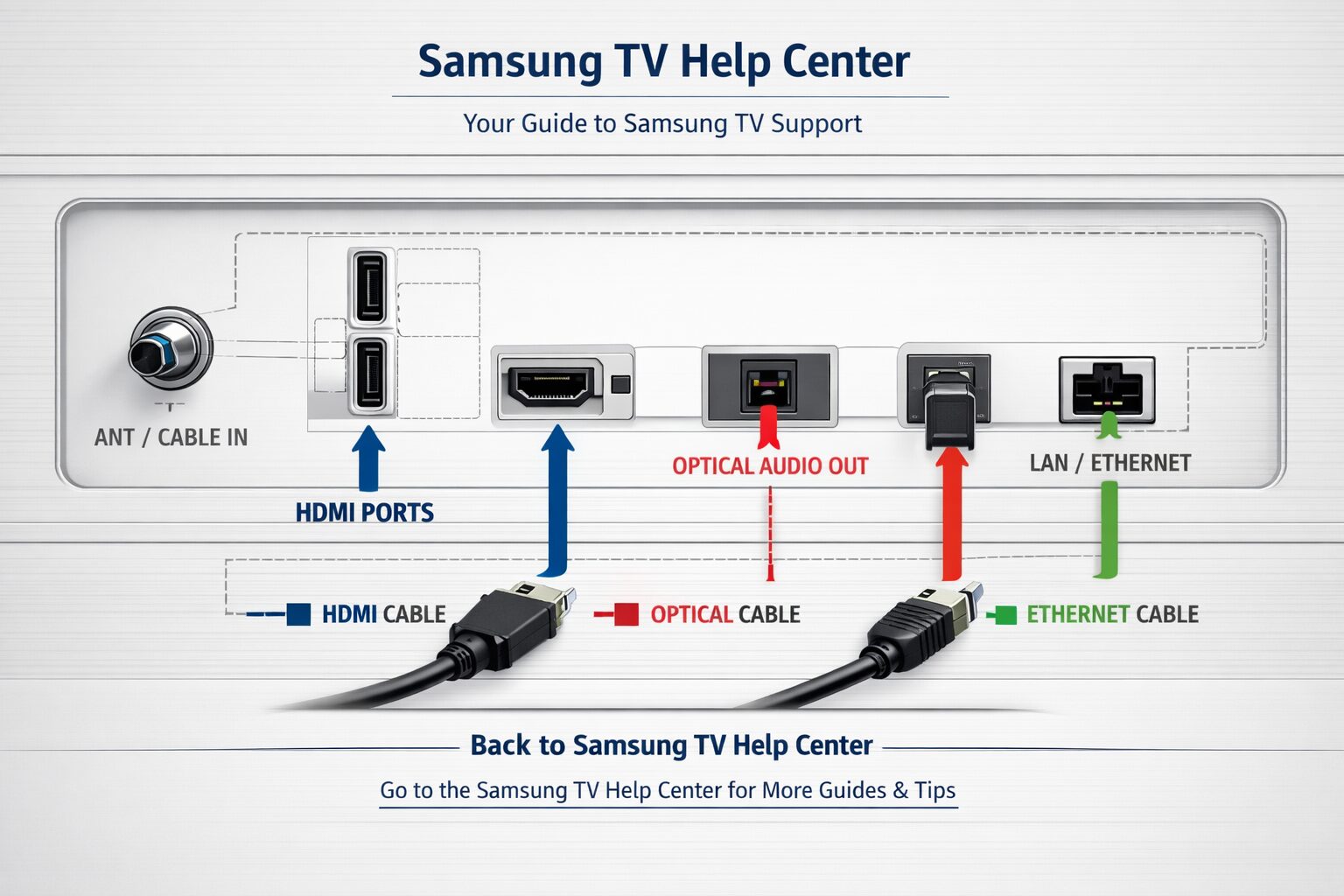
When a Samsung TV has no sound through a soundbar, the fix almost always involves the connection type or the Sound Output setting.
HDMI ARC troubleshooting:
- Make sure the HDMI cable is plugged into the port labeled ARC on both the TV and the soundbar (usually HDMI 1 or HDMI 2 on the TV).
- Go to Settings > General > External Device Manager > Anynet+ (HDMI-CEC) and make sure it is On.
- Go to Settings > Sound > Sound Output and select Receiver (HDMI).
- Try a different HDMI cable. Older cables (HDMI 1.4 or below) sometimes don't carry ARC audio reliably.
Optical cable troubleshooting:
- Check that the optical cable clicks firmly into both ports. The connector has a small tab that must snap in.
- Go to Settings > Sound > Expert Settings > HDMI Audio Format and set it to PCM if Dolby Digital isn't working.
- Make sure the soundbar is set to the correct input (optical/digital, not HDMI or Bluetooth).
Bluetooth speaker troubleshooting:
- Keep the Bluetooth speaker within 10 meters of the TV with no thick walls between them.
- If pairing was lost, go to Settings > Sound > Sound Output > Bluetooth Speaker List and re-pair the device.
How to Reset Samsung TV Sound Settings Without Losing Data
Resetting only the sound settings is a targeted fix that won't erase your apps, login details, or Wi-Fi passwords.
Steps to reset sound settings:
- Go to Settings > Sound.
- Scroll down and select Expert Settings.
- Select Reset Sound.
- Confirm the reset.
This restores all audio settings to factory defaults. After the reset, go back to Sound Output and reselect your preferred output device.
If the audio problem persists after a sound reset, you can try a broader Self Diagnosis reset: Settings > Support > Self Diagnosis > Reset Smart Hub (this resets apps only, not the full TV). A full factory reset (Settings > General > Reset) is a last resort and will require you to set up the TV again from scratch.
What to Do If Samsung TV Still Has No Sound After All Fixes
If you've worked through every step above and the Samsung Sound Test also fails, the problem is likely hardware-related.
Possible hardware causes:
- Failed audio IC chip: The integrated circuit that processes audio has failed. This is a board-level repair.
- Damaged T-CON board: Less common, but a faulty T-CON board can affect both display and audio output.
- Blown internal speakers: Physical damage or a power surge can blow the TV's built-in speakers.
- Damaged HDMI ARC port: If the ARC port is physically damaged, external audio devices won't receive signal.
Your options at this point:
- Check warranty: Samsung TVs sold in 2026 typically carry a 1-year standard warranty. Extended warranties through retailers may cover up to 3-5 years. Contact Samsung Support at 1-800-SAMSUNG or via samsung.com/us/support.
- Professional repair: A certified TV repair technician can diagnose and replace a failed audio board. Repair costs vary widely by region and model, but board-level repairs often run $80–$200 USD (estimate based on typical electronics repair pricing; get a quote from a local technician).
- Use an external speaker as a workaround: If the TV's internal speakers are damaged but HDMI ARC or optical output still works, a soundbar or external speaker is a practical long-term solution.
FAQ: Samsung TV No Sound — Common Questions Answered
Q: Why does my Samsung TV have no sound after a software update?
A: A firmware update can reset audio settings or introduce a temporary bug. Go to Settings > Sound > Sound Output and reselect your output device. If that doesn't work, do a soft reset (unplug for 30 seconds).
Q: My Samsung TV has picture but no sound. What's wrong?
A: Picture and sound are processed separately, so this usually points to a software glitch, a muted/wrong output setting, or a failed audio board rather than a total hardware failure. Start with the mute check and Sound Output settings.
Q: Why does my Samsung TV have no sound on HDMI?
A: Check that HDMI-CEC (Anynet+) is enabled under Settings > General > External Device Manager. Also confirm the HDMI cable is in the ARC-labeled port and the Sound Output is set to Receiver (HDMI).
Q: Samsung TV has no sound in the morning but works later. Why?
A: This is often a Bluetooth pairing issue where the TV tries to connect to a Bluetooth speaker that isn't on yet. Disable Bluetooth output or set Sound Output to TV Speaker as the default.
Q: How do I fix Samsung TV no sound without a remote?
A: Use the physical buttons on the TV (usually on the back or bottom edge). Navigate to Settings using the center button and directional buttons. Alternatively, download the Samsung SmartThings app on your phone and use it as a remote.
Q: Can a Samsung TV lose sound permanently?
A: Yes, if the audio IC chip or internal speakers fail physically. However, even then you can use a soundbar or external speaker via optical or HDMI ARC as a permanent workaround.
Q: Why does my Samsung TV have no sound on only one HDMI port?
A: Individual HDMI ports can fail or have loose internal connections. Try the same device on a different HDMI port. If sound works on another port, the original port is damaged.
Q: Does Samsung TV no sound mean I need a new TV?
A: Rarely. Most audio problems are software or settings issues fixed in under a minute. Even hardware failures often allow workarounds with external speakers.
Conclusion: Get Your Samsung TV Sound Back Fast
Most Samsung TV sound problems are solved in under 60 seconds by checking three things: the mute status, the volume level, and the Sound Output setting. If those don't fix it, a 30-second soft reset clears the majority of remaining issues.
Your action plan:
- ✅ Press mute, then check volume is above zero.
- ✅ Go to Settings > Sound > Sound Output and confirm the right device is selected.
- ✅ Unplug the TV for 30 seconds and restart.
- ✅ Run Settings > Support > Self Diagnosis > Sound Test.
- ✅ If using a soundbar, re-seat HDMI ARC cables and confirm Anynet+ is on.
- ✅ If app-specific, force close the app and clear its cache.
- ✅ As a last resort, reset sound settings via Settings > Sound > Expert Settings > Reset Sound.
If hardware failure is confirmed, contact Samsung Support or a certified repair technician before spending money on a replacement TV. In many cases, an external soundbar is both cheaper and better than the TV's built-in speakers anyway.
References
- Samsung Electronics. Samsung TV Support — Sound Issues. samsung.com/us/support. (2024)
- Samsung Electronics. Anynet+ (HDMI-CEC) Setup Guide. samsung.com/global/tv/support. (2023)
- iFixit. Samsung TV Repair Guides. ifixit.com/Device/Samsung_TV. (2023)
Interactive Troubleshooter:
* {
box-sizing: border-box;
margin: 0;
padding: 0;
}
body {
  font-family: -apple-system, BlinkMacSystemFont, 'Segoe UI', Roboto, sans-serif;
  background: #f0f4f8;
  display: flex;
  justify-content: center;
  align-items: flex-start;
  min-height: 100vh;
  padding: 24px 16px;
}

.cg-element-container {
  background: #ffffff;
  border-radius: 16px;
  box-shadow: 0 4px 24px rgba(0, 0, 0, 0.10);
  max-width: 600px;
  width: 100%;
  overflow: hidden;
}

.cg-element-header {
  background: linear-gradient(135deg, #1428A0 0%, #0070CC 100%);
  color: #ffffff;
  padding: 28px 28px 20px;
}

.cg-element-header h2 {
  font-size: 1.25rem;
  font-weight: 700;
  margin-bottom: 6px;
  line-height: 1.3;
}

.cg-element-header p {
  font-size: 0.875rem;
  opacity: 0.88;
  line-height: 1.5;
}

.cg-element-progress-bar-wrap {
  background: rgba(255,255,255,0.25);
  border-radius: 99px;
  height: 6px;
  margin-top: 16px;
  overflow: hidden;
}

.cg-element-progress-bar-fill {
  background: #ffffff;
  height: 100%;
  border-radius: 99px;
  transition: width 0.4s ease;
  width: 0%;
}

.cg-element-body {
  padding: 28px;
}

.cg-element-question {
  font-size: 1.05rem;
  font-weight: 600;
  color: #1a1a2e;
  margin-bottom: 20px;
  line-height: 1.5;
}

.cg-element-btn-group {
  display: flex;
  flex-direction: column;
  gap: 12px;
}

.cg-element-btn {
  background: #f4f6fb;
  border: 2px solid #e2e8f0;
  border-radius: 10px;
  color: #1a1a2e;
  cursor: pointer;
  font-size: 0.95rem;
  font-weight: 500;
  padding: 14px 18px;
  text-align: left;
  transition: background 0.2s, border-color 0.2s, transform 0.1s;
  line-height: 1.4;
}

.cg-element-btn:hover {
  background: #e8edf8;
  border-color: #1428A0;
  transform: translateY(-1px);
}

.cg-element-btn:active {
  transform: translateY(0);
}

.cg-element-result {
  display: none;
  border-radius: 12px;
  padding: 20px;
}

.cg-element-result.success {
  background: #e6f9f0;
  border: 2px solid #34c77b;
}

.cg-element-result.warning {
  background: #fff8e6;
  border: 2px solid #f5a623;
}

.cg-element-result.info {
  background: #e8edf8;
  border: 2px solid #1428A0;
}

.cg-element-result-icon {
  font-size: 1.8rem;
  margin-bottom: 10px;
}

.cg-element-result-title {
  font-size: 1rem;
  font-weight: 700;
  color: #1a1a2e;
  margin-bottom: 8px;
}

.cg-element-result-text {
  font-size: 0.9rem;
  color: #3a3a5c;
  line-height: 1.6;
}

.cg-element-result-steps {
  margin-top: 12px;
  padding-left: 18px;
}

.cg-element-result-steps li {
  font-size: 0.875rem;
  color: #3a3a5c;
  margin-bottom: 6px;
  line-height: 1.5;
}

.cg-element-nav {
  display: flex;
  justify-content: space-between;
  align-items: center;
  margin-top: 24px;
  gap: 12px;
}

.cg-element-nav-btn {
  background: none;
  border: 2px solid #e2e8f0;
  border-radius: 8px;
  color: #555;
  cursor: pointer;
  font-size: 0.875rem;
  padding: 8px 16px;
  transition: border-color 0.2s, color 0.2s;
}

.cg-element-nav-btn:hover {
  border-color: #1428A0;
  color: #1428A0;
}

.cg-element-restart-btn {
  background: #1428A0;
  border: none;
  border-radius: 10px;
  color: #fff;
  cursor: pointer;
  font-size: 0.95rem;
  font-weight: 600;
  margin-top: 18px;
  padding: 12px 24px;
  transition: background 0.2s;
  width: 100%;
}

.cg-element-restart-btn:hover {
  background: #0d1e7a;
}

.cg-element-step-counter {
  font-size: 0.8rem;
  color: #888;
  text-align: center;
  margin-top: 16px;
}

@media (max-width: 480px) {
  .cg-element-header {
    padding: 20px 18px 16px;
  }
  .cg-element-body {
    padding: 20px 18px;
  }
  .cg-element-header h2 {
    font-size: 1.1rem;
  }
}
🔊 Samsung TV No Sound Troubleshooter
Answer a few quick questions to find your fix in seconds.
const cgSteps = [
{
id: 0,
question: “Is the mute icon showing on your Samsung TV screen?”,
options: [
{ label: “Yes, the mute icon is visible”, next: “result_mute” },
{ label: “No mute icon — but still no sound”, next: 1 }
]
},
{
id: 1,
question: “Is the volume level showing as 0 or very low?”,
options: [
{ label: “Yes, volume is at 0 or very low”, next: “result_volume” },
{ label: “No, volume looks normal (above 10)”, next: 2 }
]
},
{
id: 2,
question: “Are you using a soundbar, external speaker, or Bluetooth device with your TV?”,
options: [
{ label: “Yes, I use a soundbar or external speaker”, next: 3 },
{ label: “No, I only use the TV’s built-in speakers”, next: 4 }
]
},
{
id: 3,
question: “What connection does your soundbar use?”,
options: [
{ label: “HDMI ARC cable”, next: “result_hdmi_arc” },
{ label: “Optical (digital audio) cable”, next: “result_optical” },
{ label: “Bluetooth (wireless)”, next: “result_bluetooth” }
]
},
{
id: 4,
question: “Does the sound problem happen on all apps, or just one specific app?”,
options: [
{ label: “All apps and inputs have no sound”, next: 5 },
{ label: “Only one app (e.g. Netflix, YouTube)”, next: “result_app” }
]
},
{
id: 5,
question: “Have you tried unplugging the TV for 30 seconds and plugging it back in?”,
options: [
{ label: “Yes, I tried that — still no sound”, next: “result_hardware” },
{ label: “No, I haven’t tried that yet”, next: “result_soft_reset” }
]
}
];
const cgResults = {
result_mute: {
type: “success”,
icon: “🔇”,
title: “Fix: TV is Muted”,
text: “Your TV is muted. Press the Mute button on your Samsung remote once to unmute it.”,
steps: [“Press the Mute button on your remote.”, “If the icon disappears and sound returns, you’re done.”, “If not, press Volume Up several times to confirm volume is above zero.”]
},
result_volume: {
type: “success”,
icon: “🔉”,
title: “Fix: Volume is Too Low”,
text: “The volume is set to zero or near zero. Press Volume Up on your Samsung remote.”,
steps: [“Press Volume Up on your remote until you reach a comfortable level.”, “If the TV remote isn’t working, try the physical buttons on the TV itself.”, “Check that you’re pressing the TV remote, not a soundbar or cable box remote.”]
},
result_hdmi_arc: {
type: “info”,
icon: “🔌”,
title: “Fix: HDMI ARC Connection Issue”,
text: “HDMI ARC problems are usually caused by the wrong port, a bad cable, or HDMI-CEC being off.”,
steps: [“Confirm the HDMI cable is in the port labeled ARC on both the TV and soundbar.”, “Go to Settings > General > External Device Manager > Anynet+ (HDMI-CEC) and turn it On.”, “Go to Settings > Sound > Sound Output and select Receiver (HDMI).”, “Try replacing the HDMI cable if the above steps don’t work.”]
},
result_optical: {
type: “info”,
icon: “💡”,
title: “Fix: Optical Cable Issue”,
text: “Optical cables must click firmly into place. A loose connection causes complete audio dropout.”,
steps: [“Unplug and firmly re-seat the optical cable at both ends until it clicks.”, “Make sure the soundbar input is set to Optical/Digital, not HDMI or Bluetooth.”, “Go to Settings > Sound > Expert Settings > HDMI Audio Format and try setting it to PCM.”, “Test with a different optical cable if available.”]
},
result_bluetooth: {
type: “info”,
icon: “📶”,
title: “Fix: Bluetooth Speaker Not Connected”,
text: “The TV may be sending audio to a Bluetooth device that is off or out of range.”,
steps: [“Go to Settings > Sound > Sound Output.”, “Switch to TV Speaker to confirm the TV’s own audio works.”, “To reconnect your Bluetooth speaker, select Bluetooth Speaker List and re-pair it.”, “Keep the Bluetooth speaker within 10 meters of the TV.”]
},
result_app: {
type: “info”,
icon: “📱”,
title: “Fix: App-Specific Audio Issue”,
text: “If only one app has no sound, the problem is with that app, not your TV hardware or settings.”,
steps: [“Force close the app: go to Home > Apps, hold the app icon, select Force Stop.”, “Clear the app cache: Settings > Support > Device Care > Manage Storage.”, “Inside the app’s video player, check for an audio track selector and switch to Stereo.”, “Update the app from the Samsung App Store.”]
},
result_soft_reset: {
type: “success”,
icon: “🔄”,
title: “Fix: Try a Soft Reset First”,
text: “A soft reset clears temporary memory faults that can freeze the audio processor.”,
steps: [“Unplug the TV’s power cord from the wall outlet.”, “Wait a full 30 seconds (not just 5).”, “Plug it back in and power on.”, “Go to Settings > Sound > Sound Output and reselect your preferred output.”]
},
result_hardware: {
type: “warning”,
icon: “🛠️”,
title: “Possible Hardware Issue”,
text: “If a soft reset didn’t help and all settings look correct, the audio hardware may be faulty.”,
steps: [“Run Settings > Support > Self Diagnosis > Sound Test to confirm speaker status.”, “If the Sound Test also fails, contact Samsung Support (1-800-SAMSUNG) or samsung.com/us/support.”, “Check if your TV is still under warranty — Samsung TVs typically carry a 1-year standard warranty.”, “As a workaround, connect a soundbar via optical cable if the HDMI ARC port still works.”]
}
};
let cgHistory = [];
let cgCurrentStep = 0;
const totalSteps = 6;
function cgRender(stepId) {
const quizArea = document.getElementById(‘cg-quiz-area’);
const resultArea = document.getElementById(‘cg-result’);
quizArea.style.display = ‘block’;
resultArea.style.display = ‘none’;
if (typeof stepId === ‘string’ && cgResults[stepId]) {
cgShowResult(stepId);
return;
}
const step = cgSteps.find(s => s.id === stepId);
if (!step) return;
cgCurrentStep = stepId;
document.getElementById(‘cg-question-text’).textContent = step.question;
const optionsEl = document.getElementById(‘cg-options’);
optionsEl.innerHTML = ”;
step.options.forEach(opt => {
const btn = document.createElement(‘button’);
btn.className = ‘cg-element-btn’;
btn.textContent = opt.label;
btn.addEventListener(‘click’, () => {
cgHistory.push(stepId);
cgRender(opt.next);
});
optionsEl.appendChild(btn);
});
const progress = Math.round((cgHistory.length / totalSteps) * 100);
document.getElementById(‘cg-progress’).style.width = Math.min(progress, 90) + ‘%’;
document.getElementById(‘cg-step-counter’).textContent = ‘Question ‘ + (cgHistory.length + 1) + ‘ of ~’ + totalSteps;
}
function cgShowResult(resultId) {
const quizArea = document.getElementById(‘cg-quiz-area’);
const resultArea = document.getElementById(‘cg-result’);
const data = cgResults[resultId];
quizArea.style.display = ‘none’;
resultArea.style.display = ‘block’;
resultArea.className = ‘cg-element-result ‘ + data.type;
document.getElementById(‘cg-result-icon’).textContent = data.icon;
document.getElementById(‘cg-result-title’).textContent = data.title;
document.getElementById(‘cg-result-text’).textContent = data.text;
const stepsList = document.getElementById(‘cg-result-steps’);
stepsList.innerHTML = ”;
data.steps.forEach(s => {
const li = document.createElement(‘li’);
li.textContent = s;
stepsList.appendChild(li);
});
document.getElementById(‘cg-progress’).style.width = ‘100%’;
}
document.getElementById(‘cg-restart-btn’).addEventListener(‘click’, () => {
cgHistory = [];
cgCurrentStep = 0;
document.getElementById(‘cg-progress’).style.width = ‘0%’;
cgRender(0);
});
cgRender(0);
Tags: Samsung TV no sound, Samsung TV audio fix, TV sound troubleshooting, Samsung TV muted, HDMI ARC no sound, Samsung soundbar fix, Samsung TV settings, TV no audio, Samsung TV repair, smart TV audio problems, Samsung TV soft reset


