Samsung TV Won’t Connect to Wi-Fi? Connect in 2 Minutes

Quick Answer: If your Samsung TV won’t connect to Wi-Fi, the fastest fix is a soft reset: unplug the TV from the wall for 60 seconds, restart your router, then reconnect. This resolves the majority of Samsung TV Wi-Fi connection failures caused by cached network errors or temporary firmware glitches. If that doesn’t work, the steps below cover every known cause and fix, from IP conflicts to DNS errors to hardware faults.
Key Takeaways
- A 60-second power cycle of both your Samsung TV and router fixes most Wi-Fi connection problems instantly.
- Incorrect DNS settings are a surprisingly common cause of Samsung TVs that appear connected but can’t load apps or content.
- IP address conflicts on your home network can silently block your TV from connecting, even when the password is correct.
- Samsung TV software bugs in specific firmware versions have caused widespread Wi-Fi drops; a manual software update often resolves this.
- The 2.4 GHz band is more reliable for Samsung TVs at longer distances; 5 GHz is faster but drops off quickly through walls.
- Factory resetting your TV is a last resort and should only be done after all other steps have failed.
- Hardware Wi-Fi adapter failure is rare but real; if nothing else works, a Samsung service center can diagnose it.
- Most Samsung TV Wi-Fi issues are software or network-related and can be fixed without any tools or technical knowledge.

Why Does a Samsung TV Won’t Connect to Wi-Fi in the First Place?
Most Samsung TV Wi-Fi failures fall into one of four categories: a temporary software glitch, a router or network issue, incorrect settings on the TV, or (rarely) a hardware problem. Understanding which category you’re dealing with cuts troubleshooting time dramatically.
The four root causes, ranked by frequency:
| Cause | How Common | Typical Fix |
|---|---|---|
| Temporary firmware/cache glitch | Very common | Power cycle the TV |
| Router or ISP issue | Common | Restart router or check ISP status |
| Incorrect TV network settings | Moderate | Re-enter credentials or change DNS |
| Hardware Wi-Fi adapter failure | Rare | Samsung service repair |
“Most Samsung TV Wi-Fi problems are solved in under two minutes by restarting the TV and router. Hardware failure accounts for a small fraction of cases.”
Common mistake: People assume the problem is always with the TV. In many cases, the router has simply assigned a duplicate IP address or the ISP is experiencing a brief outage. Always check your phone or laptop on the same network first to rule out a broader internet issue.
The 2-Minute Fix: How to Get Your Samsung TV Won’t Connect to Wi-Fi Issue Resolved Fast
This is the fix that works for most people. Follow these steps in order before trying anything more complex.
Step 1: Power cycle your Samsung TV
- Turn off the TV using the remote.
- Unplug the TV’s power cable from the wall outlet (not just the power strip).
- Wait a full 60 seconds. This clears the RAM and resets the network stack.
- Plug the TV back in and turn it on.
Step 2: Restart your router
- Unplug your router (and modem, if separate) from the wall.
- Wait 30 seconds.
- Plug the modem back in first, wait 30 seconds, then plug in the router.
- Wait for all lights to stabilize (usually 60–90 seconds).
Step 3: Reconnect on the TV
- Press the Home button on your Samsung remote.
- Go to Settings > General > Network > Network Status.
- Select Network Reset if the TV shows as disconnected.
- Choose your Wi-Fi network, enter your password, and connect.
✅ If this works, you’re done. If not, keep reading.
How to Fix Samsung TV Wi-Fi Problems Through the Settings Menu
When the quick restart doesn’t solve it, the TV’s network settings are usually the next place to look. This covers DNS errors, IP conflicts, and password issues.
Change your DNS settings manually:
Incorrect or slow DNS servers can cause a Samsung TV to appear connected to Wi-Fi but fail to load anything. Google’s public DNS (8.8.8.8) is a reliable alternative.
- Go to Settings > General > Network > Network Status > IP Settings.
- Set DNS Setting to Enter Manually.
- Type 8.8.8.8 and confirm.
- Run a network test to verify.
Set a manual IP address to avoid conflicts:
If your router has assigned the same IP to two devices, your TV will fail to connect even with the correct password.
- In IP Settings, switch IP Setting to Enter Manually.
- Enter an IP address outside your router’s DHCP range (for example, if your router uses 192.168.1.1–192.168.1.100 for DHCP, use 192.168.1.150).
- Set the Subnet Mask to 255.255.255.0 and Gateway to your router’s IP (usually 192.168.1.1 or 192.168.0.1).
- Save and test the connection.
Forget and re-add the network:
- Go to Settings > General > Network > Open Network Settings.
- Select your network name.
- Choose Delete (or Forget).
- Re-select the network and re-enter your password carefully, paying attention to uppercase letters and special characters.
Does Your Router Band Matter? 2.4 GHz vs. 5 GHz for Samsung TVs
Yes, the band your Samsung TV connects to can make a real difference. Choose the right band based on your setup.
- 2.4 GHz: Slower but travels farther and passes through walls better. Best if your TV is more than 20 feet from the router or separated by walls.
- 5 GHz: Faster but shorter range. Best if your TV is in the same room or adjacent room as the router.
Choose 2.4 GHz if:
- Your TV is far from the router.
- You have thick walls or multiple floors between the TV and router.
- You keep experiencing drops on 5 GHz.
Choose 5 GHz if:
- Your TV is close to the router.
- You stream 4K content and need higher bandwidth.
- Your 2.4 GHz band is congested (many devices connected).
Edge case: Some older Samsung TV models (pre-2019) only support 2.4 GHz. If your TV can’t see your 5 GHz network at all, this may be why.

How to Update Samsung TV Software to Fix Wi-Fi Bugs
Samsung has released firmware updates that specifically addressed Wi-Fi connectivity bugs in several TV model lines. Running outdated software is a real and fixable cause of persistent Wi-Fi problems.
Update via the internet (if you can connect temporarily):
- Go to Settings > Support > Software Update > Update Now.
- The TV will check for and install any available updates.
- The TV will restart automatically.
Update via USB (if the TV won’t connect at all):
- On a computer, go to Samsung’s support website and search for your TV model number (found on a sticker on the back of the TV).
- Download the latest firmware file.
- Copy it to a USB drive (FAT32 format, file at the root level).
- Insert the USB into the TV.
- Go to Settings > Support > Software Update > Update Now.
- The TV will detect the USB file and install the update.
Quick tip: Your TV model number is printed on a label on the back panel and also visible under Settings > Support > About This TV.
What If Your Samsung TV Still Won’t Connect to Wi-Fi After All These Steps?
At this point, you’ve ruled out the most common causes. The remaining possibilities are a hardware issue, a router compatibility problem, or a need for a factory reset.
Try these advanced steps:
- Check router MAC filtering: Some routers block unknown devices. Log into your router’s admin panel (usually at 192.168.1.1 or 192.168.0.1) and check if MAC address filtering is enabled. If it is, add your TV’s MAC address (found under Settings > General > Network > Network Status > MAC Address).
- Disable router firewall temporarily: Some aggressive router firewall settings block Samsung TV connections. Test with the firewall off to see if that’s the cause, then re-enable it and create a specific exception.
- Move the router closer: If possible, temporarily place the router in the same room as the TV to test whether distance or interference is the problem.
- Factory reset the TV: This is a last resort because it erases all your settings and app logins. Go to Settings > General > Reset, enter your PIN (default is 0000), and confirm. After the reset, set up the network connection fresh.
When to contact Samsung support:
If the TV fails to connect after a factory reset and the router works fine with all other devices, the internal Wi-Fi adapter may be faulty. Contact Samsung support at 1-800-726-7864 or visit Samsung’s support page to arrange a repair or replacement if the TV is under warranty.
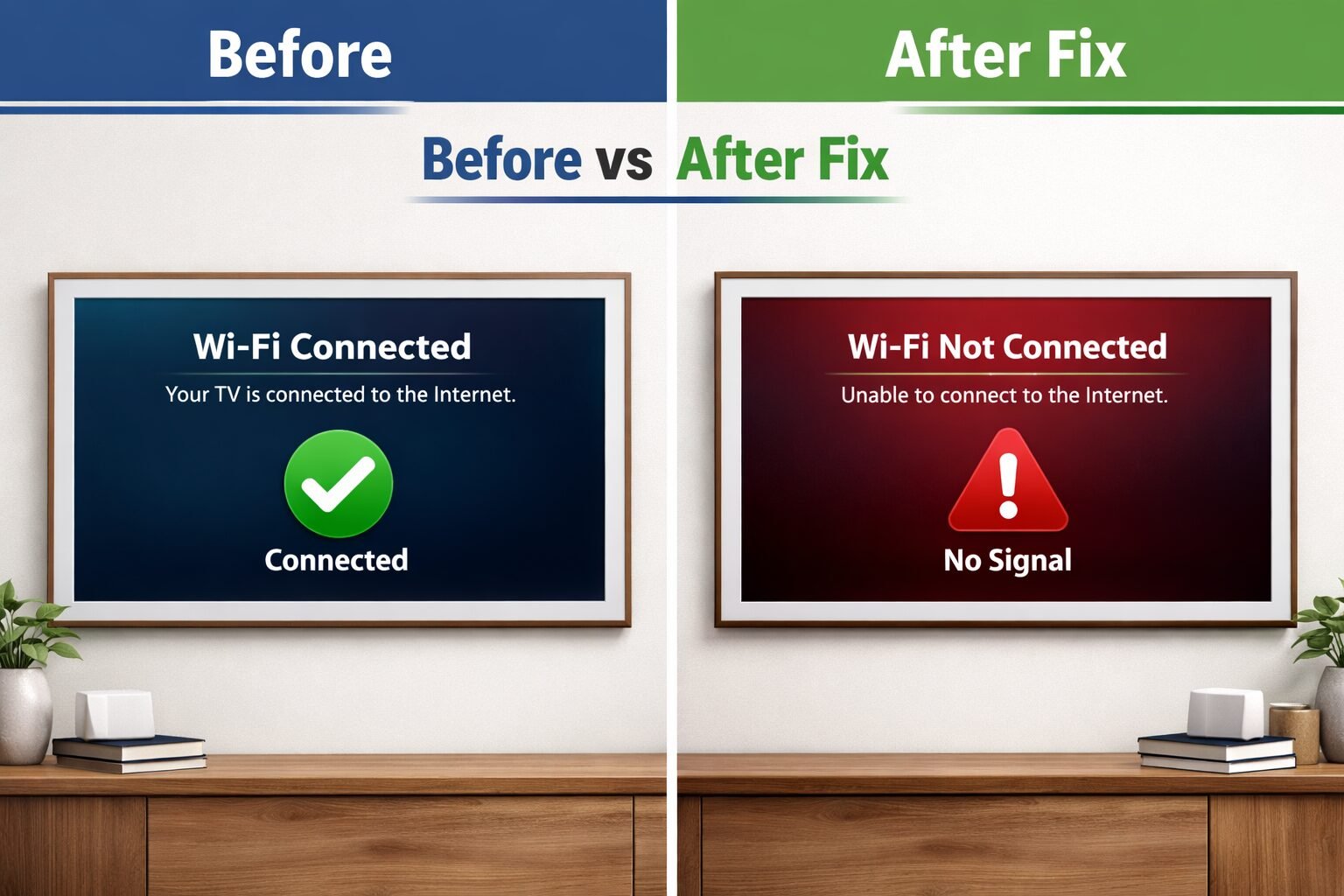
Samsung TV Wi-Fi Troubleshooting Checklist
Use this checklist to work through the problem systematically without missing a step.
- Confirm other devices connect to the same Wi-Fi network
- Power cycle the Samsung TV (unplug for 60 seconds)
- Restart the router and modem
- Re-enter the Wi-Fi password on the TV
- Switch between 2.4 GHz and 5 GHz bands
- Change DNS to 8.8.8.8 manually
- Set a manual IP address outside the DHCP range
- Check for and install Samsung TV firmware updates
- Check router for MAC address filtering
- Move the router closer to the TV temporarily
- Factory reset the TV as a last resort
- Contact Samsung support if hardware failure is suspected
FAQ: Samsung TV Won’t Connect to Wi-Fi
Q: Why does my Samsung TV keep disconnecting from Wi-Fi?
A: Repeated disconnections are usually caused by an unstable router signal, a conflicting IP address, or a firmware bug. Try assigning a manual IP address and updating the TV’s software. If the problem persists, check whether your router’s DHCP lease time is set too short.
Q: My Samsung TV says “Connected” but there’s no internet. Why?
A: This usually means the TV reached the router but the router isn’t passing internet traffic to it. Check your DNS settings (try 8.8.8.8), confirm your ISP service is active, and restart the router. This is a network issue, not a TV hardware problem.
Q: How do I find my Samsung TV’s MAC address?
A: Go to Settings > General > Network > Network Status > MAC Address. You’ll see a 12-character alphanumeric code. You’ll need this if your router uses MAC address filtering.
Q: Will a factory reset fix my Samsung TV’s Wi-Fi problem?
A: It often does, because it clears corrupted network settings and cached data. However, it also erases all your app logins and preferences. Try all other steps first. The default PIN for a factory reset is 0000.
Q: Does Samsung TV support 5 GHz Wi-Fi?
A: Most Samsung TVs made from 2017 onward support both 2.4 GHz and 5 GHz (dual-band). TVs made before 2017 may only support 2.4 GHz. Check your model’s specifications on Samsung’s website to confirm.
Q: Can a VPN on my router cause my Samsung TV to lose Wi-Fi?
A: Yes. Some VPN configurations on routers can block Samsung TV’s connection to Samsung’s servers, which the TV needs for initial setup and app functionality. Try connecting the TV without the VPN active to test this.
Q: What is the default Wi-Fi PIN for a Samsung TV?
A: The default PIN for network reset and factory reset on most Samsung TVs is 0000. If this doesn’t work, you may have set a custom PIN previously. Contact Samsung support to reset it.
Q: How close does a Samsung TV need to be to a Wi-Fi router?
A: As a general guideline, keep the TV within 30 feet (about 9 meters) of the router with no more than one or two walls in between for a stable connection. Beyond that, signal strength can drop enough to cause intermittent disconnections, especially on the 5 GHz band.
Conclusion
A Samsung TV that won’t connect to Wi-Fi is almost always fixable without a technician. The vast majority of cases resolve with a simple power cycle of the TV and router. If that doesn’t work, the next most effective fixes are correcting DNS settings, assigning a manual IP address, and updating the TV’s firmware.
Your action plan:
- Start with the 2-minute power cycle fix described above.
- If that fails, work through the settings menu steps (DNS, IP address, forget and re-add network).
- Update the TV firmware, either over the internet or via USB.
- If nothing works, factory reset the TV and contact Samsung support.
Most people never need to go past step two. Save this guide so you can reference it the next time a Wi-Fi issue comes up, because on a smart TV used daily, it eventually will.
References
- Samsung Electronics. (2023). Samsung Smart TV Support: Network & Internet Issues. https://www.samsung.com/us/support/
- Samsung Electronics. (2022). How to update your Samsung TV’s software. https://www.samsung.com/us/support/answer/ANS00076952/
- Google. (2023). Google Public DNS. https://developers.google.com/speed/public-dns
Tags: Samsung TV Wi-Fi fix, Samsung TV troubleshooting, smart TV connectivity, Wi-Fi not connecting, Samsung TV settings, router troubleshooting, DNS settings TV, Samsung TV firmware update, home network issues, TV internet problems, Samsung support

Hank is a SEO, Marketing Expert., and Editor. He is a guest contributor to Tech, marketing, and news articles.