How to Fix Samsung TV black screen

Last updated: April 17, 2026
Quick Answer: A Samsung TV black screen is most often caused by a loose power connection, an incorrect input source, a failed HDMI cable, or a software glitch. Start by unplugging the TV for 30 seconds, checking all cable connections, and confirming the correct input is selected. Most black screen issues resolve within 10 minutes using the steps in this guide — no technician required.
Key Takeaways
- Power cycling (unplugging for 30 seconds, then holding the power button for 60 seconds while unplugged) fixes the majority of Samsung TV black screen cases
- A red standby light means the TV has power but is in standby mode — not a hardware failure
- HDMI cables and input source mismatches are the #1 cause of a black screen with sound
- Use the flashlight test to determine if your backlight has failed — a faint image means the panel is fine but the backlight is dead
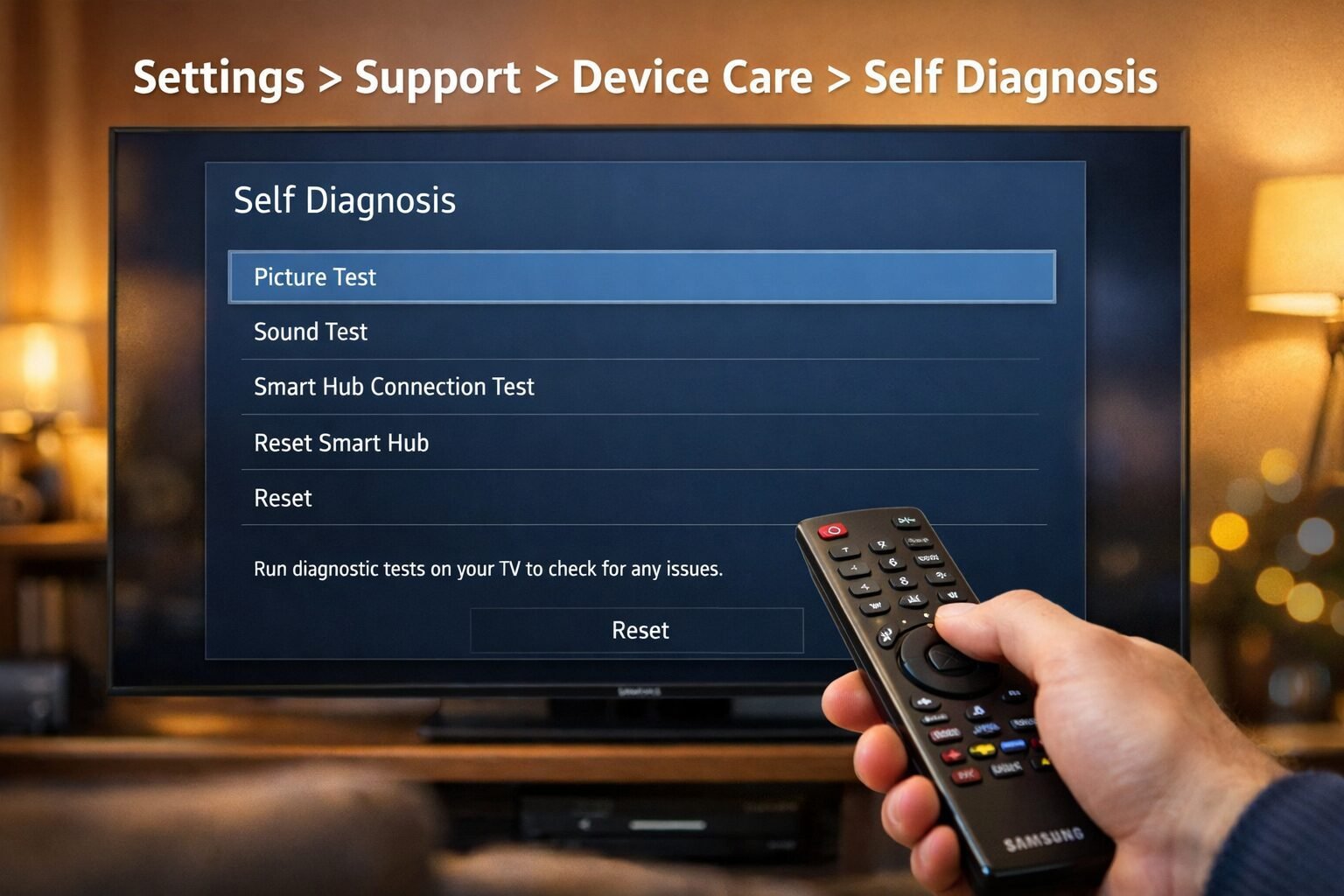
- Samsung's built-in Self Diagnosis tool (Settings > Support > Device Care > Self Diagnosis) can test HDMI cables and signal integrity without any extra equipment
- Factory reset (Settings > General > Reset, PIN: 000000) solves deep software issues but erases all your settings
- If the backlight is confirmed dead, repair costs typically exceed $200 — at that point, comparing Samsung TV screen repair vs. replacement is worth doing before spending money
- Models with a One Connect cable need both ends checked — a partially seated One Connect cable causes an instant black screen
- Always plug your TV directly into a wall outlet, not a surge protector or power strip, when diagnosing power issues
- If your TV is still under warranty, check your Samsung TV warranty by serial number before paying for any repairs
Why Does My Samsung TV Have a Black Screen?
A Samsung TV black screen happens when the display panel receives no signal, the backlight fails, or a software process crashes during startup. The cause determines the fix — so identifying the symptom pattern first saves a lot of time.
Here are the most common causes, ranked by frequency:
| Cause | Symptom Pattern | DIY Fixable? |
|---|---|---|
| Wrong input source selected | Black screen, TV powers on normally | ✅ Yes |
| Loose or faulty HDMI cable | Black screen with audio still playing | ✅ Yes |
| Software glitch or crash | Black screen on startup, no response | ✅ Yes |
| Standby mode / sleep timer | Black screen, red light visible | ✅ Yes |
| One Connect cable issue | Instant black screen, no signal | ✅ Yes |
| Backlight failure | Faint image visible with flashlight | ⚠️ Usually needs repair |
| Panel or T-Con board failure | No image at all, no backlight | ❌ Professional repair |
Choose your fix based on what you observe: If you still hear audio, the panel and backlight are likely fine — focus on input and cable issues. If the screen is completely dead with no sound and no standby light, start with power supply checks.
How to Fix Samsung TV Black Screen: Step-by-Step Power Reset
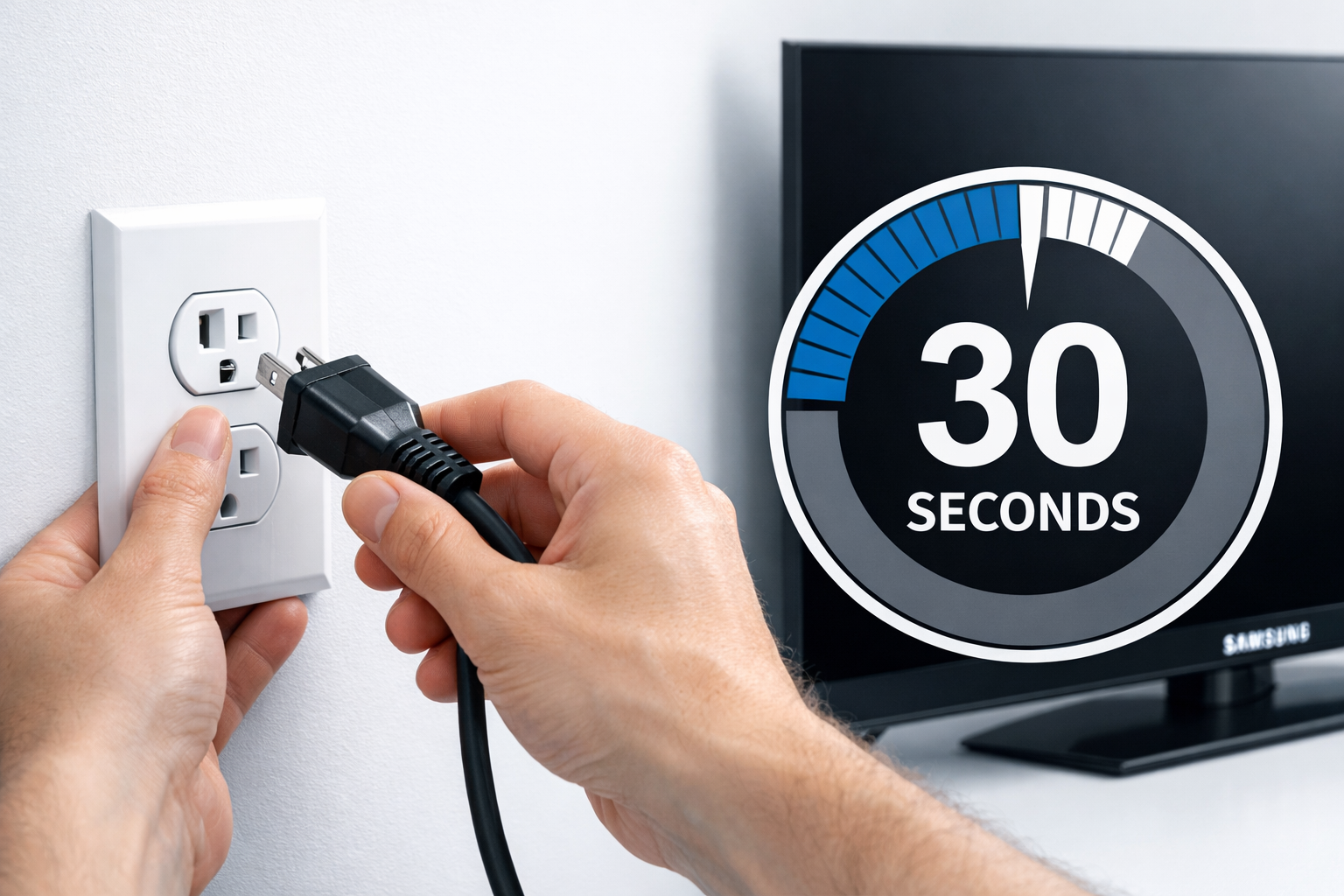
The single most effective first step is a full power cycle. This clears cached processes and drains residual electricity from the TV's circuit boards — and it fixes a surprisingly large number of black screen issues. [1]
Follow these steps in order:
- Unplug the TV from the wall outlet completely (not just the remote power-off). [1]
- Wait 30 seconds — this clears the TV's memory cache. [1]
- While unplugged, hold the physical power button on the TV (not the remote) for 60 seconds. This drains any remaining charge from the capacitors. [1]
- Plug the TV back directly into a wall outlet — skip the surge protector for now, as loose connections through power strips can cause black screens. [1]
- Power the TV on and check the result.
💡 Pro tip: If your TV has been plugged into a surge protector or extension cord, plug it directly into the wall before doing anything else. Voltage irregularities from power strips cause more Samsung TV black screens than most people realize.
If the red standby light is on but the screen stays black, the TV is receiving power but stuck in standby mode. Press the power button on the TV itself (not the remote) and wait 10 seconds. [7]
If no lights are on at all, the TV isn't receiving power — check the outlet with another device, then inspect the power cord for damage.
How to Fix Samsung TV Black Screen Caused by HDMI or Input Issues
A black screen with sound playing almost always points to an HDMI or input source problem. The TV is working — it just can't display the signal from the connected device. [6]
Check these things in order:
- Confirm the correct input is selected. Press the Source button on your remote and cycle through inputs (HDMI 1, HDMI 2, etc.) until you find the active one. [6]
- Make sure connected devices are powered on. A cable box, game console, or streaming stick that's off or in sleep mode sends no signal, causing a black screen. [6]
- Unplug and reconnect the HDMI cable at both ends — the TV and the source device. HDMI connectors loosen over time. [1]
- Test a different HDMI port. Plug your device into HDMI 2 if it was in HDMI 1. A single bad port is common and easy to rule out. [1]
- Swap the HDMI cable with a known-working one. Cables degrade, especially if they've been bent or pinched.
- Run Samsung's built-in HDMI Cable Test: Go to Settings > Support > Device Care > Self Diagnosis > Signal Information > HDMI Cable Test. This tests cable integrity without any external tools. [5]
For models with a One Connect box (common on Samsung Frame TVs and high-end QLED models): unplug the One Connect cable from both the TV and the box, inspect it for kinks or damage, and firmly reseat both ends. A partially connected One Connect cable causes an immediate black screen. [6]
If you're also dealing with Samsung TV screen mirroring not working, the input and HDMI steps above apply there too.
How to Tell If Your Samsung TV Has a Backlight Failure
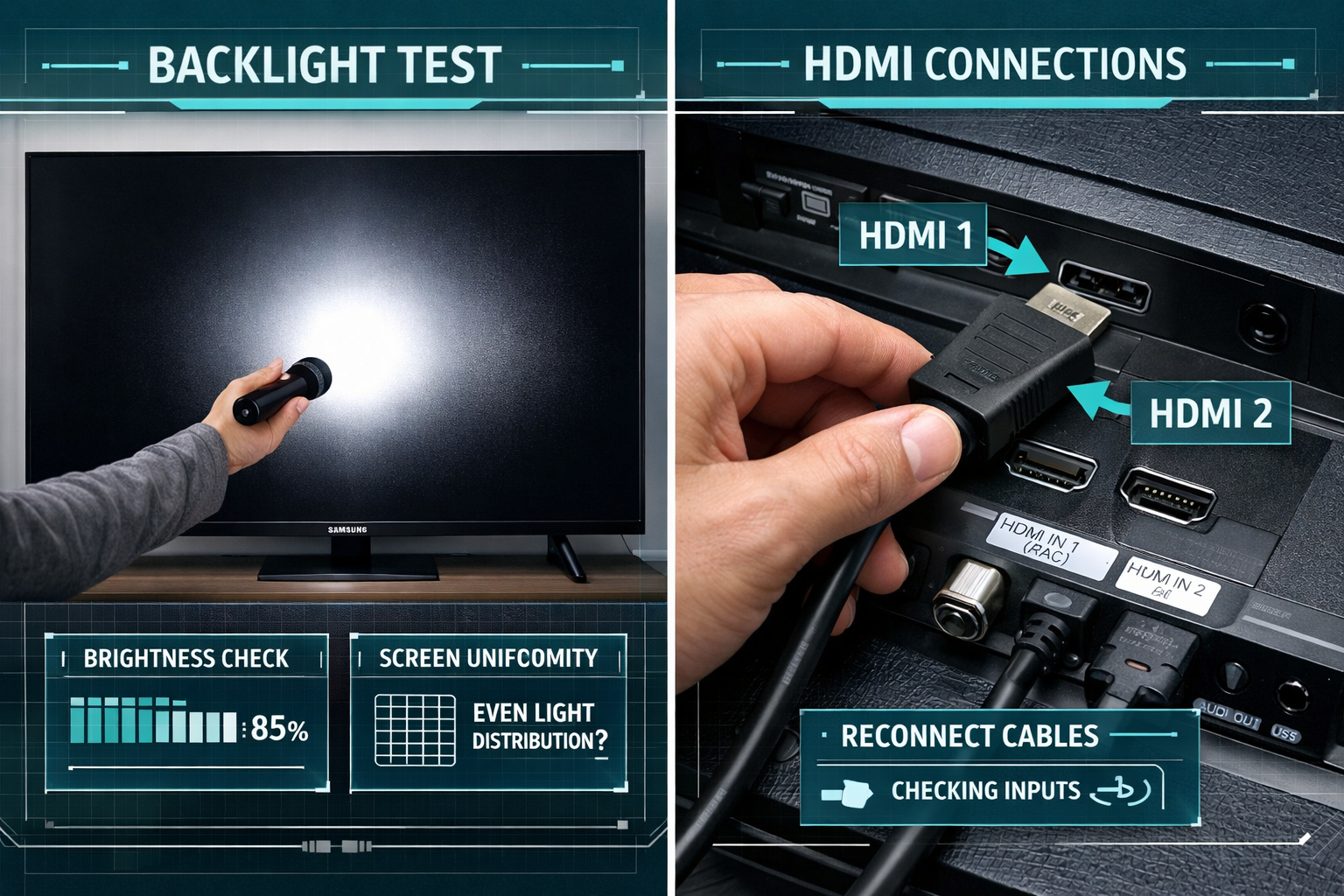
Backlight failure is a hardware issue, but you can confirm it yourself in 30 seconds with a flashlight. This test tells you whether the panel is functional (and just unlit) or whether the damage is deeper.
The flashlight test:
- Turn the TV on and wait for it to fully boot.
- In a dark room, hold a flashlight directly against the screen at a slight angle.
- Look closely for any faint image — a menu, a logo, or any content. [4]
What the result means:
- Faint image visible: The panel and T-Con board are working. The backlight (LED strips or inverter board) has failed. This is repairable but requires opening the TV.
- No image at all: The panel itself may be damaged, or the main board has failed. This is a more expensive repair.
Backlight repair costs vary by model size and labor, but for larger Samsung TVs, the cost often approaches or exceeds the value of the TV. Before committing to a repair, check our breakdown of Samsung TV screen repair vs. replacement to make an informed decision.
Also worth checking: if your TV's picture seems dim rather than fully black, the issue might be the auto-dimming feature rather than a hardware failure. See our guide on how to turn off Samsung TV auto dimming for that specific fix.
How to Use Samsung's Self Diagnosis Tool to Fix a Black Screen
Samsung TVs from 2020 onward include a built-in diagnostic suite that most owners never use. It can identify signal problems, test HDMI cables, and flag software issues — all from the TV's own menu. [5] [6]
How to access it:
- 2020 and newer models: Settings > Support > Device Care > Self Diagnosis [6]
- Older models (pre-2020): Menu > Support > Self Diagnosis
What to run:
- Signal Information / HDMI Cable Test — tests whether the HDMI cable is passing signal correctly [5]
- Picture Test — displays a test image to confirm the panel is functional
- Sound Test — confirms audio hardware is working (useful if you suspect the black screen is paired with audio issues)
If the Picture Test shows a clear image, the TV panel is fine and the black screen is caused by an external source or software issue.
If the TV won't display any menu at all, skip the diagnostic tool and go straight to the factory reset steps below.
How to Factory Reset a Samsung TV to Fix a Persistent Black Screen
A factory reset clears corrupted firmware, bad app data, and misconfigured settings that can cause a Samsung TV to boot to a black screen. [3] Use this step after power cycling and cable checks have failed.
Steps to factory reset:
- Press the Home button on your remote.
- Go to Settings > General > Reset. [3]
- Enter the PIN. The default PIN is 000000 (six zeros). If that doesn't work, try 0000 (four zeros). [3]
- Confirm the reset and wait for the TV to restart.
⚠️ Warning: A factory reset erases all your custom settings, saved Wi-Fi passwords, and app logins. It does not delete firmware updates.
If you can't access the menu because the screen is black: some Samsung models allow a factory reset by holding the physical power button and volume-down button simultaneously for 10–15 seconds. Check your model's manual for the exact button combination.
After resetting, if your TV's picture still looks off, it's worth dialing in your best Samsung TV picture settings from scratch rather than rushing through the setup wizard.
When to Call Samsung Support or a Repair Technician
DIY fixes work for the majority of Samsung TV black screen cases. But some situations genuinely require professional service.
Call Samsung support or a technician if:
- The flashlight test confirms backlight failure and the TV is out of warranty
- The TV shows physical damage (cracked panel, burn marks, water damage)
- The main board or T-Con board has failed (confirmed by the picture test showing no image)
- The TV is less than 2 years old (likely still under Samsung's standard warranty)
- You've completed all the steps above and nothing has worked
Before you pay for anything:
- Check your Samsung TV warranty by serial number — Samsung's standard warranty covers manufacturing defects.
- Review common Samsung repair costs so you're not caught off guard by a quote.
- If your TV has Samsung Care+, file a claim before authorizing any third-party repair.
A technician visit for a Samsung TV typically runs $75–$150 for diagnosis alone, with parts and labor added on top. For TVs under 43 inches or more than 5 years old, replacement often makes more financial sense than repair.
If you're also experiencing related display problems like lines on your Samsung TV screen or a flickering Samsung TV screen, those guides cover the hardware-level causes in detail.
Quick Troubleshooting Checklist
Use this before calling anyone:
- Unplugged TV from wall for 30 seconds ✅
- Held physical power button for 60 seconds while unplugged ✅
- Plugged TV directly into wall outlet (bypassed surge protector) ✅
- Confirmed correct input source is selected ✅
- Verified all connected devices (cable box, console, streaming stick) are powered on ✅
- Reconnected HDMI cables at both ends ✅
- Tested a different HDMI port ✅
- Swapped HDMI cable with a known-working one ✅
- Ran Samsung's HDMI Cable Test (Settings > Support > Device Care > Self Diagnosis) ✅
- Checked One Connect cable (if applicable) ✅
- Performed flashlight test to check backlight ✅
- Ran factory reset (Settings > General > Reset, PIN: 000000) ✅
- Checked warranty status before contacting repair service ✅
Frequently Asked Questions
Q: My Samsung TV has sound but the screen is black. What's wrong?
A: Sound with no picture almost always means an HDMI or input source issue. The TV's panel and audio hardware are working — the display just isn't receiving a video signal. Check your input source selection and reconnect your HDMI cables first.
Q: Why does my Samsung TV turn on (red light blinks) but the screen stays black?
A: A blinking red light usually means the TV is receiving a power-on command but can't complete startup — often due to a software crash or a failed backlight. Try the 30-second unplug reset. If the screen stays black after that, run the flashlight test to check the backlight. [7]
Q: How do I reset my Samsung TV when the screen is completely black?
A: Unplug the TV, wait 30 seconds, hold the physical power button for 60 seconds, then plug back in. If the TV still won't display a menu, try the hardware button combination for your model (typically power + volume down held for 10–15 seconds) to trigger a factory reset. [1]
Q: Can a bad HDMI cable cause a Samsung TV black screen?
A: Yes. A degraded or partially connected HDMI cable is one of the most common causes of a black screen. Swap the cable with a known-good one and test each HDMI port individually to isolate the problem. [1] [5]
Q: What is the Samsung TV black screen of death?
A: "Black screen of death" refers to a Samsung TV that powers on (standby light is active) but displays nothing — no menu, no image, no response. It's usually caused by a failed backlight, a crashed main board, or severe firmware corruption. The power reset and factory reset steps above resolve many cases.
Q: How do I know if my Samsung TV backlight is broken?
A: Shine a flashlight directly at the screen in a dark room while the TV is on. If you can see a faint image, the panel is fine but the backlight has failed. No image at all suggests a panel or board failure. [4]
Q: My Samsung TV screen went black during a firmware update. What should I do?
A: Don't unplug the TV immediately — wait at least 10 minutes in case the update is still processing. If the screen remains black after 15 minutes, perform the 30-second power reset. The TV will typically resume or retry the update on restart.
Q: Does Samsung warranty cover a black screen?
A: Samsung's standard 1-year warranty covers manufacturing defects, which includes backlight failure and panel issues that aren't caused by physical damage. Check your Samsung TV warranty status by serial number to confirm coverage before paying for repairs.
Q: How long does a Samsung TV backlight last?
A: Samsung LED backlights are rated for approximately 60,000–100,000 hours under normal viewing conditions, though this varies by model and usage. Early failure (under 5 years) is generally a manufacturing defect and may be covered under warranty.
Q: My Samsung TV picture is too dark but not fully black. Is that the same issue?
A: Not exactly. A very dark picture is often caused by the auto-dimming feature, incorrect picture mode settings, or HDR calibration. Check our guide on Samsung TV picture too dark for those specific fixes.
Conclusion
A Samsung TV black screen is frustrating, but it's rarely a death sentence for your TV. In 2026, the vast majority of cases come down to three things: a power glitch, a cable or input issue, or a software crash — all of which you can fix at home in under 15 minutes.
Here's your action plan:
- Start with the 30-second power reset and the 60-second power button hold. This alone fixes most cases.
- Check every cable and input source before assuming hardware failure.
- Run the flashlight test to confirm whether the backlight is the problem.
- Use Samsung's Self Diagnosis tool to test HDMI signal integrity.
- Factory reset if software is the culprit.
- Check your warranty before spending money on repairs — a failed backlight under 2 years old is often covered.
If you've worked through every step and the screen is still black, the issue is hardware-level and needs a technician. At that point, get a repair quote and compare it against the cost of a replacement — our Samsung TV screen repair vs. replacement guide will help you make that call clearly.
References
[1] Watch – https://www.youtube.com/watch?v=-XC_IG4Rbp8
[2] Watch – https://www.youtube.com/watch?v=HXGO1jEZzQQ
[3] Watch – https://www.youtube.com/watch?v=Twerr-O8Tu4
[4] Watch – https://www.youtube.com/watch?v=Gl4zuKNITz8
[5] How Do I Fix A Black Screen On A Samsung TV – https://www.samsung.com/ph/support/tv-audio-video/how-do-i-fix-a-black-screen-on-a-samsung-tv/
[6] TSG10002233 – https://www.samsung.com/us/support/troubleshoot/TSG10002233/
[7] How To Troubleshoot The Samsung TV That Will Not Turn On – https://www.samsung.com/latin_en/support/tv-audio-video/how-to-troubleshoot-the-samsung-tv-that-will-not-turn-on/
*, *::before, *::after { box-sizing: border-box; margin: 0; padding: 0; }
body {
  font-family: -apple-system, BlinkMacSystemFont, 'Segoe UI', Roboto, sans-serif;
  background: #f0f4f8;
  min-height: 100vh;
  display: flex;
  align-items: center;
  justify-content: center;
  padding: 20px;
}

.cg-element-wrapper {
  background: #ffffff;
  border-radius: 16px;
  box-shadow: 0 4px 24px rgba(0,0,0,0.10);
  max-width: 680px;
  width: 100%;
  overflow: hidden;
}

.cg-element-header {
  background: linear-gradient(135deg, #1428A0 0%, #0066CC 100%);
  color: #ffffff;
  padding: 28px 32px 22px;
  text-align: center;
}

.cg-element-header h2 {
  font-size: 1.35rem;
  font-weight: 700;
  letter-spacing: -0.3px;
  margin-bottom: 6px;
}

.cg-element-header p {
  font-size: 0.9rem;
  opacity: 0.85;
}

.cg-element-body {
  padding: 28px 32px;
}

.cg-element-step {
  display: none;
}

.cg-element-step.cg-active {
  display: block;
}

.cg-element-question {
  font-size: 1.1rem;
  font-weight: 600;
  color: #1a1a2e;
  margin-bottom: 20px;
  line-height: 1.5;
}

.cg-element-options {
  display: flex;
  flex-direction: column;
  gap: 12px;
}

.cg-element-btn {
  background: #f5f7fa;
  border: 2px solid #e2e8f0;
  border-radius: 10px;
  padding: 14px 18px;
  font-size: 0.95rem;
  font-weight: 500;
  color: #2d3748;
  cursor: pointer;
  text-align: left;
  transition: all 0.18s ease;
  line-height: 1.4;
}

.cg-element-btn:hover {
  border-color: #1428A0;
  background: #eef1fb;
  color: #1428A0;
}

.cg-element-btn:focus {
  outline: 3px solid #1428A0;
  outline-offset: 2px;
}

.cg-element-result {
  display: none;
  padding: 0;
}

.cg-element-result.cg-active {
  display: block;
}

.cg-element-result-card {
  border-radius: 12px;
  padding: 22px 24px;
  margin-bottom: 16px;
}

.cg-element-result-card.cg-green {
  background: #f0fdf4;
  border: 2px solid #86efac;
}

.cg-element-result-card.cg-yellow {
  background: #fffbeb;
  border: 2px solid #fcd34d;
}

.cg-element-result-card.cg-red {
  background: #fef2f2;
  border: 2px solid #fca5a5;
}

.cg-element-result-card.cg-blue {
  background: #eff6ff;
  border: 2px solid #93c5fd;
}

.cg-element-result-title {
  font-size: 1.05rem;
  font-weight: 700;
  margin-bottom: 10px;
  display: flex;
  align-items: center;
  gap: 8px;
}

.cg-element-result-title.cg-green { color: #15803d; }
.cg-element-result-title.cg-yellow { color: #b45309; }
.cg-element-result-title.cg-red { color: #b91c1c; }
.cg-element-result-title.cg-blue { color: #1d4ed8; }

.cg-element-result-steps {
  list-style: none;
  padding: 0;
}

.cg-element-result-steps li {
  font-size: 0.92rem;
  color: #374151;
  padding: 5px 0 5px 22px;
  position: relative;
  line-height: 1.5;
}

.cg-element-result-steps li::before {
  content: "→";
  position: absolute;
  left: 0;
  color: #6b7280;
  font-weight: 600;
}

.cg-element-progress {
  display: flex;
  gap: 6px;
  margin-bottom: 22px;
}

.cg-element-progress-dot {
  height: 6px;
  flex: 1;
  border-radius: 3px;
  background: #e2e8f0;
  transition: background 0.3s;
}

.cg-element-progress-dot.cg-done {
  background: #1428A0;
}

.cg-element-restart-btn {
  background: #1428A0;
  color: #ffffff;
  border: none;
  border-radius: 10px;
  padding: 13px 24px;
  font-size: 0.95rem;
  font-weight: 600;
  cursor: pointer;
  width: 100%;
  margin-top: 8px;
  transition: background 0.18s ease;
}

.cg-element-restart-btn:hover {
  background: #0f1f80;
}

.cg-element-footer {
  background: #f8fafc;
  border-top: 1px solid #e2e8f0;
  padding: 14px 32px;
  text-align: center;
  font-size: 0.8rem;
  color: #94a3b8;
}

@media (max-width: 480px) {
  .cg-element-header { padding: 22px 20px 18px; }
  .cg-element-body { padding: 22px 20px; }
  .cg-element-footer { padding: 12px 20px; }
  .cg-element-header h2 { font-size: 1.15rem; }
}
{
“@context”: “https://schema.org”,
“@type”: “FAQPage”,
“mainEntity”: [
{
“@type”: “Question”,
“name”: “Why does my Samsung TV have a black screen?”,
“acceptedAnswer”: {
“@type”: “Answer”,
“text”: “A Samsung TV black screen is most commonly caused by a wrong input source, a loose or faulty HDMI cable, a software glitch, standby mode, or a failed backlight. Start by unplugging the TV for 30 seconds and checking all cable connections.”
}
},
{
“@type”: “Question”,
“name”: “How do I fix a Samsung TV black screen with sound?”,
“acceptedAnswer”: {
“@type”: “Answer”,
“text”: “If your Samsung TV has sound but a black screen, the issue is almost always an HDMI or input source problem. Check that the correct input is selected, ensure connected devices are powered on, and reconnect or replace your HDMI cables.”
}
},
{
“@type”: “Question”,
“name”: “How do I reset a Samsung TV with a black screen?”,
“acceptedAnswer”: {
“@type”: “Answer”,
“text”: “Unplug the TV from the wall, wait 30 seconds, hold the physical power button on the TV for 60 seconds while unplugged, then plug back in. For a factory reset, go to Settings > General > Reset and enter PIN 000000.”
}
}
]
}
{
“@context”: “https://schema.org”,
“@type”: “HowTo”,
“name”: “How to Fix Samsung TV Black Screen”,
“description”: “A step-by-step guide to diagnosing and fixing a Samsung TV black screen at home.”,
“step”: [
{
“@type”: “HowToStep”,
“name”: “Power Reset”,
“text”: “Unplug the TV from the wall outlet for 30 seconds, then hold the physical power button for 60 seconds while unplugged. Plug back into a wall outlet directly.”
},
{
“@type”: “HowToStep”,
“name”: “Check Input Source and Cables”,
“text”: “Select the correct input source using the Source button. Reconnect HDMI cables at both ends and test different HDMI ports.”
},
{
“@type”: “HowToStep”,
“name”: “Run Self Diagnosis”,
“text”: “Go to Settings > Support > Device Care > Self Diagnosis and run the HDMI Cable Test and Picture Test.”
},
{
“@type”: “HowToStep”,
“name”: “Perform Flashlight Test”,
“text”: “Shine a flashlight at the screen in a dark room while the TV is on. A faint image confirms backlight failure.”
},
{
“@type”: “HowToStep”,
“name”: “Factory Reset”,
“text”: “Go to Settings > General > Reset and enter PIN 000000 to restore factory settings.”
}
]
}
🔧 Samsung TV Black Screen Diagnostic Tool
Answer 4 quick questions to get your personalized fix
<!-- Progress Bar -->
<div class="cg-element-progress" aria-label="Progress" role="progressbar" aria-valuenow="0" aria-valuemin="0" aria-valuemax="4">
  <div class="cg-element-progress-dot" id="cg-dot-0"></div>
  <div class="cg-element-progress-dot" id="cg-dot-1"></div>
  <div class="cg-element-progress-dot" id="cg-dot-2"></div>
  <div class="cg-element-progress-dot" id="cg-dot-3"></div>
</div>

<!-- Step 1 -->
<div class="cg-element-step cg-active" id="cg-step-0">
  <p class="cg-element-question">Is the Samsung TV's standby light (red light) visible?</p>
  <div class="cg-element-options">
    <button class="cg-element-btn" onclick="cg_next(0, 'red-on')">✅ Yes — the red light is on</button>
    <button class="cg-element-btn" onclick="cg_next(0, 'no-light')">❌ No — no lights at all</button>
    <button class="cg-element-btn" onclick="cg_next(0, 'unsure')">🤔 I'm not sure / can't tell</button>
  </div>
</div>

<!-- Step 2 -->
<div class="cg-element-step" id="cg-step-1">
  <p class="cg-element-question">Can you still hear audio (sound) from the TV?</p>
  <div class="cg-element-options">
    <button class="cg-element-btn" onclick="cg_next(1, 'has-audio')">🔊 Yes — I can hear sound</button>
    <button class="cg-element-btn" onclick="cg_next(1, 'no-audio')">🔇 No — completely silent</button>
  </div>
</div>

<!-- Step 3 -->
<div class="cg-element-step" id="cg-step-2">
  <p class="cg-element-question">Have you already tried unplugging the TV for 30 seconds?</p>
  <div class="cg-element-options">
    <button class="cg-element-btn" onclick="cg_next(2, 'tried-reset')">✅ Yes — still black screen</button>
    <button class="cg-element-btn" onclick="cg_next(2, 'not-tried')">❌ No — haven't tried yet</button>
  </div>
</div>

<!-- Step 4 -->
<div class="cg-element-step" id="cg-step-3">
  <p class="cg-element-question">When you shine a flashlight at the screen in a dark room, do you see a faint image?</p>
  <div class="cg-element-options">
    <button class="cg-element-btn" onclick="cg_next(3, 'faint-image')">💡 Yes — I can see a faint image</button>
    <button class="cg-element-btn" onclick="cg_next(3, 'no-image')">⬛ No — completely dark, nothing visible</button>
    <button class="cg-element-btn" onclick="cg_next(3, 'skip-flashlight')">⏭ Skip — I haven't tested this yet</button>
  </div>
</div>

<!-- Results -->
<div class="cg-element-result" id="cg-result">
  <div id="cg-result-content"></div>
  <button class="cg-element-restart-btn" onclick="cg_restart()">↩ Start Over</button>
</div>
(function() {
var answers = {};
var stepOrder = [0, 1, 2, 3];
var currentStep = 0;
window.cg_next = function(step, answer) {
answers[‘step’ + step] = answer;
var dots = document.querySelectorAll(‘.cg-element-progress-dot’);
if (dots[step]) dots[step].classList.add(‘cg-done’);
var currentEl = document.getElementById(‘cg-step-‘ + step);
if (currentEl) currentEl.classList.remove(‘cg-active’);
currentStep = step + 1;
if (currentStep Support > Device Care > Self Diagnosis > HDMI Cable Test’]);
}
// Red light on, no audio, tried reset, faint image = backlight failure
else if (s0 === ‘red-on’ && s1 === ‘no-audio’ && s2 === ‘tried-reset’ && s3 === ‘faint-image’) {
html = buildCard(‘yellow’, ‘🔦 Backlight Failure Confirmed’,
[‘The flashlight test confirms your panel works but the backlight has failed’,
‘This is a hardware repair — LED strips or the inverter board need replacement’,
‘Check your Samsung warranty status before paying for repairs’,
‘Get a repair quote and compare it to replacement cost for your TV size’,
‘Contact Samsung Support or a certified repair technician’]);
}
// Red light on, no audio, tried reset, no image = panel/board failure
else if (s0 === ‘red-on’ && s1 === ‘no-audio’ && s2 === ‘tried-reset’ && s3 === ‘no-image’) {
html = buildCard(‘red’, ‘🛠 Panel or Main Board Failure Suspected’,
[‘No faint image suggests the panel or T-Con board may have failed’,
‘This requires professional diagnosis — do not attempt to open the TV yourself’,
‘Check your Samsung warranty — manufacturing defects are typically covered’,
‘Contact Samsung Support with your model and serial number ready’,
‘Get a professional quote before deciding between repair and replacement’]);
}
// Haven’t tried reset yet
else if (s2 === ‘not-tried’) {
html = buildCard(‘green’, ‘✅ Start Here: Power Reset (Fixes Most Cases)’,
[‘Unplug the TV completely from the wall outlet’,
‘Wait 30 seconds — this clears the memory cache’,
‘While unplugged, hold the physical power button on the TV for 60 seconds’,
‘Plug back into a wall outlet directly (not a surge protector)’,
‘Power on and check if the screen works’,
‘If still black, return to this tool to continue diagnosing’]);
}
// Skip flashlight / unsure
else if (s3 === ‘skip-flashlight’ || s0 === ‘unsure’) {
html = buildCard(‘blue’, ‘🔍 Run These Checks Next’,
[‘Try the 30-second unplug reset first if you haven’t already’,
‘Check input source and HDMI connections’,
‘In a dark room, hold a flashlight against the screen while the TV is on — look for any faint image’,
‘Run Settings > Support > Device Care > Self Diagnosis on the TV’,
‘Try a factory reset: Settings > General > Reset, PIN: 000000’]);
}
// Default catch-all
else {
html = buildCard(‘blue’, ‘🔍 Follow These Steps In Order’,
[‘Unplug TV for 30 seconds, hold power button 60 seconds, plug back in’,
‘Check input source and reconnect all HDMI cables’,
‘Run Samsung’s Self Diagnosis tool from the Settings menu’,
‘Perform the flashlight test to check the backlight’,
‘Factory reset: Settings > General > Reset, PIN: 000000’,
‘Contact Samsung Support if none of the above resolves it’]);
}
content.innerHTML = html;
result.classList.add(‘cg-active’);
}
function buildCard(type, title, steps) {
var stepsHtml = steps.map(function(s) { return ‘
‘; }).join(”);
return ‘
‘
‘ +
‘
- ‘ + stepsHtml + ‘
‘ +
‘
‘;
}
window.cg_restart = function() {
answers = {};
currentStep = 0;
var steps = document.querySelectorAll(‘.cg-element-step’);
steps.forEach(function(s) { s.classList.remove(‘cg-active’); });
var result = document.getElementById(‘cg-result’);
result.classList.remove(‘cg-active’);
var dots = document.querySelectorAll(‘.cg-element-progress-dot’);
dots.forEach(function(d) { d.classList.remove(‘cg-done’); });
var first = document.getElementById(‘cg-step-0’);
if (first) first.classList.add(‘cg-active’);
};
})();