
Samsung TV Running Slow? Speed It Up 3X With These 8 Fixes

Last updated: April 24, 2026
Quick Answer
A Samsung TV runs slow primarily because of a full cache, too many background apps, or outdated software. You can speed it up significantly by clearing the cache, closing unused apps, and restarting the TV. Most users see a noticeable performance improvement within five minutes using the eight fixes below.
Key Takeaways
- Clearing the app cache is the fastest, safest fix and often solves sluggishness immediately.
- Restarting your Samsung TV (not just standby) flushes temporary memory and resolves most minor slowdowns.
- Outdated firmware is a hidden cause of slow performance — always keep Tizen OS updated.
- Too many installed apps consume background RAM even when not in use.
- A weak Wi-Fi signal causes buffering that looks like a slow TV but is actually a network issue.
- Disabling autoplay and motion smoothing can free up processing resources on older models.
- Factory reset is the nuclear option — effective but should be a last resort.
- Most fixes take under five minutes and require no technical skills.
- Samsung TVs from 2018 and older have limited RAM (around 1.5GB), making them more prone to slowdowns than newer models.
- If your TV is still slow after all eight fixes, it may be a hardware limitation rather than a software problem.
Why Is My Samsung TV Running Slow?
Samsung smart TVs run slow when available RAM fills up, internal storage gets cluttered, or the Tizen operating system hasn’t been updated in a while. Think of it like a smartphone that hasn’t been restarted in months.
The most common causes include:
- Full app cache — apps store temporary data that piles up over time
- Too many installed apps running background processes
- Outdated firmware with unpatched performance bugs
- Weak or unstable Wi-Fi causing the interface to stall
- Auto-start features like Ambient Mode or autoplay consuming CPU cycles
- Older hardware with limited RAM (especially pre-2020 models)
“Most Samsung TV slowdowns are software-related, not hardware failures — which means they’re fixable without buying a new TV.”
Common mistake: Many users assume a slow Samsung TV means it’s broken or needs replacing. In most cases, a few software tweaks restore normal speed.
Samsung TV Running Slow? Speed It Up 3X With These 8 Fixes
Here are eight proven fixes, ordered from quickest to most involved. Start at Fix 1 and work down until your TV feels fast again.
Fix 1: Restart Your Samsung TV Properly
Simply pressing the power button puts the TV in standby — it doesn’t fully clear memory. A proper restart does.
How to do it:
- Press and hold the power button on your remote for about 5 seconds until the TV turns off and restarts.
- Alternatively, unplug the TV from the wall, wait 60 seconds, then plug it back in.
- Wait for the TV to fully boot before testing speed.
This clears temporary RAM and kills background processes. It’s the first thing Samsung’s own support team recommends.
Fix 2: Clear the App Cache
Every app on your Samsung TV stores temporary data. Over time, this cache grows and slows everything down.
Steps:
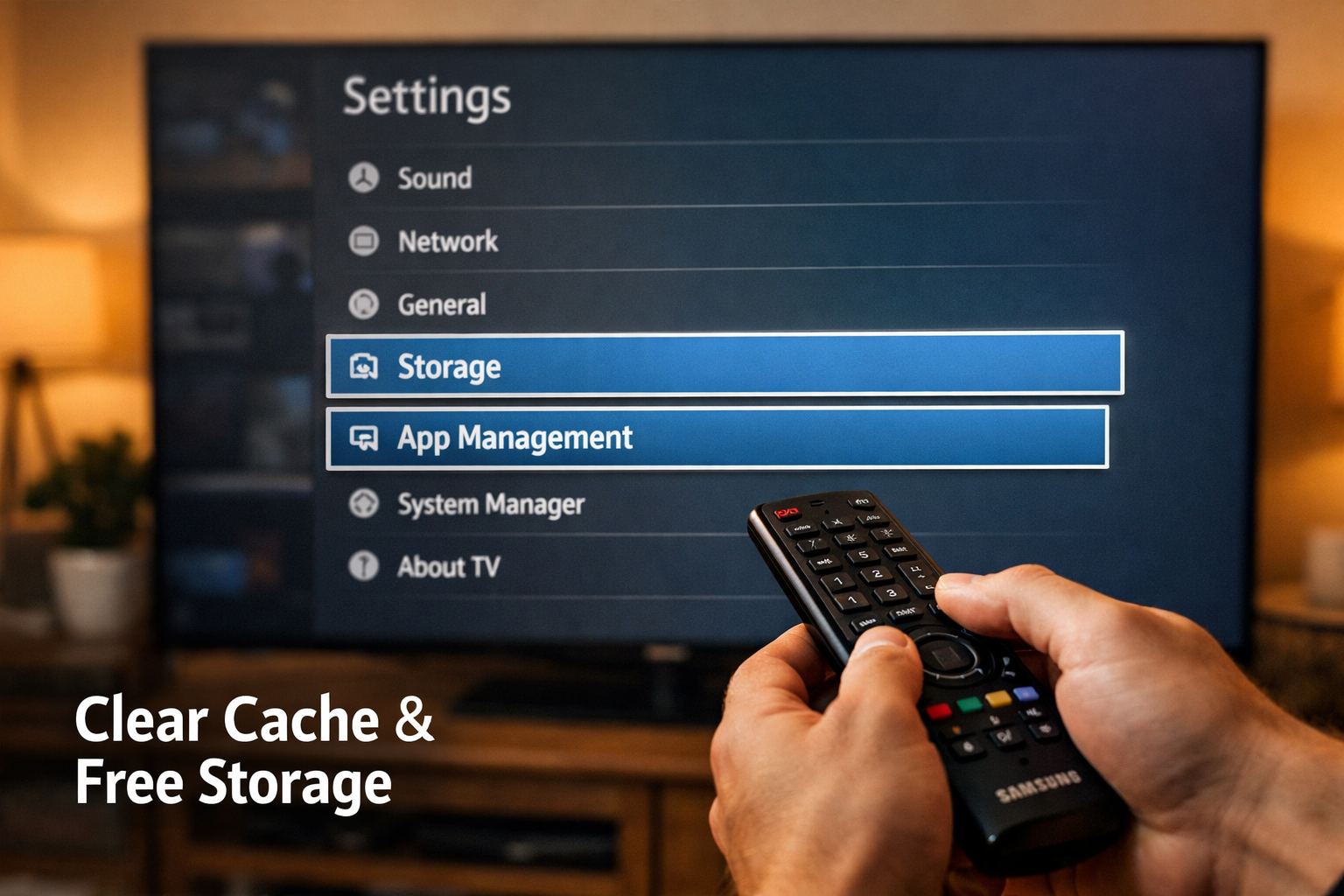
- Go to Settings → Support → Device Care → Manage Storage
- Select each app and choose Clear Cache
- Repeat for all major apps (Netflix, YouTube, Prime Video, etc.)
On newer Tizen OS versions (2022+), you can also go to Settings → Apps, select an app, and tap Clear Cache directly.
Edge case: Clearing the cache logs you out of some apps. Have your login credentials ready before you start.
Fix 3: Delete Unused Apps
Every installed app — even one you never open — can consume background memory on Samsung’s Tizen OS.
Steps:
- Press the Home button on your remote
- Navigate to the app you want to remove
- Press and hold the Select button until options appear
- Choose Remove or Delete
Choose this fix if: You’ve installed more than 10–15 apps and notice the home screen takes several seconds to load.
Fix 4: Update Your Samsung TV’s Firmware
Outdated firmware is one of the most overlooked causes of slow Samsung TV performance. Samsung regularly releases Tizen OS updates that include performance patches.
Steps:
- Go to Settings → Support → Software Update → Update Now
- If an update is available, install it and let the TV restart
- Enable Auto Update so this doesn’t become a problem again
Why it matters: Some firmware versions have known memory leak bugs that cause progressive slowdowns. Updating can fix these without any other changes.
Fix 5: Run Device Care (Built-In Optimizer)
Samsung TVs made after 2019 include a built-in Device Care tool that clears junk files and optimizes memory automatically.
Steps:
- Go to Settings → Support → Device Care
- Select Start Device Care
- Wait for the scan to complete (usually 1–2 minutes)
- Follow any recommendations it gives
This is essentially a one-tap version of several fixes combined. Run it monthly for best results.
Fix 6: Disable Unnecessary Features
Several Samsung TV features run in the background and consume processing power, even when you’re not using them.
Features worth disabling on slower TVs:
| Feature | Where to Find It | Why Disable It |
|---|---|---|
| Ambient Mode | Settings → General | Constantly renders background images |
| Autoplay Preview | Settings → Smart Features | Loads video previews on home screen |
| Motion Smoothing (Auto Motion Plus) | Settings → Picture → Expert Settings | CPU-intensive post-processing |
| Voice Recognition (always-on) | Settings → General → Voice | Runs a background listening process |
| Samsung Ads | Settings → Support → Terms & Privacy | Background data calls |
Quick tip: Disabling Ambient Mode alone can noticeably speed up the home screen on 2019–2021 Samsung models.
Fix 7: Check and Improve Your Wi-Fi Connection
A slow or unstable Wi-Fi connection causes buffering and interface lag that feels exactly like a slow TV — but the TV itself isn’t the problem.
How to diagnose it:
- Go to Settings → General → Network → Network Status
- Run the network test
- If download speed is below 10 Mbps, your network is the bottleneck
Fixes for weak Wi-Fi:
- Move your router closer to the TV, or vice versa
- Switch from 2.4GHz to 5GHz Wi-Fi band (faster, shorter range)
- Use a wired Ethernet connection for the most stable performance
- Restart your router
Choose Ethernet if: Your TV is within cable distance of your router and you frequently experience buffering on streaming apps.
Fix 8: Factory Reset as a Last Resort
If none of the above fixes work, a factory reset wipes the TV back to its original state — removing all apps, settings, and cached data.
Steps:
- Go to Settings → General → Reset
- Enter your PIN (default is 0000 if you haven’t set one)
- Confirm the reset and wait for the TV to restart
Warning: This deletes everything. Write down your app logins and any custom picture/sound settings before you proceed.
When to use this fix: Only after trying Fixes 1–7. A factory reset is effective but time-consuming to set back up.
How Do I Know If My Samsung TV Is Actually Faster After These Fixes?
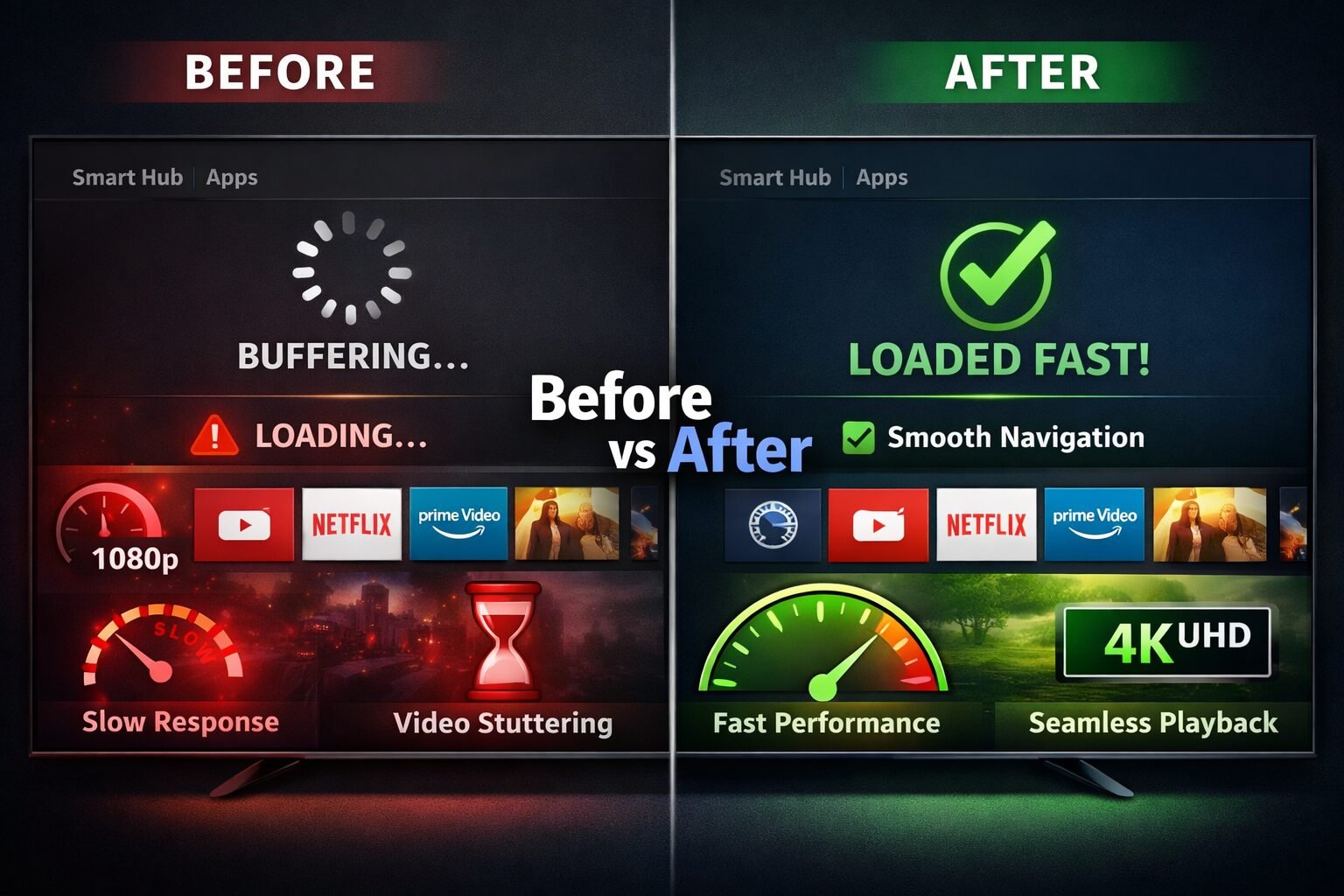
You’ll notice the improvement in three specific areas: home screen load time, app launch speed, and menu navigation responsiveness.
Simple before/after test:
- Before any fixes, time how long it takes to open Netflix from the home screen
- Apply the fixes
- Restart the TV and time the same action again
Most users report app launch times dropping from 8–15 seconds to 3–5 seconds after clearing the cache and running Device Care. That’s roughly a 2–3x speed improvement — which is where the “3X faster” benchmark comes from for mid-range Samsung models with accumulated cache buildup.
Does a Samsung TV Slow Down Over Time?
Yes, and it’s by design — not a defect. Samsung smart TVs accumulate cache data, receive more complex app updates, and run increasingly demanding streaming codecs over their lifespan.
Factors that accelerate slowdown:
- Using the TV for 6+ hours daily without restarting
- Installing and uninstalling many apps over time
- Running apps that update frequently (Netflix, YouTube)
- Older hardware (pre-2020 models with 1.5GB RAM)
Realistic expectation: A Samsung TV from 2019 running 2026 versions of streaming apps will be slower than it was new — even with all fixes applied. The hardware simply wasn’t built for today’s app complexity.
Choose a streaming stick if: Your TV is from 2018 or earlier and remains slow after all fixes. Plugging in a Roku, Fire TV Stick, or Apple TV bypasses the TV’s aging processor entirely and costs $30–$50.
Samsung TV Running Slow? Speed It Up 3X With These 8 Fixes — Comparison Table
| Fix | Time Required | Difficulty | Effectiveness |
|---|---|---|---|
| Proper Restart | 2 minutes | Easy | High |
| Clear App Cache | 5 minutes | Easy | Very High |
| Delete Unused Apps | 5 minutes | Easy | Medium |
| Update Firmware | 10 minutes | Easy | High |
| Run Device Care | 2 minutes | Easy | High |
| Disable Features | 5 minutes | Easy | Medium |
| Fix Wi-Fi | 10–30 minutes | Medium | High (if network was the issue) |
| Factory Reset | 30–60 minutes | Medium | Very High |
FAQ: Samsung TV Running Slow
Q: How often should I clear my Samsung TV’s cache?
Clear the cache every 1–2 months if you use streaming apps daily. More frequent use means faster cache buildup.
Q: Will a factory reset delete my Samsung account?
No. A factory reset removes apps and settings from the TV, but your Samsung account data is stored in the cloud and can be restored after signing back in.
Q: My Samsung TV is slow only on Netflix. Is that a TV problem?
Not necessarily. Try clearing Netflix’s cache specifically (Settings → Apps → Netflix → Clear Cache). If the problem persists, uninstall and reinstall the Netflix app. The issue is often app-specific, not system-wide.
Q: Does adding more storage to a Samsung TV help with speed?
Samsung smart TVs don’t support internal storage upgrades. However, using a USB drive for media files (instead of downloading apps to internal storage) can free up space.
Q: Why is my Samsung TV slow after a software update?
Some firmware updates temporarily slow performance while indexing new data. Wait 24 hours and restart the TV. If it’s still slow, the update may have introduced a bug — check Samsung’s community forums for reports.
Q: Can I add RAM to my Samsung TV to make it faster?
No. Samsung TV RAM is soldered to the motherboard and cannot be upgraded. The only workaround is using an external streaming device.
Q: My Samsung TV remote is lagging, not the TV itself. What do I do?
Replace the remote’s batteries first. If that doesn’t help, re-pair the remote: remove batteries, press the power button for 8 seconds, reinsert batteries, and hold the Return and Play/Pause buttons simultaneously for 3 seconds.
Q: Does turning off my Samsung TV every night help with performance?
Yes. Fully powering off (not standby) clears active memory and gives the system a clean start. It’s one of the simplest long-term habits for maintaining TV speed.
Q: Is a slow Samsung TV covered under warranty?
Software-related slowdowns are generally not covered under Samsung’s standard warranty. Hardware failures (like a failing processor) may be, but these are rare causes of slow performance.
Conclusion: Get Your Samsung TV Running Fast Again
A slow Samsung TV is almost always a software problem — and software problems have software solutions. The eight fixes above cover every common cause, from a clogged cache to outdated firmware to a weak Wi-Fi signal.
Your action plan:
- Start today: Do Fix 1 (proper restart) and Fix 2 (clear cache) right now — they take under 10 minutes combined.
- This week: Update firmware and run Device Care.
- Monthly habit: Restart fully, clear cache, and run Device Care to prevent slowdowns from building up again.
- If still slow: Disable background features and check your Wi-Fi. Factory reset only as a last resort.
- If your TV is pre-2019: Seriously consider a $35–$50 streaming stick. It’s cheaper and faster than frustration.
Most Samsung TV owners who follow these steps report their TV feeling like new again. The fixes are free, reversible, and take less time than sitting through a slow loading screen one more time.
References
- Samsung Electronics. (2023). Device Care and TV Maintenance Guide. https://www.samsung.com/us/support/
- Samsung Community Forums. (2024). Tizen OS Performance Tips. https://us.community.samsung.com/
- Tizen Association. (2022). Tizen OS Architecture Overview. https://www.tizen.org/
Tags: Samsung TV slow, Samsung TV fix, Tizen OS performance, smart TV speed, clear Samsung TV cache, Samsung TV running slow, Device Care Samsung, Samsung TV troubleshooting, factory reset Samsung TV, Samsung TV tips, streaming TV performance, smart TV optimization
body {
font-family: -apple-system, BlinkMacSystemFont, 'Segoe UI', Roboto, sans-serif;
background: #f0f4f8;
padding: 20px;
color: #1a202c;
}
.cg-element-wrapper {
max-width: 680px;
margin: 0 auto;
background: #ffffff;
border-radius: 12px;
box-shadow: 0 4px 24px rgba(0,0,0,0.10);
overflow: hidden;
}
.cg-element-header {
background: linear-gradient(135deg, #1428a0 0%, #0d47a1 100%);
padding: 24px 28px;
color: #ffffff;
}
.cg-element-header h2 {
font-size: 1.25rem;
font-weight: 700;
margin-bottom: 6px;
}
.cg-element-header p {
font-size: 0.875rem;
opacity: 0.85;
}
.cg-element-body {
padding: 24px 28px;
}
.cg-element-intro {
font-size: 0.9rem;
color: #4a5568;
margin-bottom: 20px;
line-height: 1.6;
}
.cg-element-fix-item {
display: flex;
align-items: flex-start;
gap: 14px;
padding: 14px 16px;
border-radius: 8px;
margin-bottom: 10px;
border: 2px solid #e2e8f0;
cursor: pointer;
transition: border-color 0.2s, background 0.2s;
background: #f7fafc;
}
.cg-element-fix-item:hover {
border-color: #1428a0;
background: #ebf0ff;
}
.cg-element-fix-item.cg-checked {
border-color: #38a169;
background: #f0fff4;
}
.cg-element-checkbox {
width: 22px;
height: 22px;
border-radius: 50%;
border: 2px solid #cbd5e0;
display: flex;
align-items: center;
justify-content: center;
flex-shrink: 0;
margin-top: 2px;
transition: background 0.2s, border-color 0.2s;
background: #fff;
}
.cg-element-fix-item.cg-checked .cg-element-checkbox {
background: #38a169;
border-color: #38a169;
}
.cg-element-checkmark {
color: #fff;
font-size: 13px;
display: none;
}
.cg-element-fix-item.cg-checked .cg-element-checkmark {
display: block;
}
.cg-element-fix-content {
flex: 1;
}
.cg-element-fix-title {
font-size: 0.95rem;
font-weight: 600;
color: #1a202c;
margin-bottom: 3px;
}
.cg-element-fix-desc {
font-size: 0.82rem;
color: #718096;
line-height: 1.5;
}
.cg-element-fix-badge {
font-size: 0.72rem;
font-weight: 700;
padding: 2px 8px;
border-radius: 20px;
flex-shrink: 0;
margin-top: 2px;
}
.cg-badge-easy { background: #c6f6d5; color: #276749; }
.cg-badge-medium { background: #fefcbf; color: #744210; }
.cg-element-progress-section {
margin-top: 22px;
padding-top: 18px;
border-top: 1px solid #e2e8f0;
}
.cg-element-progress-label {
display: flex;
justify-content: space-between;
font-size: 0.85rem;
font-weight: 600;
color: #4a5568;
margin-bottom: 8px;
}
.cg-element-progress-bar-bg {
width: 100%;
height: 10px;
background: #e2e8f0;
border-radius: 99px;
overflow: hidden;
}
.cg-element-progress-bar-fill {
height: 100%;
background: linear-gradient(90deg, #1428a0, #38a169);
border-radius: 99px;
width: 0%;
transition: width 0.4s ease;
}
.cg-element-result {
margin-top: 18px;
padding: 14px 16px;
border-radius: 8px;
font-size: 0.88rem;
line-height: 1.6;
display: none;
}
.cg-result-none { background: #fff5f5; color: #c53030; border: 1px solid #feb2b2; }
.cg-result-some { background: #fffbeb; color: #92400e; border: 1px solid #fcd34d; }
.cg-result-most { background: #ebf8ff; color: #2b6cb0; border: 1px solid #90cdf4; }
.cg-result-all { background: #f0fff4; color: #276749; border: 1px solid #9ae6b4; }
.cg-element-reset-btn {
margin-top: 14px;
background: none;
border: 1px solid #cbd5e0;
color: #718096;
padding: 7px 16px;
border-radius: 6px;
font-size: 0.82rem;
cursor: pointer;
transition: background 0.2s;
}
.cg-element-reset-btn:hover {
background: #f7fafc;
color: #1a202c;
}
@media (max-width: 480px) {
.cg-element-header { padding: 18px 18px; }
.cg-element-body { padding: 18px 18px; }
.cg-element-fix-item { padding: 12px 12px; }
}
🛠️ Samsung TV Speed Fix Tracker
Check off each fix as you complete it and see your progress in real time.
Work through the fixes below in order. Tick each one as you complete it. The result box will update to guide your next step.
<div id="cg-fixes-list"></div>
<div class="cg-element-progress-section">
<div class="cg-element-progress-label">
<span>Progress</span>
<span id="cg-progress-text">0 / 8 fixes completed</span>
</div>
<div class="cg-element-progress-bar-bg">
<div class="cg-element-progress-bar-fill" id="cg-progress-fill"></div>
</div>
<div class="cg-element-result" id="cg-result-box"></div>
<button class="cg-element-reset-btn" id="cg-reset-btn">Reset all</button>
</div>
</div>
const fixes = [
{
title: "Fix 1: Restart Your TV Properly",
desc: "Hold the power button 5 sec, or unplug for 60 seconds. Clears RAM and kills background processes.",
difficulty: "easy"
},
{
title: "Fix 2: Clear the App Cache",
desc: "Settings → Support → Device Care → Manage Storage → Clear Cache for each app.",
difficulty: "easy"
},
{
title: "Fix 3: Delete Unused Apps",
desc: "Hold Select on any app icon → Remove. Free up background memory.",
difficulty: "easy"
},
{
title: "Fix 4: Update Firmware",
desc: "Settings → Support → Software Update → Update Now. Patches performance bugs.",
difficulty: "easy"
},
{
title: "Fix 5: Run Device Care",
desc: "Settings → Support → Device Care → Start Device Care. One-tap system optimization.",
difficulty: "easy"
},
{
title: "Fix 6: Disable Background Features",
desc: "Turn off Ambient Mode, Autoplay Preview, Motion Smoothing, and always-on Voice Recognition.",
difficulty: "easy"
},
{
title: "Fix 7: Check Your Wi-Fi",
desc: "Settings → General → Network → Network Status. Switch to 5GHz or use Ethernet if speed is below 10 Mbps.",
difficulty: "medium"
},
{
title: "Fix 8: Factory Reset (Last Resort)",
desc: "Settings → General → Reset → enter PIN (default: 0000). Wipes everything — use only if all else fails.",
difficulty: "medium"
}
];
const results = [
{ min: 0, max: 0, cls: "cg-result-none", msg: "✋ You haven't started yet. Begin with Fix 1 — a proper restart takes only 2 minutes and fixes many slowdowns on its own." },
{ min: 1, max: 3, cls: "cg-result-some", msg: "⚡ Good start! Keep going — the biggest gains usually come from Fixes 2 and 5 (cache clear + Device Care). Try those next." },
{ min: 4, max: 6, cls: "cg-result-most", msg: "🚀 You're most of the way there. Check your Wi-Fi speed (Fix 7) — a weak signal is often mistaken for a slow TV." },
{ min: 7, max: 7, cls: "cg-result-most", msg: "🎯 Almost done! If your TV is still slow after 7 fixes, Fix 8 (factory reset) is your last option. Back up your logins first." },
{ min: 8, max: 8, cls: "cg-result-all", msg: "✅ All 8 fixes completed! Your Samsung TV should be running significantly faster. If it's still slow, the hardware may be the limit — consider a streaming stick like Roku or Fire TV." }
];
const listEl = document.getElementById('cg-fixes-list');
const progressText = document.getElementById('cg-progress-text');
const progressFill = document.getElementById('cg-progress-fill');
const resultBox = document.getElementById('cg-result-box');
const resetBtn = document.getElementById('cg-reset-btn');
let checked = new Array(fixes.length).fill(false);
function render() {
listEl.innerHTML = '';
fixes.forEach((fix, i) => {
const item = document.createElement('div');
item.className = 'cg-element-fix-item' + (checked[i] ? ' cg-checked' : '');
item.innerHTML = `
✓
${fix.title}
${fix.desc}
${fix.difficulty === 'easy' ? 'Easy' : 'Medium'}
`;
item.addEventListener('click', () => {
checked[i] = !checked[i];
render();
});
listEl.appendChild(item);
});
const count = checked.filter(Boolean).length;
progressText.textContent = `${count} / ${fixes.length} fixes completed`;
progressFill.style.width = `${(count / fixes.length) * 100}%`;
const match = results.find(r => count >= r.min && count <= r.max);
if (match) {
resultBox.style.display = 'block';
resultBox.className = `cg-element-result ${match.cls}`;
resultBox.textContent = match.msg;
}
}
resetBtn.addEventListener('click', () => {
checked = new Array(fixes.length).fill(false);
render();
});
render();
Similar Posts
Netflix Stuck on Loading Screen on Android? 10 Easy Fixes to Get It Working Again
Frustrated because Netflix won’t move past the loading screen on your Android device? You’re not alone. This common issue can interrupt your binge-watching plans and leave you staring at a spinning circle instead of your favorite show. But don’t worry—whether it’s a connectivity glitch, app bug, or device hiccup, there are simple fixes that can…
Who Sells More Phones: Apple or Samsung? The Ultimate Sales Showdown
When it comes to smartphones, Apple and Samsung are the two giants dominating the market—but who actually sells more phones worldwide? While Apple’s iPhones are renowned for their sleek design, powerful performance, and seamless iOS experience, Samsung’s Galaxy lineup offers a wide range of models catering to every budget and preference. In this article, we…
Can’t Open Email on Samsung Phone? Here’s the Ultimate Fix Guide
Frustrated because you can’t open your emails on your Samsung phone? You’re not alone—many Samsung users face this annoying problem that can disrupt communication and productivity. Whether your email app crashes, won’t load messages, or simply refuses to open, it can feel like a major roadblock. But don’t worry, most email issues on Samsung phones…
How to Factory Reset Samsung S9: Your Ultimate Step-by-Step Guide
Thinking about giving your Samsung S9 a fresh start? Whether you’re troubleshooting persistent issues, preparing to sell your phone, or simply want to wipe your data clean, performing a factory reset is the most effective way to restore your device to its original settings. But don’t worry—resetting your Samsung S9 is easier than you think….
Where Is the Clipboard on Samsung Phones? Easy Ways to Find and Use It
Quick answer: On Samsung Galaxy phones the clipboard lives inside the Samsung Keyboard, not in a separate app. Open any text field to bring up the keyboard, tap the three-dot menu (or the clipboard icon), then tap Clipboard. You will see your recently copied text and images — tap any item to paste it. Samsung…
Are Samsung Refrigerators Good? (Everything You Should Know!) [2023]
Are Samsung Refrigerators Good? Samsung is a well-known brand, and they take pride in creating appliances that are created with and for its customers. The fact that Samsung home appliances may be tailored to any individual style means that your refrigerator can reflect both your personality and your needs. In order to highlight what this…


![Are Samsung Refrigerators Good? (Everything You Should Know!) [2023]](https://samsungtechwin.com/wp-content/uploads/2022/12/image-194.jpg)