
Don’t Skip This: Update Your Samsung TV for Faster Performance

Last updated: April 24, 2026
Quick Answer: Updating your Samsung TV's software takes less than 10 minutes and can noticeably improve app loading speed, fix buffering issues, and patch security vulnerabilities. Go to Settings > Support > Software Update > Update Now to check for and install the latest firmware. Samsung releases updates regularly, and skipping them means your TV gradually falls behind on performance and compatibility.
Key Takeaways
- Samsung TV firmware updates fix bugs, improve speed, and add new features — often invisibly in the background.
- Most Samsung TVs (2016 and newer) support automatic updates over Wi-Fi.
- A single missed update rarely causes problems, but months of skipped updates can lead to sluggish apps and streaming errors.
- The update process takes 5–15 minutes and does not erase your settings or apps.
- You can update via Wi-Fi (easiest) or USB (for TVs without internet access).
- If your TV feels slow, a firmware update should be the first thing you try — before factory resets or hardware changes.
- Samsung's Tizen OS receives regular patches; keeping it current ensures compatibility with Netflix, Disney+, YouTube, and other major apps.
- Automatic updates are turned off by default on some older Samsung models — worth checking manually.
Why Does a Samsung TV Firmware Update Even Matter?
Firmware is the operating system that runs your Samsung TV. Every update Samsung releases addresses real problems: app crashes, slow menu navigation, audio sync issues, and security gaps. Think of it the same way you'd think about updating your phone — skipping it doesn't break things immediately, but the performance gap widens over time.
Samsung's Tizen OS, which powers most Samsung Smart TVs from 2015 onward, receives patches that directly affect how fast apps like Netflix, YouTube, and Samsung TV Plus load and respond. When streaming services update their own apps, they often require a minimum firmware version to work correctly. An outdated TV can start throwing error codes or buffering endlessly — not because your internet is slow, but because the TV's software is out of sync.
Bottom line: If your Samsung TV feels sluggish, updating the firmware is the lowest-effort, highest-impact fix available.
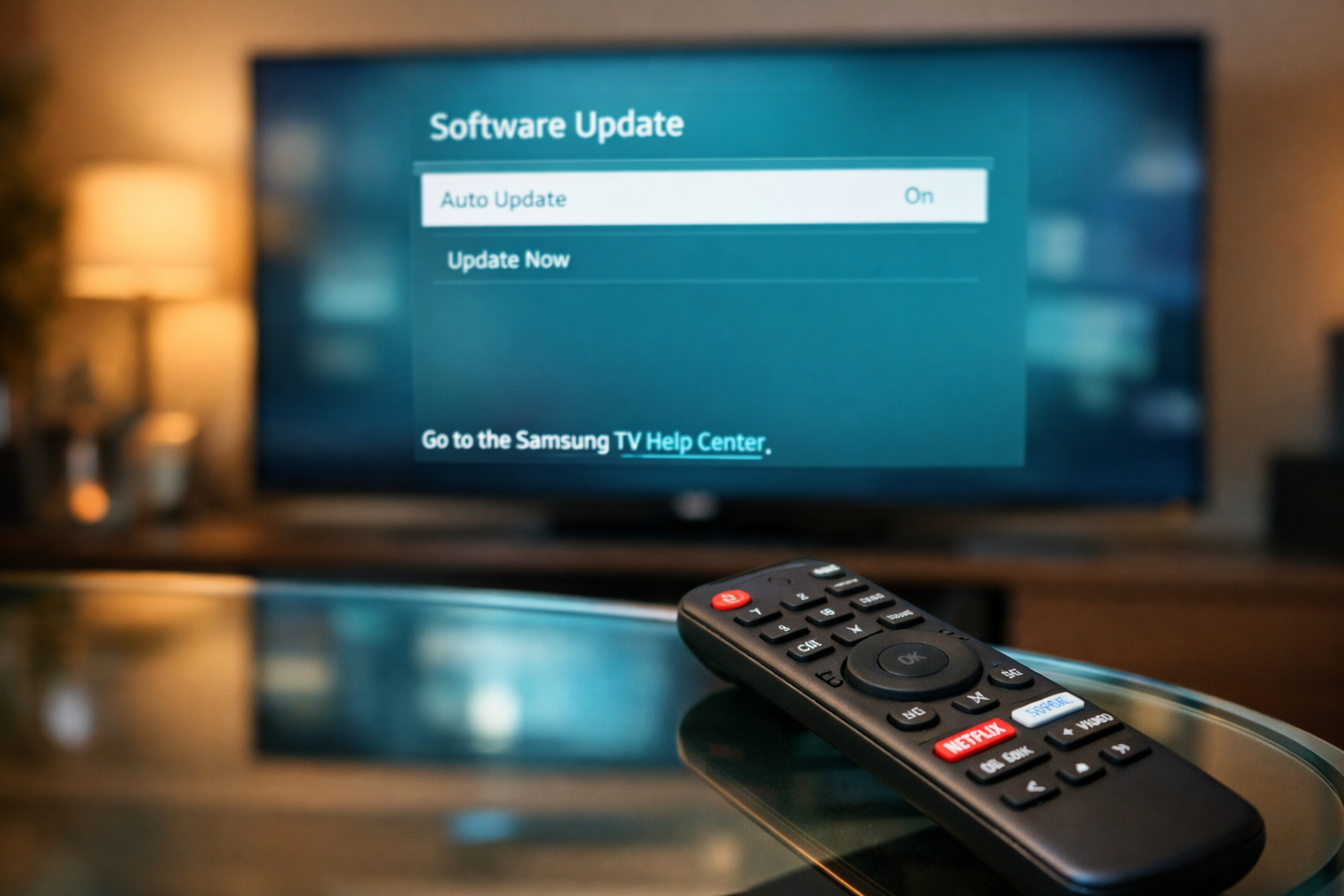
Don't Skip This: Update Your Samsung TV for Faster Performance — Here's What Changes
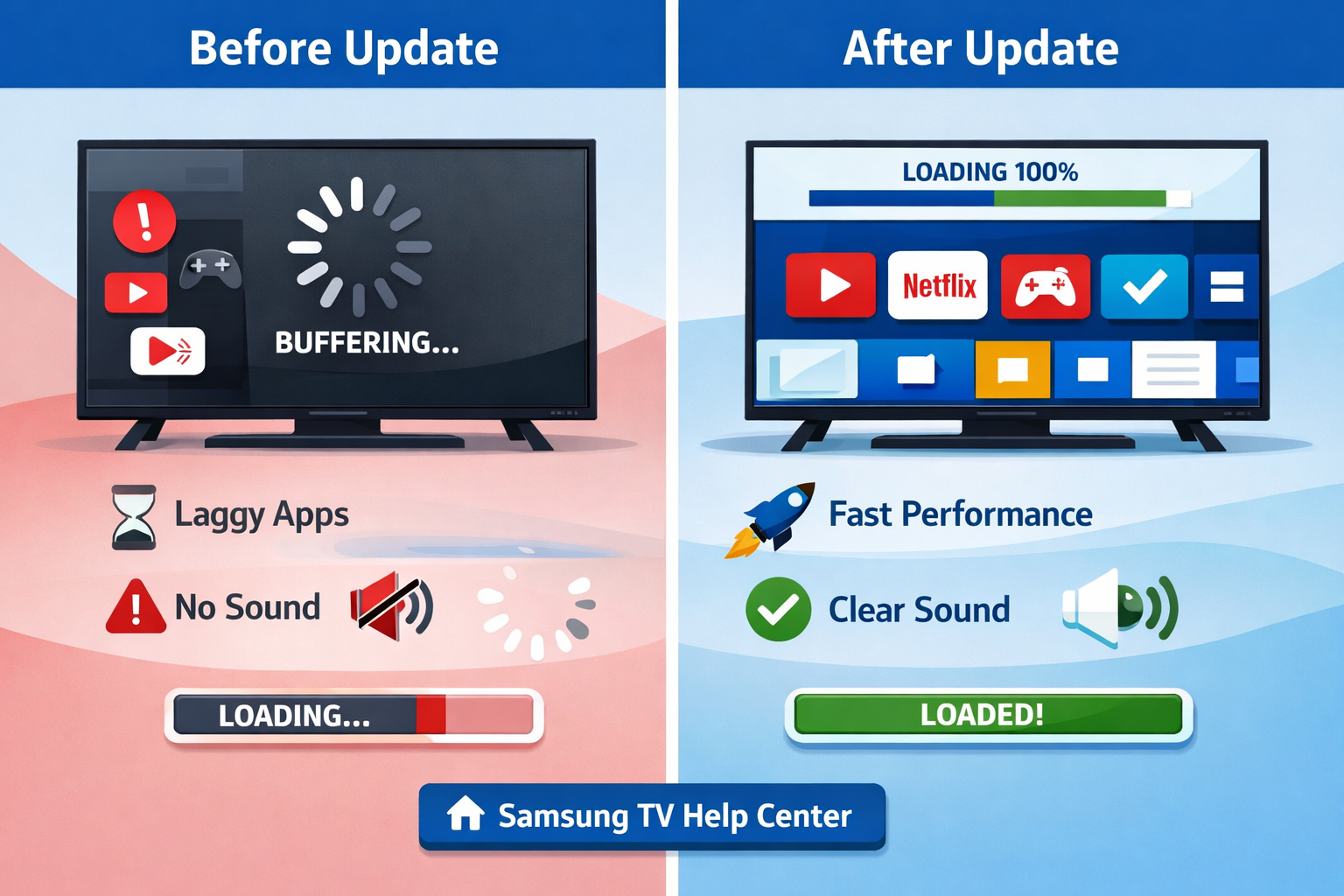
Updating your Samsung TV firmware can improve response times, fix known bugs, and restore compatibility with streaming apps. The changes aren't always dramatic, but they're consistent and cumulative.
Here's what a firmware update typically addresses:
| Update Category | What It Fixes or Improves |
|---|---|
| App Performance | Faster launch times for Netflix, YouTube, Prime Video |
| UI Responsiveness | Smoother menu navigation, less input lag |
| Streaming Stability | Reduced buffering, better codec support |
| Security Patches | Closes known vulnerabilities in Tizen OS |
| Bug Fixes | Resolves audio/video sync issues, HDMI handshake errors |
| New Features | Adds SmartThings integrations, updated voice assistant support |
💡 Pull quote: "A firmware update is the closest thing to free performance hardware you'll ever get on a TV."
One common mistake people make: assuming the TV updates itself automatically. On many Samsung models — especially those from 2017–2020 — automatic updates are disabled by default. You have to manually enable them or check for updates yourself.
Edge case: If your Samsung TV is connected to the internet but still shows "No update available," the update may be rolling out in phases in your region. Try again after 48 hours.
How to Update Your Samsung TV Software (Step-by-Step)
Updating a Samsung TV takes under 10 minutes and requires only a Wi-Fi connection. Here are the exact steps for the most common method.
Method 1: Update Over Wi-Fi (Recommended)
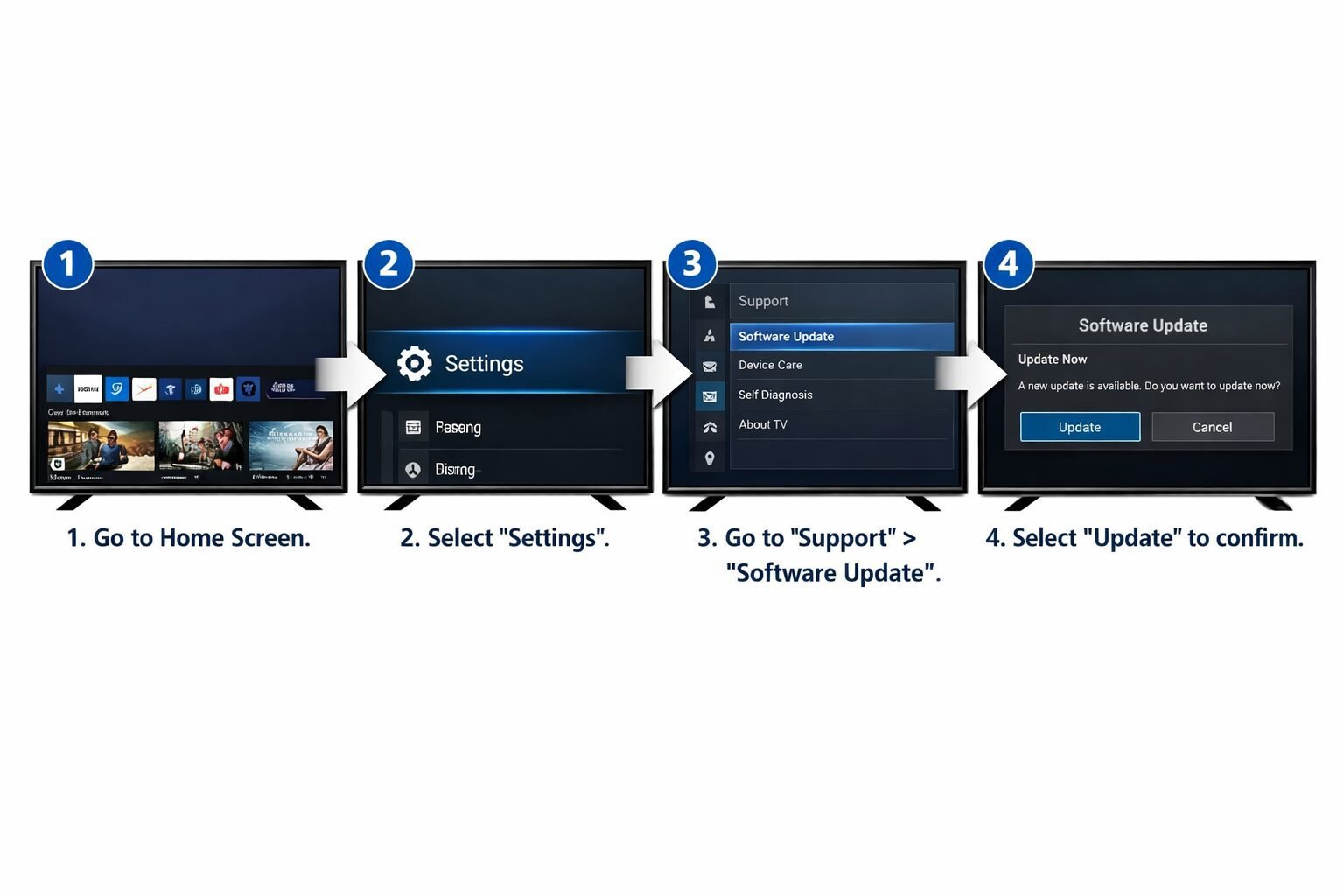
- Press the Home button on your remote.
- Navigate to Settings (the gear icon).
- Scroll down to Support.
- Select Software Update.
- Choose Update Now.
- If an update is available, confirm and wait for the download and installation to complete.
- The TV will restart automatically.
Do not turn off the TV during the update. Interrupting the process can corrupt the firmware and require a service repair.
Method 2: Enable Automatic Updates
- Follow steps 1–4 above.
- Select Auto Update and toggle it On.
- The TV will now download and install updates overnight when it's in standby mode.
Method 3: Update via USB (No Internet Required)
- Visit Samsung's official support site on a computer.
- Search for your exact TV model number (found on a sticker on the back of the TV).
- Download the latest firmware file.
- Copy it to a USB drive (FAT32 format, no other files in the root folder).
- Insert the USB into your TV.
- Go to Settings > Support > Software Update > Update Now.
- The TV will detect the USB file and prompt you to install.
✅ Choose Method 1 if your TV is connected to Wi-Fi and you want the fastest, simplest experience.
✅ Choose Method 3 if your TV isn't connected to the internet or the Wi-Fi update fails repeatedly.
Don't Skip This: Update Your Samsung TV for Faster Performance — Common Problems It Solves
Many Samsung TV complaints that seem like hardware failures are actually software bugs that a firmware update resolves. Before calling Samsung support or buying a new TV, check whether a pending update addresses your issue.
Problems frequently fixed by firmware updates:
- 🔄 Apps freezing or crashing — especially after a streaming service pushes a major app update
- 🐢 Slow Smart Hub loading — menus taking 5+ seconds to respond
- 🔊 Audio out of sync — particularly with Dolby Atmos or DTS content
- 📺 HDMI-CEC not working — TV not responding to connected device commands
- 📡 Wi-Fi dropping frequently — network stack bugs fixed in patches
- ❌ Error codes on Netflix or YouTube — often tied to outdated DRM certificates in the firmware
Real example: Samsung's 2023 firmware update for several QLED models (firmware version 1480.x) specifically addressed a Smart Hub lag issue that caused the home screen to take 8–12 seconds to load. Users who updated reported near-instant load times afterward. (Source: Samsung Community forums, 2023.)
How Long Does a Samsung TV Update Take?
A Samsung TV firmware update typically takes 5 to 15 minutes from start to finish, depending on file size and internet speed.
Here's a rough breakdown:
- Download time: 2–8 minutes (depends on your internet speed and the update file size, usually 300MB–1.5GB)
- Installation time: 3–7 minutes
- Restart time: 1–2 minutes
The TV will show a progress bar during installation. Once it restarts, it returns to the home screen with no changes to your saved apps, accounts, or settings.
Common mistake: Some users see the TV go dark during installation and assume it's broken. This is normal — the screen turns off while the firmware writes to storage. Wait it out.
Will Updating My Samsung TV Delete Apps or Settings?
No. A standard firmware update does not erase your apps, accounts, Wi-Fi passwords, or picture settings. Your Samsung account stays logged in, and your installed apps remain intact.
The only exception: if Samsung discontinues support for a specific app version that's no longer compatible with the new firmware, that app may need to be reinstalled. This is rare and Samsung typically notifies users when it happens.
What a firmware update does NOT do:
- Factory reset your TV
- Remove your Samsung account
- Change your picture or sound settings
- Delete downloaded content or app data
What If the Update Fails or the TV Gets Stuck?
If your Samsung TV freezes during an update or fails to complete, don't panic. Here's how to recover:
- Wait 20 minutes before doing anything — sometimes the TV appears frozen but is still writing data.
- Unplug the TV from power for 60 seconds, then plug it back in.
- Try the USB method if the Wi-Fi update keeps failing (see Method 3 above).
- Check Samsung's support page for your specific model — some firmware versions have known installation bugs with interim fixes.
- Contact Samsung support if the TV won't boot after a failed update. In some cases, Samsung can push a recovery firmware remotely.
⚠️ Edge case: If your TV is very old (pre-2016) and running an outdated version of Tizen, Samsung may have ended firmware support for that model. Check the Samsung support page with your model number to confirm whether updates are still available.
How Often Should You Check for Samsung TV Updates?
Samsung typically releases firmware updates every 1–3 months for actively supported TV models. Checking manually once a month is a reasonable habit if you have auto-updates disabled.
Recommended schedule:
- Monthly manual check if auto-updates are off
- Immediately if you notice performance issues or app errors
- After any major streaming app update (Netflix, YouTube, etc.) — these often require firmware compatibility
Samsung's support lifecycle for Smart TV firmware varies by model. As of 2026, most TVs from 2018 onward still receive regular updates. TVs from 2016–2017 are in limited support, meaning only critical security patches are issued.
Samsung TV Update: Frequently Asked Questions
Q: How do I know what firmware version my Samsung TV is running?
Go to Settings > Support > About This TV. You'll see the current software version and the model number.
Q: Is it safe to update my Samsung TV firmware?
Yes. Samsung signs all official firmware updates, so they can't be tampered with. Always download from Samsung's official site if using USB.
Q: Can I roll back to an older firmware version?
No. Samsung does not officially support firmware downgrades. Once updated, you can't revert to a previous version through standard menus.
Q: My Samsung TV says it's up to date, but it still feels slow. What else can I try?
Try a soft reset: hold the power button on the remote for 5 seconds until the TV restarts. Also clear app cache by going to Settings > Apps > select the app > Clear Cache.
Q: Does updating the firmware improve picture quality?
Sometimes. Certain updates include improvements to the TV's image processing algorithms, HDR tone mapping, or motion smoothing. Check Samsung's release notes for your model.
Q: Will my Samsung TV update automatically while I'm watching it?
No. Automatic updates only install when the TV is in standby mode, so they won't interrupt viewing.
Q: How large are Samsung TV firmware updates?
Typically 300MB to 1.5GB, depending on the model and how many changes are included.
Q: What Samsung TV models still receive firmware updates in 2026?
Generally, Samsung QLED, Neo QLED, and Frame TV models from 2018 onward receive regular updates. Check Samsung's support page with your model number for confirmation.
Q: Can I update my Samsung TV without Wi-Fi?
Yes, using a USB drive. Download the firmware from Samsung's website on a computer and follow the USB installation steps above.
Q: My TV downloaded an update but hasn't installed it. What should I do?
Go to Settings > Support > Software Update and select "Update Now" to trigger manual installation.
Conclusion: Make Updating Your Samsung TV a Habit, Not an Afterthought
The message is straightforward: don't skip this — update your Samsung TV for faster performance, and do it regularly. A firmware update is the single easiest maintenance task you can do for your TV, and it costs nothing but a few minutes.
Your next steps:
- Right now: Press Home > Settings > Support > Software Update > Update Now on your Samsung TV.
- Enable Auto Update so future patches install overnight without any effort from you.
- Bookmark Samsung's support page for your model to check release notes when you notice new issues.
- Check back monthly if auto-updates are disabled, especially after major streaming app changes.
A well-maintained Samsung TV in 2026 should feel responsive, load apps quickly, and stay compatible with every major streaming service. Keeping the firmware current is how you protect that experience over the long term.
References
- Samsung Electronics. Samsung Smart TV Support — Software Updates. samsung.com/us/support. (Accessed 2026)
- Samsung Community Forums. Smart Hub Lag Fix — Firmware 1480.x Discussion. 2023.
- Samsung Newsroom. Tizen OS Updates and Smart TV Platform. news.samsung.com. 2022.
Tags: Samsung TV update, Samsung firmware, Tizen OS, Smart TV performance, Samsung TV tips, software update guide, Samsung QLED, TV troubleshooting, Smart Hub fix, Samsung TV 2026, streaming TV optimization, Samsung TV settings
*, *::before, *::after { box-sizing: border-box; margin: 0; padding: 0; }
.cg-element-wrapper {
  font-family: -apple-system, BlinkMacSystemFont, 'Segoe UI', Roboto, sans-serif;
  background: #f0f4f8;
  padding: 24px 16px;
  border-radius: 12px;
  max-width: 680px;
  margin: 32px auto;
}

.cg-element-header {
  text-align: center;
  margin-bottom: 24px;
}

.cg-element-header h2 {
  font-size: 1.4rem;
  color: #1a1a2e;
  font-weight: 700;
  margin-bottom: 6px;
}

.cg-element-header p {
  font-size: 0.9rem;
  color: #555;
}

.cg-element-form {
  background: #fff;
  border-radius: 10px;
  padding: 20px;
  box-shadow: 0 2px 8px rgba(0,0,0,0.08);
}

.cg-element-field {
  margin-bottom: 16px;
}

.cg-element-field label {
  display: block;
  font-size: 0.85rem;
  font-weight: 600;
  color: #333;
  margin-bottom: 6px;
}

.cg-element-field select {
  width: 100%;
  padding: 10px 12px;
  border: 2px solid #dde3ea;
  border-radius: 8px;
  font-size: 0.95rem;
  color: #222;
  background: #fff;
  appearance: none;
  background-image: url("data:image/svg+xml,%3Csvg xmlns='http://www.w3.org/2000/svg' width='12' height='8' viewBox='0 0 12 8'%3E%3Cpath fill='%23555' d='M6 8L0 0h12z'/%3E%3C/svg%3E");
  background-repeat: no-repeat;
  background-position: right 12px center;
  cursor: pointer;
  transition: border-color 0.2s;
}

.cg-element-field select:focus {
  outline: none;
  border-color: #1428a0;
}

.cg-element-btn {
  width: 100%;
  padding: 12px;
  background: #1428a0;
  color: #fff;
  border: none;
  border-radius: 8px;
  font-size: 1rem;
  font-weight: 600;
  cursor: pointer;
  transition: background 0.2s;
  margin-top: 4px;
}

.cg-element-btn:hover {
  background: #0e1e7a;
}

.cg-element-result {
  display: none;
  margin-top: 20px;
  border-radius: 10px;
  padding: 18px;
  animation: cg-fadein 0.3s ease;
}

@keyframes cg-fadein {
  from { opacity: 0; transform: translateY(6px); }
  to { opacity: 1; transform: translateY(0); }
}

.cg-element-result.cg-supported {
  background: #e8f5e9;
  border-left: 5px solid #2e7d32;
}

.cg-element-result.cg-limited {
  background: #fff8e1;
  border-left: 5px solid #f9a825;
}

.cg-element-result.cg-unsupported {
  background: #fce4ec;
  border-left: 5px solid #c62828;
}

.cg-element-result h3 {
  font-size: 1rem;
  font-weight: 700;
  margin-bottom: 8px;
  color: #1a1a2e;
}

.cg-element-result .cg-status-badge {
  display: inline-block;
  padding: 3px 10px;
  border-radius: 20px;
  font-size: 0.78rem;
  font-weight: 700;
  text-transform: uppercase;
  letter-spacing: 0.04em;
  margin-bottom: 10px;
}

.cg-supported .cg-status-badge { background: #2e7d32; color: #fff; }
.cg-limited .cg-status-badge { background: #f9a825; color: #fff; }
.cg-unsupported .cg-status-badge { background: #c62828; color: #fff; }

.cg-element-result ul {
  list-style: none;
  padding: 0;
}

.cg-element-result ul li {
  font-size: 0.88rem;
  color: #333;
  padding: 4px 0;
  padding-left: 18px;
  position: relative;
}

.cg-element-result ul li::before {
  content: "→";
  position: absolute;
  left: 0;
  color: #888;
}

.cg-element-steps {
  margin-top: 14px;
  background: rgba(255,255,255,0.6);
  border-radius: 8px;
  padding: 12px 14px;
}

.cg-element-steps p {
  font-size: 0.82rem;
  font-weight: 700;
  color: #1428a0;
  margin-bottom: 6px;
  text-transform: uppercase;
  letter-spacing: 0.04em;
}

.cg-element-steps ol {
  padding-left: 18px;
}

.cg-element-steps ol li {
  font-size: 0.87rem;
  color: #333;
  margin-bottom: 4px;
}

.cg-element-footer {
  text-align: center;
  margin-top: 14px;
  font-size: 0.78rem;
  color: #888;
}
📺 Samsung TV Update Status Checker
Find out if your Samsung TV model still receives firmware updates in 2026.
— Select release year —
2026
2025
2024
2023
2022
2021
2020
2019
2018
2017
2016
2015
Before 2015
<div class="cg-element-field">
  <label for="cg-tv-type">What type of Samsung TV do you have?</label>
  <select id="cg-tv-type">
    <option value="">— Select TV type —</option>
    <option value="neo">Neo QLED / OLED</option>
    <option value="qled">QLED / The Frame / Serif</option>
    <option value="crystal">Crystal UHD / 4K LED</option>
    <option value="fhd">Full HD / 1080p Smart TV</option>
    <option value="nonsmart">Non-Smart TV</option>
  </select>
</div>

<button class="cg-element-btn" onclick="cg_checkStatus()">Check Update Status</button>
function cg_checkStatus() {
var year = document.getElementById(‘cg-tv-year’).value;
var type = document.getElementById(‘cg-tv-type’).value;
var resultBox = document.getElementById(‘cg-result-box’);
var title = document.getElementById(‘cg-result-title’);
var badge = document.getElementById(‘cg-result-badge’);
var details = document.getElementById(‘cg-result-details’);
var steps = document.getElementById(‘cg-result-steps’);
if (!year || !type) {
alert(‘Please select both your TV release year and type to check status.’);
return;
}
resultBox.className = ‘cg-element-result’;
resultBox.style.display = ‘none’;
var status = ”;
var titleText = ”;
var badgeText = ”;
var detailItems = [];
var stepsHTML = ”;
var yearNum = parseInt(year);
if (type === ‘nonsmart’) {
status = ‘unsupported’;
titleText = ‘No Firmware Updates Available’;
badgeText = ‘Not Supported’;
detailItems = [
‘Non-Smart TVs do not run Tizen OS and cannot receive firmware updates.’,
‘Performance improvements are not possible via software.’,
‘Consider a streaming stick (Roku, Fire TV) to add Smart TV features.’
];
stepsHTML = ‘
What you can do instead:
- Plug in a Roku Stick or Amazon Fire TV Stick.
- Keep your external streaming device updated instead.
- Check HDMI cable quality for picture/audio issues.
‘;
} else if (year === ‘before2015’ || yearNum === 2015) {
status = ‘unsupported’;
titleText = ‘Firmware Support Has Ended’;
badgeText = ‘End of Life’;
detailItems = [
‘Samsung has ended firmware updates for most TVs from 2015 and earlier.’,
‘Security patches are no longer issued for this generation.’,
‘Some streaming apps (Netflix, YouTube) may stop working on older firmware.’,
‘Upgrading to a newer TV or adding an external streaming device is recommended.’
];
stepsHTML = ‘
Recommended next steps:
- Add a Roku, Apple TV, or Fire TV Stick for updated streaming.
- Check if your specific model has any final patches at samsung.com/support.
- Consider upgrading if apps are failing frequently.
‘;
} else if (yearNum === 2016 || yearNum === 2017) {
status = ‘limited’;
titleText = ‘Limited Support — Security Patches Only’;
badgeText = ‘Limited Support’;
detailItems = [
‘Samsung issues only critical security patches for 2016–2017 models as of 2026.’,
‘Performance and feature updates are no longer provided.’,
‘Major streaming apps may still work but compatibility is not guaranteed.’,
‘Manual USB updates may be the only way to apply remaining patches.’
];
stepsHTML = ‘
How to get the latest available patch:
- Go to samsung.com/support and enter your model number.
- Download the latest firmware file to a USB drive (FAT32 format).
- Insert USB into TV and go to Settings → Support → Software Update.
- Enable auto-update to catch any remaining security patches.
‘;
} else if (yearNum >= 2018 && yearNum <= 2021) {
status = 'supported';
titleText = 'Regular Firmware Updates Available';
badgeText = 'Fully Supported';
detailItems = [
'Your TV model range receives regular firmware updates in 2026.',
'Updates include bug fixes, performance improvements, and security patches.',
'Streaming app compatibility (Netflix, YouTube, Disney+) is actively maintained.',
'Auto-update may be disabled by default — enable it for hassle-free updates.'
];
stepsHTML = '
Update your TV right now:
- Press Home on your remote.
- Go to Settings → Support → Software Update.
- Select “Update Now” to check and install.
- Enable “Auto Update” so future updates install overnight.
‘;
} else if (yearNum >= 2022) {
status = ‘supported’;
titleText = ‘Full Firmware Support — Keep It Updated!’;
badgeText = ‘Actively Supported’;
detailItems = [
‘Your Samsung TV is in active support and receives frequent firmware updates.’,
‘Updates include new features, AI picture enhancements, and SmartThings improvements.’,
‘Auto-update is enabled by default on most 2022+ models — verify it’s on.’,
‘Check for updates after any major streaming service outage or app error.’
];
stepsHTML = ‘
Verify auto-update is enabled:
- Press Home → Settings → Support → Software Update.
- Confirm “Auto Update” is toggled ON.
- Select “Update Now” to install any pending updates immediately.
- Restart the TV after updating for best results.
‘;
}
title.textContent = titleText;
badge.textContent = badgeText;
details.innerHTML = ”;
detailItems.forEach(function(item) {
var li = document.createElement(‘li’);
li.textContent = item;
details.appendChild(li);
});
steps.innerHTML = stepsHTML;
resultBox.classList.add(‘cg-‘ + status);
resultBox.style.display = ‘block’;
}


