
Cast iPhone to Samsung TV: Fix AirPlay Issues in 60 Seconds

Last updated: April 24, 2026
Quick Answer
To cast your iPhone to a Samsung TV using AirPlay, both devices must be on the same Wi-Fi network, and AirPlay must be enabled in your TV’s settings. Most connection failures come down to three things: mismatched networks, a disabled AirPlay setting on the TV, or outdated firmware. Fix those three, and you’re usually streaming in under a minute.
Key Takeaways
- AirPlay 2 is supported on Samsung Smart TVs from 2018 onward — no Apple TV required.
- Both your iPhone and Samsung TV must be on the same Wi-Fi network for AirPlay to work.
- Enable AirPlay on your TV by going to Settings > General > Apple AirPlay Settings.
- A quick TV restart and iPhone Wi-Fi toggle resolves the majority of connection issues.
- If AirPlay keeps failing, a firmware update on the TV is often the permanent fix.
- Samsung TVs also support screen mirroring via SmartThings as a backup casting method.
- AirPlay works for video, photos, music, and full screen mirroring from iPhone to Samsung TV.
- VPN apps on your iPhone can silently block AirPlay — disable them before connecting.
Why Won’t My iPhone Connect to My Samsung TV via AirPlay?
The most common reason AirPlay fails between an iPhone and Samsung TV is a network mismatch — one device is on 2.4 GHz Wi-Fi and the other is on 5 GHz, or one has accidentally connected to a guest network. AirPlay requires both devices to share the exact same network.
Other frequent causes include:
- AirPlay is turned off in the TV’s settings (it’s not always on by default)
- The Samsung TV’s firmware is outdated
- A VPN or firewall on the iPhone is blocking the connection
- The TV’s IP address has changed after a router restart
Quick check: On your iPhone, go to Control Center > Screen Mirroring. If your Samsung TV doesn’t appear in the list at all, the network or AirPlay setting is almost certainly the issue — not a deeper hardware problem.
Which Samsung TVs Support AirPlay 2?
Samsung Smart TVs from 2018 and later support AirPlay 2 natively. This covers the vast majority of Samsung QLED, Frame, Serif, and Crystal UHD models sold since then.
| TV Series | AirPlay 2 Support | Notes |
|---|---|---|
| 2018 QLED & UHD | ✅ Yes | Requires firmware update |
| 2019–2026 models | ✅ Yes | Built-in, enabled via settings |
| Pre-2018 Samsung TVs | ❌ No | Use SmartThings or third-party app |
| Samsung The Frame (2019+) | ✅ Yes | Full AirPlay 2 support |
If you’re unsure of your TV’s model year, check the label on the back of the TV or look up your model number using Samsung’s TV model number lookup tool.
Important: AirPlay 2 on Samsung TVs does not require an Apple TV device. The feature is built directly into the Samsung Tizen operating system on supported models.
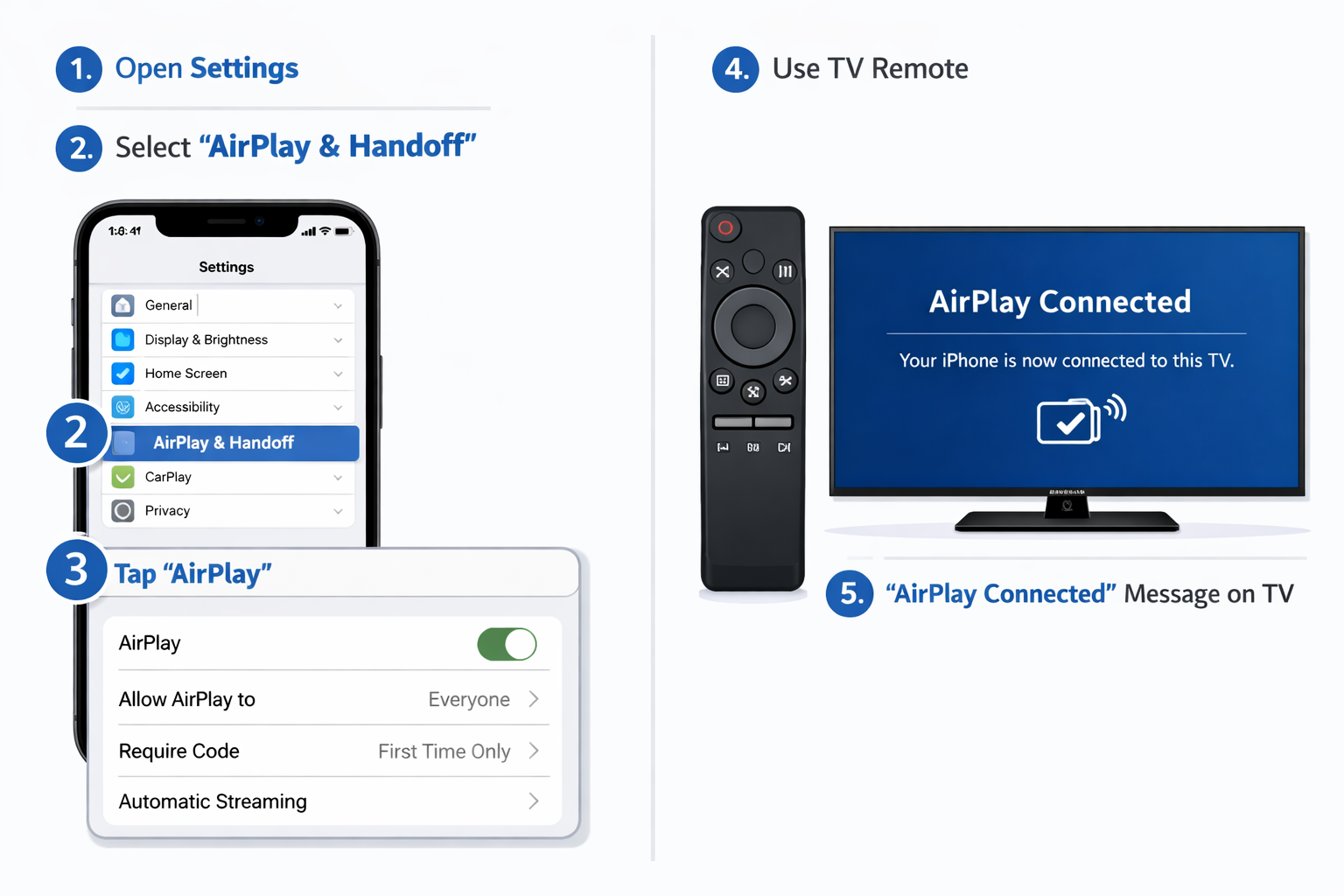
How to Cast iPhone to Samsung TV: Fix AirPlay Issues in 60 Seconds (Step-by-Step)
Here’s the fastest path from a broken connection to a working stream. Follow these steps in order — most people are done by step 4.
Step 1: Confirm Both Devices Are on the Same Wi-Fi Network (10 seconds)
On your iPhone: Settings > Wi-Fi — note the network name.
On your Samsung TV: Settings > General > Network > Network Status — confirm it matches.
If they don’t match, reconnect whichever device is on the wrong network.
Step 2: Enable AirPlay on Your Samsung TV (15 seconds)
- Press the Home button on your Samsung remote.
- Go to Settings > General > Apple AirPlay Settings.
- Make sure AirPlay is set to On.
- Set Require Code to First Time Only for easier future connections.
Step 3: Initiate AirPlay from Your iPhone (10 seconds)
- Swipe down from the top-right corner to open Control Center.
- Tap Screen Mirroring (the rectangle with a triangle icon).
- Select your Samsung TV from the list.
- Enter the 4-digit code shown on the TV if prompted.
Step 4: If It Doesn’t Appear — Quick Reset (25 seconds)
- Toggle your iPhone’s Wi-Fi off and back on.
- Restart the Samsung TV (hold the power button on the remote for 5 seconds, or unplug for 10 seconds).
- Try the Screen Mirroring step again.
That four-step process resolves the problem for most users. For a deeper walkthrough, see our full guide on how to cast iPhone to Samsung TV.
What Are the Most Common AirPlay Errors and How Do I Fix Them?
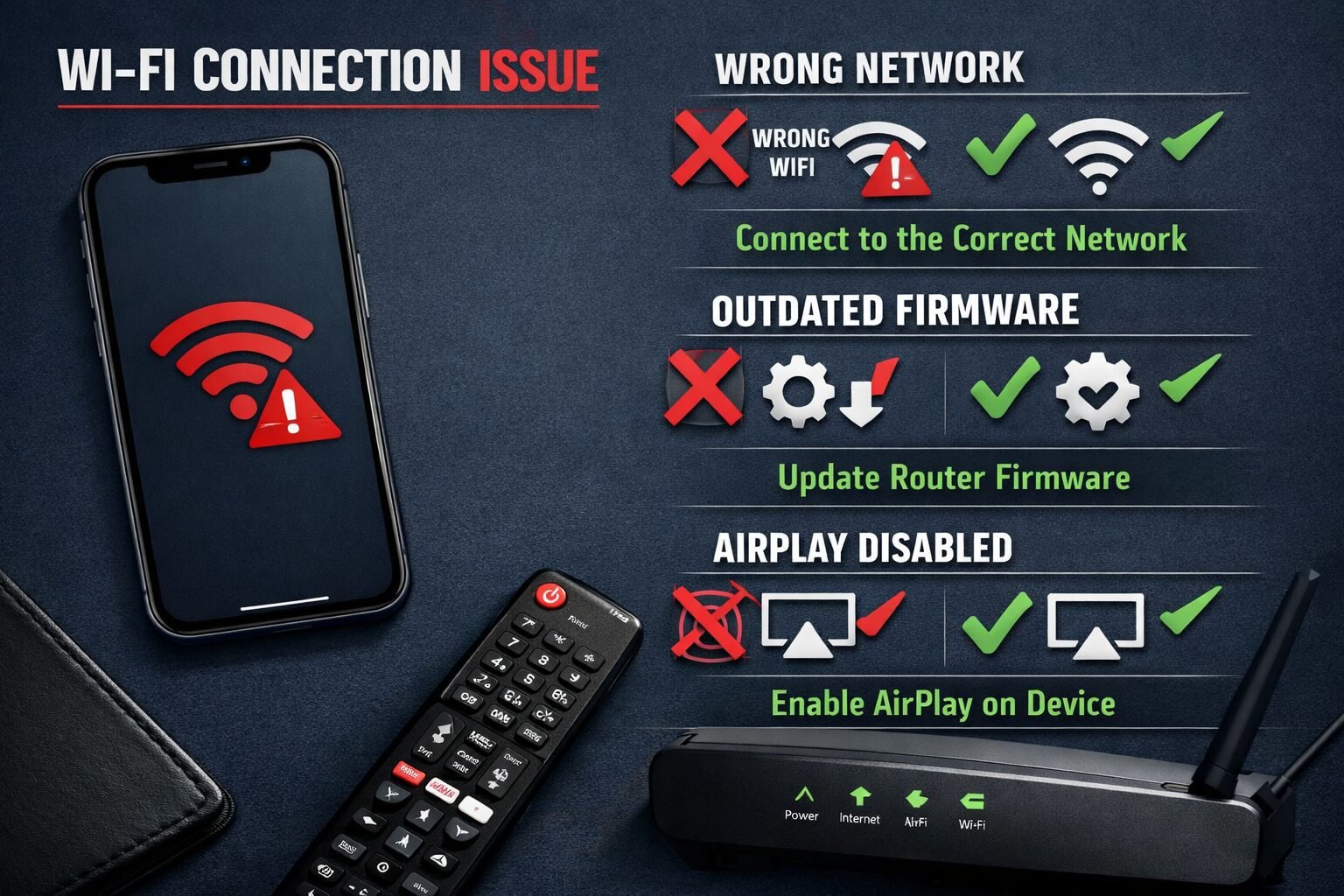
These are the specific errors users run into most often, along with direct fixes.
“AirPlay Not Available” or TV Doesn’t Show in List
Fix: AirPlay is likely disabled on the TV, or the devices are on different networks. Go through Steps 1 and 2 above. Also check that your iPhone’s Personal Hotspot is turned off — it can interfere with local network discovery.
AirPlay Connects but Video Stutters or Drops
Fix: This is almost always a Wi-Fi signal issue. Move the router closer, or switch both devices to the 5 GHz band for faster throughput. Also, check if other devices are hogging bandwidth.
AirPlay Worked Before but Stopped After a Router Restart
Fix: Your TV’s IP address likely changed. Go to Samsung TV Settings > General > Network > Reset Network, then reconnect to Wi-Fi. See our guide on how to reset network settings on your Samsung TV for the exact steps.
AirPlay Code Prompt Never Appears
Fix: The TV may have a cached pairing that’s corrupted. On the TV, go to Apple AirPlay Settings > Reset HomeKit Configuration, then try connecting again from your iPhone.
AirPlay Keeps Disconnecting Mid-Stream
Fix: This often points to a firmware issue. Update your Samsung TV’s software via Settings > Support > Software Update > Update Now. You can also learn how to update your Samsung TV with our step-by-step guide. After updating, test again.
For a comprehensive breakdown of every AirPlay failure scenario, our dedicated Samsung TV AirPlay not working guide covers edge cases in detail.
Does a VPN Block AirPlay on iPhone?
Yes — and this catches a lot of people off guard. VPN apps route your iPhone’s traffic through a remote server, which effectively puts your phone on a different virtual network than your Samsung TV. AirPlay relies on local network discovery (mDNS/Bonjour protocol), which doesn’t work across different network segments.
Fix: Disable your VPN before using AirPlay. Most VPN apps have a simple toggle in their main screen. Once you’re done streaming, you can re-enable it.
Choose this fix if: You recently installed a VPN app and AirPlay suddenly stopped working with no other changes.
How to Use AirPlay on Samsung TV for Specific Content Types
AirPlay isn’t just for screen mirroring. Here’s what you can do and how:
- Mirror your entire iPhone screen: Control Center > Screen Mirroring > [Your TV name]
- Cast a specific video (YouTube, Netflix, etc.): Open the app, tap the AirPlay icon (rectangle with triangle) within the player, select your TV
- Share photos to the TV: Open Photos app, select image, tap Share > AirPlay
- Stream Apple Music: Tap the AirPlay icon in the Now Playing screen, select your TV
For a full breakdown of every AirPlay feature on Samsung TVs, see our guide on how to use AirPlay on Samsung TV.
What Are the Alternatives If AirPlay Still Won’t Work?
If you’ve tried everything above and AirPlay still isn’t cooperating, these alternatives get the job done:
Samsung SmartThings App
Download the SmartThings app on your iPhone, add your Samsung TV, and use the screen mirroring feature. It works over Wi-Fi and doesn’t require AirPlay at all. For more on this method, see our screen mirroring to Samsung TV guide.
HDMI Cable (Lightning or USB-C to HDMI)
A wired connection is 100% reliable and adds zero latency. Use an Apple Lightning Digital AV Adapter or USB-C to HDMI cable, connect to the TV’s HDMI port, and you’re done. No Wi-Fi needed.
Google Home / Chromecast
If you have a Chromecast plugged into your Samsung TV, you can cast supported apps (YouTube, Netflix, Spotify) from your iPhone using the Google Home app or the in-app cast button.
Choose the HDMI cable if: You need a guaranteed connection for a presentation or important event and can’t risk wireless issues.
Cast iPhone to Samsung TV: Fix AirPlay Issues in 60 Seconds — Troubleshooting Checklist
Use this as your go-to reference before trying anything more complex:
- Both iPhone and Samsung TV are on the same Wi-Fi network (not guest vs. main)
- AirPlay is enabled in Samsung TV Settings > General > Apple AirPlay Settings
- VPN is disabled on the iPhone
- Samsung TV firmware is up to date
- iPhone is running iOS 12.3 or later (required for AirPlay 2)
- TV has been restarted in the last 5 minutes
- iPhone Wi-Fi has been toggled off and on
- Personal Hotspot is turned off on the iPhone
- HomeKit configuration has been reset on the TV (if code prompt fails)
If you’ve checked every box and still have issues, visit our Samsung TV help center for additional support options.
FAQ: Cast iPhone to Samsung TV and AirPlay Issues
Q: Does AirPlay work on Samsung TVs without an Apple TV?
Yes. Samsung Smart TVs from 2018 onward have AirPlay 2 built in. You don’t need an Apple TV device.
Q: What iOS version do I need for AirPlay on Samsung TV?
iOS 12.3 or later is required. Most iPhones running iOS 15 or higher will work without issue.
Q: Why does my Samsung TV not show up in the AirPlay list?
The most likely cause is that AirPlay is disabled on the TV, or the iPhone and TV are on different Wi-Fi networks. Check both before anything else.
Q: Can I use AirPlay on a Samsung TV from 2017?
No. AirPlay 2 support starts with 2018 Samsung TV models. For older TVs, use an HDMI cable or a Chromecast/Roku device.
Q: Will AirPlay work on hotel Wi-Fi with my Samsung TV?
Usually not. Hotel networks often use client isolation, which prevents devices from communicating with each other. Use an HDMI cable in this situation.
Q: Does AirPlay drain my iPhone battery faster?
Yes, screen mirroring uses more processing power and Wi-Fi activity, so battery drain is noticeably higher. Plug in your iPhone if you’re streaming for more than 30 minutes.
Q: Can I AirPlay 4K content from my iPhone to Samsung TV?
AirPlay supports up to 4K HDR streaming, but the actual output quality depends on the content source and your TV’s capabilities.
Q: Why does AirPlay keep asking for a code every time?
Go to your Samsung TV’s AirPlay settings and change Require Code from “Every Time” to “First Time Only.”
Q: Can two iPhones AirPlay to the same Samsung TV simultaneously?
No. Only one AirPlay source can connect at a time. The second device would need to disconnect the first.
Q: My AirPlay audio works but video is black — what’s wrong?
This usually happens with DRM-protected content (like some streaming apps). Try casting from within the app using its built-in AirPlay button instead of using Screen Mirroring.
Conclusion
Getting your iPhone to cast to a Samsung TV via AirPlay should take seconds, not hours. The fix almost always comes down to one of three things: the devices aren’t on the same network, AirPlay is disabled on the TV, or the firmware needs an update.
Your action plan:
- Confirm both devices share the same Wi-Fi network.
- Enable AirPlay in Samsung TV Settings > General > Apple AirPlay Settings.
- Disable any VPN on your iPhone.
- Restart both devices if the TV still doesn’t appear.
- Update your Samsung TV’s firmware if problems persist.
If AirPlay continues to fail after all of that, SmartThings screen mirroring or an HDMI cable will get you streaming immediately while you troubleshoot further.
For ongoing Samsung TV issues beyond AirPlay, our Samsung TV help center covers everything from Wi-Fi connectivity problems to app-specific errors — all in one place.
References
- Apple Support. (2019). Use AirPlay to stream video or mirror your device’s screen. https://support.apple.com/en-us/HT204289
- Samsung Electronics. (2021). How to use Apple AirPlay 2 on your Samsung TV. https://www.samsung.com/us/support/answer/ANS00082456/
- Apple Developer Documentation. (2020). Bonjour Overview. https://developer.apple.com/library/archive/documentation/Cocoa/Conceptual/NetServices/Introduction.html
Meta Title: Cast iPhone to Samsung TV: Fix AirPlay in 60 Seconds
Meta Description: AirPlay not working on your Samsung TV? Fix it in 60 seconds with these proven steps — same Wi-Fi, enable AirPlay, update firmware, and you’re streaming.
Tags: AirPlay Samsung TV, cast iPhone to Samsung TV, AirPlay not working, Samsung TV screen mirroring, iPhone to TV casting, AirPlay troubleshooting, Samsung Smart TV AirPlay, AirPlay 2 Samsung, screen mirroring iPhone, Samsung TV Wi-Fi issues


