Samsung TV Apps Not Working? 9 Fixes That Actually Work (2026)


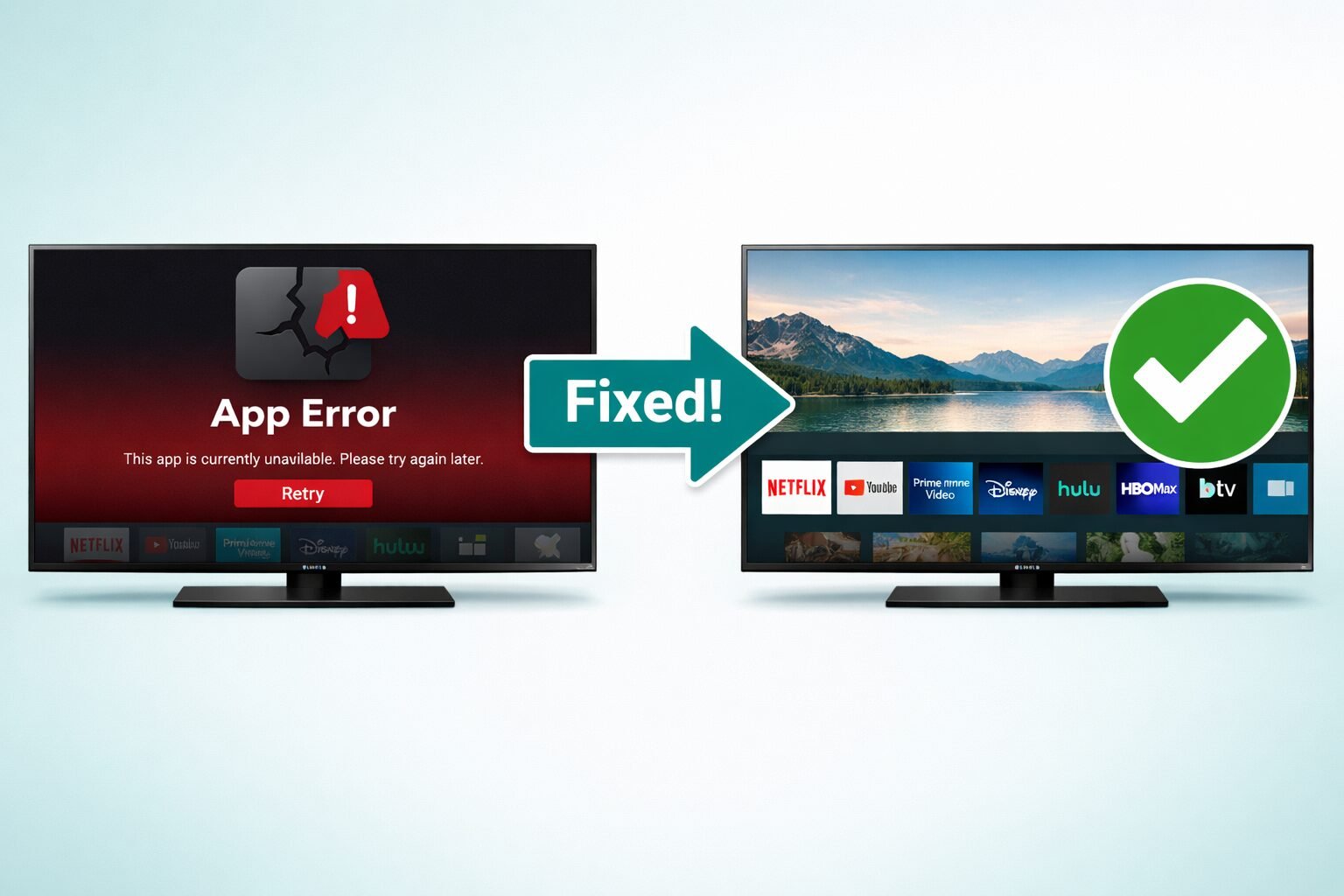
Quick Answer: When Samsung TV apps stop working, the most effective fixes are a soft reset (power cycle), clearing app cache, updating the firmware, and checking your Wi-Fi connection. Most app issues on Samsung smart TVs resolve within 5–10 minutes using one of these steps — no technician required.
Key Takeaways
- Power cycling (unplugging for 60 seconds) fixes the majority of app crashes and freezes.
- Clearing app cache resolves slow or unresponsive apps without deleting your login data.
- Outdated firmware is a leading cause of app failures on Samsung TVs in 2026 — always update first.
- Wi-Fi signal issues cause apps to buffer, crash, or refuse to load, even when the TV shows “connected.”
- Reinstalling an app is the right move when it crashes consistently after a cache clear.
- Date and time settings being wrong can block apps from authenticating — a commonly overlooked cause.
- Factory reset is a last resort and should only be used after all other fixes fail.
- Specific apps like Netflix, YouTube, and Prime Video have their own known quirks — check app-specific guides if one app keeps failing.
- Samsung TVs made before 2018 may no longer support certain apps due to Tizen OS version limits.
Why Are Samsung TV Apps Not Working in the First Place?
Samsung TV apps fail for several distinct reasons, and knowing which one applies to your situation saves a lot of time. The most common causes fall into four categories: software glitches, network problems, outdated firmware, and storage/memory issues.
Here’s a quick breakdown:
| Root Cause | How Common | Typical Symptom |
|---|---|---|
| Temporary software glitch | Very common | App crashes, freezes, or won’t open |
| Weak or dropped Wi-Fi | Common | Buffering, “not connected” errors |
| Outdated firmware/app | Common | App won’t load or shows error codes |
| Full cache/storage | Moderate | Slow performance, app crashes |
| Incorrect date/time | Less common | Authentication failures, login loops |
| Unsupported TV model | Less common | App missing or permanently broken |
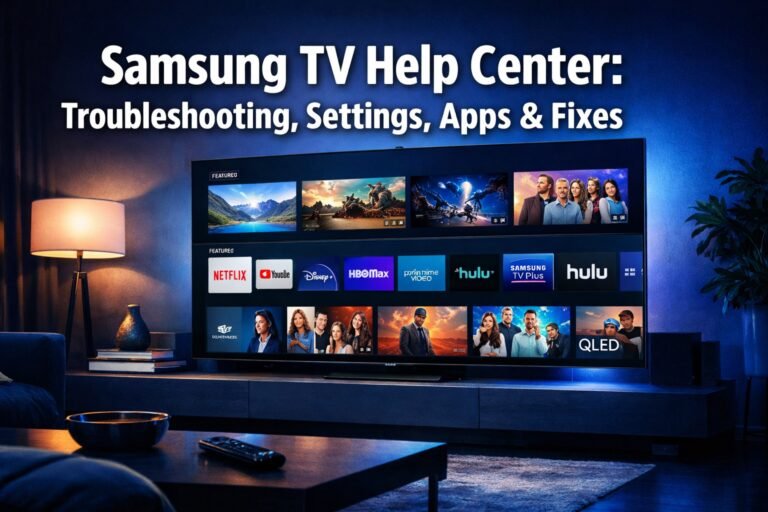
For a broader overview of Samsung TV troubleshooting, the Samsung TV help center covers most hardware and software issues in one place.
Fix 1: Power Cycle Your Samsung TV (Start Here)
A full power cycle clears temporary memory faults that cause most app crashes. This is different from just pressing the power button on your remote — it fully drains residual power from the TV’s processor.
Steps:
- Turn off the TV using the remote or power button.
- Unplug the TV from the wall outlet (not just the power strip).
- Wait a full 60 seconds — not 10, not 30.
- Plug it back in and turn it on.
- Try the app again.
Why this works: Samsung smart TVs run on the Tizen OS, which keeps background processes in memory. A cold restart clears those processes and gives apps a clean slate to launch from.
Common mistake: People skip the 60-second wait. The TV needs time to fully discharge its capacitors and reset internal memory.
Fix 2: Check and Reset Your Wi-Fi Connection
Apps need a stable internet connection to load, authenticate, and stream — even a technically “connected” Wi-Fi signal can be too weak to run apps properly.
Signs your Wi-Fi is the problem:
- Apps load partially then freeze
- You see “network error” or “connection failed” messages
- Only streaming apps fail, not locally stored content
What to do:
- Go to Settings > General > Network > Network Status to check signal strength.
- If signal is weak, move your router closer or use a Wi-Fi extender.
- Try Settings > General > Network > Reset Network to clear saved network data.
- Restart your router and modem (unplug for 30 seconds).
- If possible, test with a wired ethernet connection to isolate the issue.
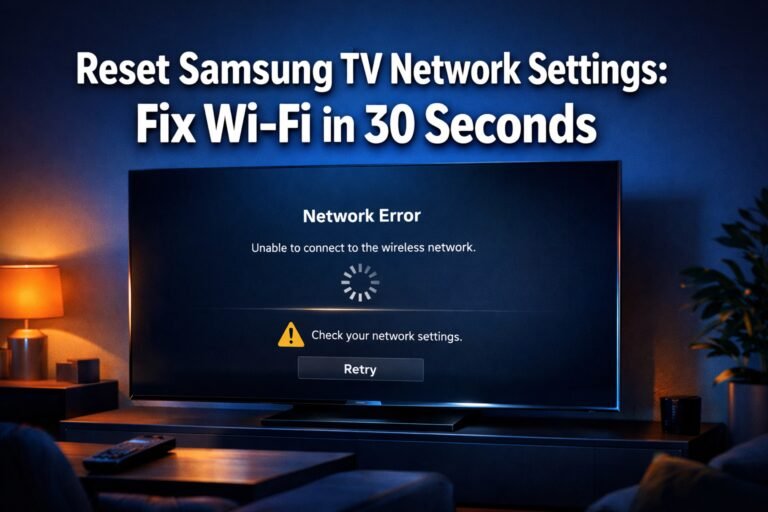
For a detailed walkthrough, see our guide on how to reset network settings on your Samsung TV. If your TV keeps dropping its connection repeatedly, the Samsung TV keeps disconnecting from Wi-Fi guide addresses that specific problem.
Fix 3: Update Your Samsung TV Firmware
Outdated firmware is one of the most overlooked causes of app failures. Samsung regularly pushes updates that fix app compatibility bugs, security patches, and streaming protocol issues.
How to update:
- Press Home on your remote.
- Go to Settings > Support > Software Update > Update Now.
- If an update is available, install it and let the TV restart.
- If “Update Now” is greyed out, your TV may already be current — or check your internet connection first.
You can also enable Auto Update so this never becomes an issue again: Settings > Support > Software Update > Auto Update > On.
For step-by-step screenshots and version-specific notes, check the full how to update your Samsung TV guide. If a firmware update fails mid-process, the Samsung TV firmware update failed page has targeted fixes.
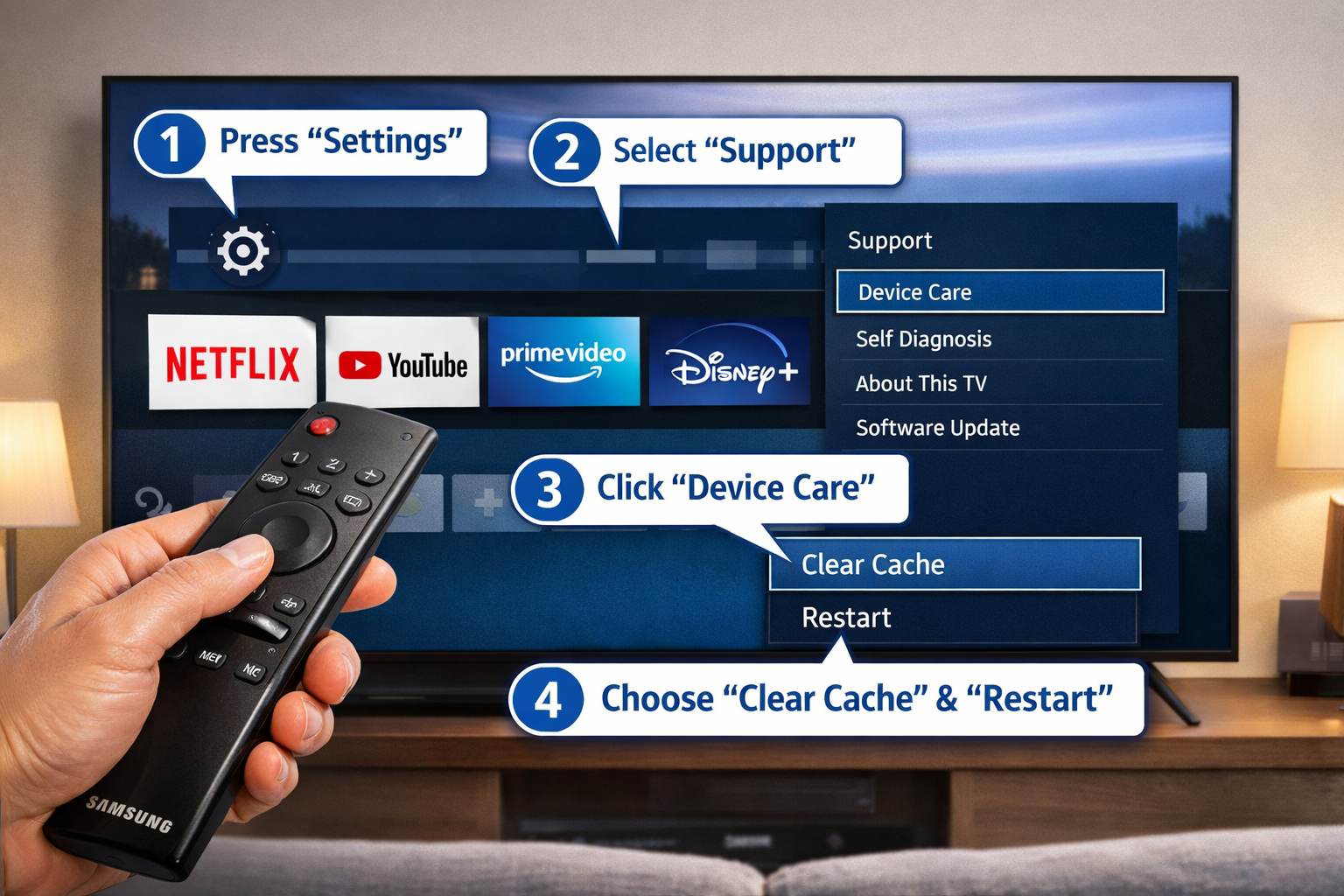
Fix 4: Clear the App Cache
Clearing an app’s cache removes corrupted temporary files without deleting your account or settings. This is the right first step when one specific app keeps crashing while others work fine.
Steps (for most Samsung TVs running Tizen OS):
- Go to Settings > Apps.
- Select the problem app (e.g., Netflix, YouTube, Prime Video).
- Choose Clear Cache, then confirm.
- Restart the app.
If clearing cache doesn’t help, try Clear Data — this resets the app fully, including login credentials, so you’ll need to sign back in.
For a complete walkthrough, see how to clear cache on Samsung TV.
Edge case: On some older Samsung TV models (2016–2018), the cache clear option may not appear under individual apps. In that case, proceed to Fix 5 (reinstall the app).
Fix 5: Reinstall the Problem App
If clearing cache doesn’t solve the issue, reinstalling the app replaces potentially corrupted installation files entirely.
Steps:
- From the Home screen, highlight the app.
- Press and hold the Enter/Select button until a menu appears.
- Select Remove or Delete.
- Go to the Samsung App Store, search for the app, and reinstall it.
- Sign back in with your account credentials.
This fix works especially well for apps that crash immediately on launch or show persistent error codes. For app-specific issues, we have dedicated guides for Samsung TV Netflix not working, YouTube not working, Prime Video not working, and Disney+ not working.
Fix 6: Check Date and Time Settings
Incorrect date and time settings prevent apps from completing authentication handshakes with their servers, causing login failures and “unable to connect” errors.
This fix sounds minor, but it’s surprisingly effective — especially after a power outage or factory reset.
How to fix:
- Go to Settings > General > System Manager > Time.
- Set Clock Mode to Auto so the TV syncs with network time servers.
- Confirm the correct time zone is selected.
- Restart the TV and try the app again.
Choose this fix if: Your apps were working fine, then stopped after a power outage, or if you see authentication/login errors specifically.
Fix 7: Free Up Samsung TV Storage
When your Samsung TV’s internal storage is nearly full, apps can’t write temporary files and will crash or refuse to open.
Samsung TVs have limited internal storage (typically 4–8 GB depending on the model). Streaming apps, cached data, and downloaded content all compete for that space.
How to check storage:
- Go to Settings > Support > Device Care > Manage Storage (path varies slightly by model year).
How to free up space:
- Delete apps you no longer use.
- Clear cache for multiple apps at once via Device Care.
- Remove any downloaded content stored locally.
If your TV is consistently running low on storage, the Samsung TV storage full guide covers long-term solutions.
Fix 8: Disable VPN or Proxy Settings
A VPN or proxy active on your network can block streaming apps from verifying your region or connecting to their servers, causing apps to crash or show “not available in your region” errors.
If you use a VPN router or have manually configured proxy settings on the TV:
- Go to Settings > General > Network > Network Status > IP Settings.
- Make sure Proxy is set to Off.
- If using a VPN through your router, temporarily disable it and test the apps.
Note: Some streaming services (Netflix, Disney+, Hulu) actively block known VPN IP addresses. If the app works after disabling the VPN, the VPN is the cause.
Fix 9: Factory Reset Your Samsung TV
A factory reset wipes all settings, apps, and data on the TV and returns it to its out-of-box state. Use this only after all other fixes have failed, since you’ll need to reconfigure everything from scratch.
Steps:
- Go to Settings > General > Reset.
- Enter your PIN (default is 0000 if you haven’t changed it).
- Confirm the reset and wait for the TV to restart.
- Complete the initial setup, reconnect to Wi-Fi, and reinstall your apps.
For a full guide on the process and what to expect, see how to reset your Samsung TV.
Before you factory reset: Make sure you’ve tried fixes 1–8 first. A factory reset takes 20–30 minutes to complete and reconfigure, and it doesn’t always fix hardware-related issues.
When None of the 9 Fixes Work: What to Check Next
If you’ve worked through all nine fixes and Samsung TV apps are still not working, the issue may be outside the TV itself.
Check these before contacting Samsung support:
- Service outage: The streaming service itself may be down. Check Downdetector for real-time outage reports for Netflix, YouTube, or whichever app is failing.
- TV model age: Samsung TVs manufactured before 2016 may no longer be supported by major streaming apps. Check with Samsung’s support page to confirm your model’s app compatibility.
- Samsung account issues: Some apps require an active Samsung account. Go to Settings > General > System Manager > Samsung Account to verify your account status.
- ISP throttling: Your internet provider may be throttling streaming traffic. Test your connection speed directly on the TV via Settings > Support > Device Care > Check Now.
For persistent issues with specific apps, we have dedicated troubleshooting guides for Hulu, Paramount+, HBO Max, and Peacock.
FAQ: Samsung TV Apps Not Working
Q: Why do my Samsung TV apps keep crashing after the latest update?
A firmware or app update can introduce new bugs. Clear the affected app’s cache first, then reinstall it. If multiple apps crash after a firmware update, check Samsung’s support forums for known issues with that specific firmware version.
Q: How do I fix a Samsung TV app that’s stuck on a loading screen?
Power cycle the TV, then clear the app’s cache. If it’s still stuck, reinstall the app. A persistent loading screen usually points to corrupted cache files or a weak Wi-Fi signal.
Q: Can I add apps to my Samsung TV that aren’t in the Samsung App Store?
Yes, on some models. See our guide on how to install third-party apps on Samsung TV for the full process and compatibility requirements.
Q: Why is only one app not working while all others are fine?
That specific app likely has corrupted cache data or a server-side issue. Clear its cache, reinstall it, and check if the service is experiencing an outage.
Q: Does factory resetting a Samsung TV delete purchased apps?
It removes all installed apps from the TV, but any apps you purchased through the Samsung App Store remain tied to your Samsung account and can be redownloaded for free.
Q: How do I know if my Samsung TV model is too old to run certain apps?
Check Samsung’s official app compatibility page or use the Samsung TV serial number lookup tool to identify your model and its supported OS version.
Q: Why do my apps work fine but run slowly?
Low storage or an overloaded processor is usually the cause. Clear cache across all apps via Device Care and delete unused apps. Also see how to fix Samsung TV slow performance.
Q: My Samsung TV says “Not enough storage” when opening an app — what do I do?
Go to Settings > Support > Device Care > Manage Storage and delete unused apps or clear cached data. The Samsung TV storage full guide has more options.
Conclusion
Most Samsung TV app problems in 2026 come down to a handful of fixable causes: temporary memory glitches, weak Wi-Fi, outdated software, or a full cache. Working through the nine fixes in order — starting with a power cycle and ending with a factory reset only if necessary — resolves the vast majority of issues without any technical expertise.
Your action plan:
- Start with a 60-second power cycle.
- Check your Wi-Fi signal and run a firmware update.
- Clear the cache for the specific app giving you trouble.
- If one app keeps failing, reinstall it.
- Only factory reset as a last resort.
If you’re still stuck after trying everything here, the Samsung TV help center is the best place to find model-specific guidance and contact Samsung support directly.
References
- Samsung Electronics. Tizen OS Smart TV Support Documentation. Samsung.com. (2023)
- Samsung Developer Portal. Smart TV App Development and Compatibility Guidelines. developer.samsung.com. (2022)
- Downdetector. Real-time service outage tracking. downdetector.com. (2024)
Tags: Samsung TV apps not working, Samsung smart TV troubleshooting, fix Samsung TV apps, Samsung TV app crash, clear cache Samsung TV, Samsung TV firmware update, Samsung TV reset, Tizen OS apps, streaming app fix Samsung TV, Samsung TV Wi-Fi fix